Category Archives: practical solutions

How to Fix a Blank Amazon Fire TV Yellow Screen or Black Screen

Are you seeing a blank yellow or black screen on your tv while watching via an Amazon Fire TV Stick? This very problem happened to me while watching Netflix on my Firestick. Luckily I found a fix for the Amazon Fire TV Blank Screen dilemma – the solution worked for me and I wanted to share it with you.

Before the problem, my Amazon Fire TV was working just fine…

This is normal

I was watching a Netflix show and then suddenly the screen went completely yellow and looked like this…

Amazon Fire TV Yellow Screen
This is NOT good

Is it a TV, HDMI, or an Amazon Problem?

When the Amazon Fire TV Yellow Screen problem first happened, I thought maybe the issue was with my Samsung TV or the HDMI cable.

  • First I checked the other ‘source/inputs’ on the tv and since they were working fine I figured it wasn’t a tv problem.
  • Then I checked the HDMI cable and inputs on both ends and that too seemed fine.
  • It was during the process of checking both the tv source/inputs and the hdmi cable that I discovered that the problem was related to the Amazon Fire TV itself.

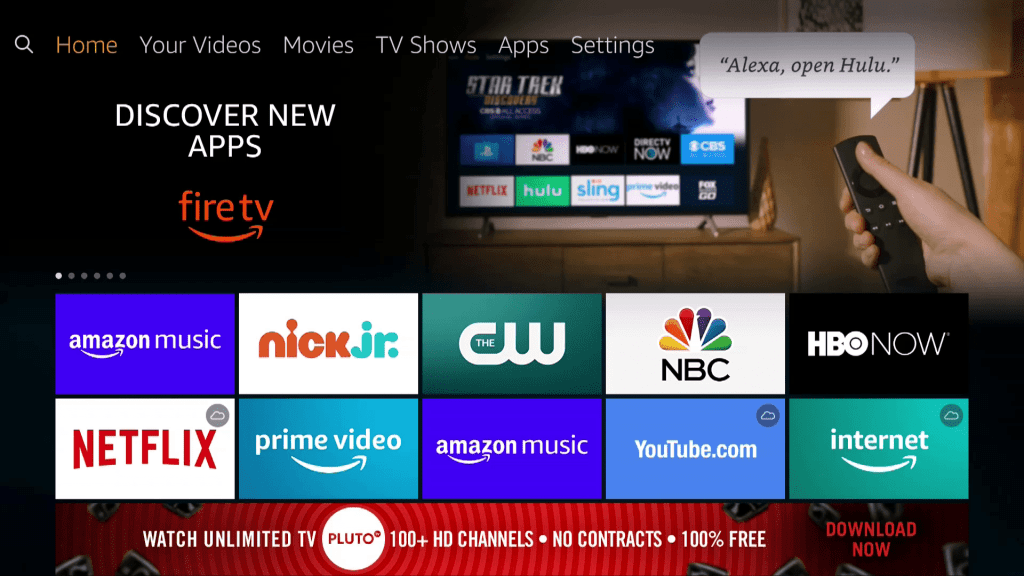
Here’s how I learned it was an Amazon Fire TV issue – when I unplugged and replugged the Fire TV Stick into the tv’s HDMI port I noticed that the Amazon Fire TV Home Page came up briefly and then a few seconds later the screen went completely yellow. I repeated the test and the same thing happened.

Now that I knew it was an Amazon Fire TV issue I went online to search for answers. Luckily I found one!


Amazon Fire TV Yellow Screen or Black Screen Fix

Apparently the Amazon Fire TV Blank Yellow or Black Screen is related to screen resolution settings that manage the resolution “communication” between the Amazon Fire TV and the TV itself. For whatever reason that communication got interrupted and needed to be reset. The fix for that is easy to do but not something you’d likely figure out on your own.

Under normal circumstances, when there is a problem with the Amazon Fire TV, the fallback fix is to simply ‘reset’ the Fire TV from the Settings Menu. Unfortunately you can NOT get to the Settings menu when your entire screen is yellow!

So how do you fix it?

Luckily there is a hidden solution you can do with your Amazon Fire TV Remote…

Press and hold the ‘up’ & ‘rewind’ buttons in your Amazon Fire TV Stick remote for 5 seconds

Here’s where the buttons are…

Amazon Fire TV Stick Up and Rewind Buttons
Press Up and Rewind buttons at the same time for 5 seconds

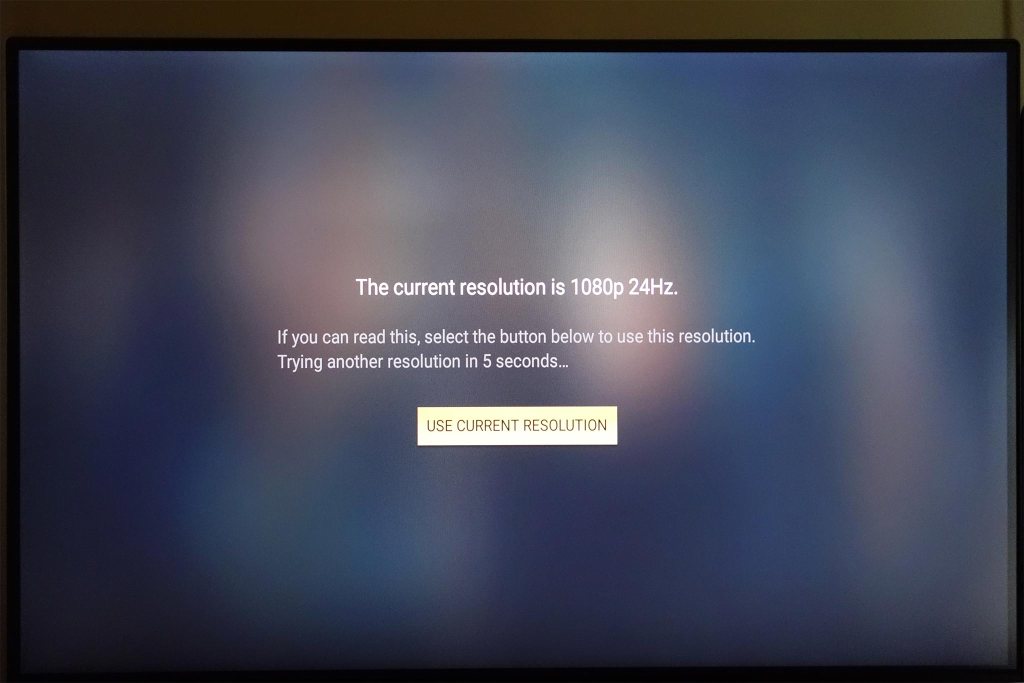
When you press the Up and Rewind buttons on the Amazon Fire TV Stick for 5 seconds you will trigger a reset of resolution ‘communication’ between the Fire TV and your TV. You’ll know it happens when you get a screen like this…

Amazon Fire TV Yellow Screen Fix

And that my friends is the fix for the dreaded Amazon Fire TV Yellow Screen. It worked for me and I suggest you give it a try too if you are facing this issue.


Amazon Fire TV Blank Screen Fix References.

I didn’t discover this fix on my own and instead found it on the internet. Here are the helpful sites I learned it from…


What to Read Next

Buffalo Chicken Wing Recipe – How to Make Crispy, Juicy Hot Wings Full of Flavor!

This weekend I made my dad’s world-famous Buffalo Chicken Wing Recipe again – and man was it good! If you like Buffalo Wings that are crispy, juicy, and full of flavor, you’ll want to try this Buffalo Wing recipe for yourself – it’s got a secret ingredient that adds so much flavor you’ll wonder why you didn’t think of using it before.

I’m cooked my Buffalo wings in an Ooni Pizza Oven for a wood-fired effect but u can make this buffalo chicken wing recipe on any grill or oven. Best of all this Buffalo Chicken Wing Recipe is EASY to make, easy to customize to your tastes, and so much fun to eat!

Give it a try & let me know what tips YOU have to share.

Buffalo Chicken Wing Recipe – The Video

SKIP AHEAD in the video with these timestamps:

  • 00:38 Kamado & Ooni Pizza Oven views
  • 01:10 Fuel Source (lump charcoal + cooking wood)
  • 01:20 Wings in Marinade
  • 01:50 Getting the Ooni Oven up to temp (watch the temp gauge climb!) 02:20 FIRE – it’s a beautiful thing!
  • 02:35 Wings are ready to cook WITHOUT sauce
  • 03:30 Buffalo Sauce Recipe Ingredients. Discussion on Hot Sauce to Butter Ratio
  • 06:40 Buffalo Sauce Mixed (see below for recipe itself)
  • 07:10 Wings at 10 Minutes
  • 07:30 Wings at 20 Minutes
  • 07:38 Wings IN SAUCE
  • 07:55 Sauced Wings ready to CRISP
  • 08:09: Wings back in oven to CRISP
  • 08:37 Wings DONE
  • 09:00 Let’s Eat!
  • 10:00 Bonus: The Drippins!
  • Share this vid: https://youtu.be/N1mR_M31MB8

Buffalo Chicken Wing Recipe – Step by Step

I have the full text version of the Buffalo Chicken Wing Recipe – including a step-by-step – on my grilling website called LordoftheGrills.com. Here’s a link you can use to go to that page…

Buffalo Chicken Wing Recipe
Click this pic for the text version of the recipe.

About the Products used:

Because of the Coronavirus pandemic, chicken wings are in short supply so I could only find I Costco Party wings – normally I’d cook the whole wing with all 3 sections (drumstick, wing, and tips).

Here are the other products I cooked with if you are interested…


Did You Know?

If you enjoy reading That Helpful Dad’s articles, you may also like…


What to Read Next…

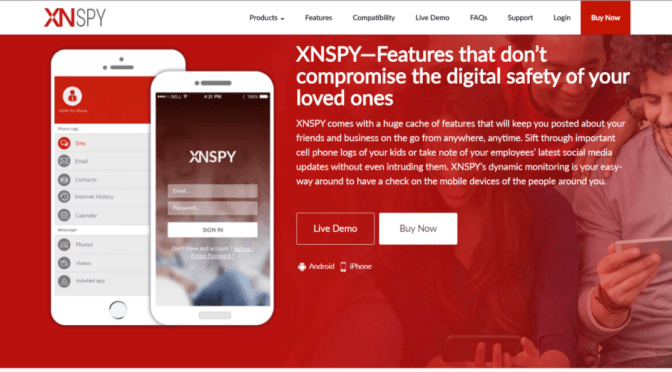
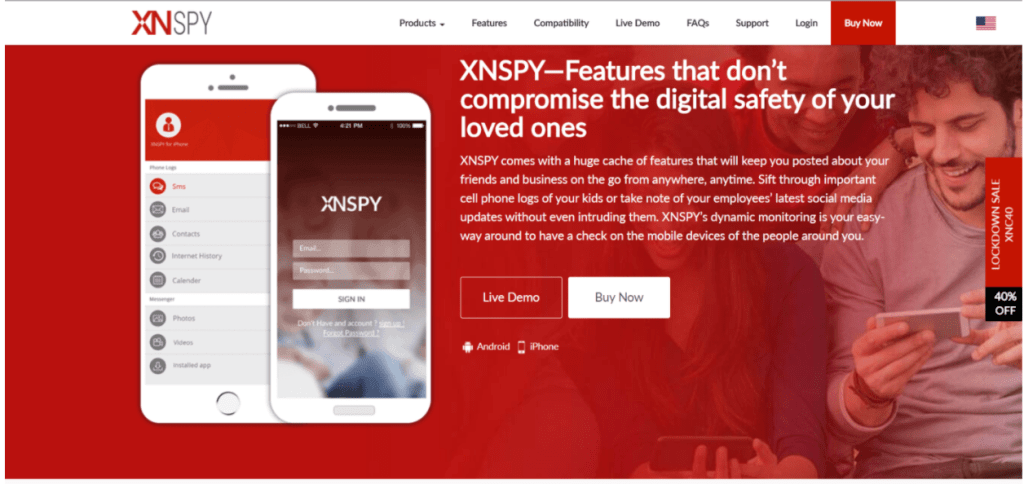
What’s the Best Child Monitoring App? Check out XNSPY

Are you a parent confused about whether a mobile monitoring app can help your keep your child safe? You must have read about how mobile phone use has increased among children and teenagers. You probably feel worried about dangers like cyberbullying, access to inappropriate content, or online scams that children are exposed to. Are you considering using a mobile monitoring app? Don’t worry; you have come to the right place! In this article, we will review
one of the best child monitoring apps for 2020 called XNSPY. We’ll answer all your questions and also identify the most important features of the app.

Best Child Monitoring App

About the Author

Alex Miller

ThatHelpfulDad.com is pleased to feature the work of Alex Miller in this guest post. Here’s a bit more about Alex…

“I am a tech enthusiast, programmer and a sci-fi fan. I enjoy reviewing and researching new, innovative software that adds value to human life. I love writing about latest technology and trends, and have made this a full-time job.”


What is XNSPY?

XNSPY mobile monitoring app is used by parents all over the world to keep track of their child’s digital activities. It offers important features that can prevent incidents of cyberbullying, scams, or other similar dangers. 

Let’s review some of the reasons why we think XNSPY is the best child monitoring app…

Features that make XNSPY the Best Child Monitoring App

  •   Telecommunications Tracking: XNSPY can monitor all calls made to and from the device. This information is detailed in a call log that lists all incoming, outgoing, and missed calls, along with their date, time, and duration. You can also record calls and listen at your convenience. However, there is no live-call intercept feature available with the app. Similarly, XNSPY can monitor all exchanged texts too. 
  • GPS Tracking: You can use the GPS tracking feature to monitor your child’s location in real-time. The app also offers a geofencing feature. Just mark a specific location on the map to geofence it. XNSPY will alert you if the fence is violated. This is a useful feature if you want to prevent your child from accessing inappropriate locations such as bars or clubs. It can also give you peace of mind to know that your child is at a safe place such as at school.
  • IM, Text, and Social Media Monitoring: Most children and teenagers rely heavily on instant messaging, text, and social media apps for communication and socializing. Incidents of cyberbullying also occur on these platforms. You can use the IM, text, & social media monitoring feature to track apps such as Facebook Messenger, WhatsApp, Viber, Skype, Tinder, and others. 
  • Multimedia Access: You can use this function to view and download all multimedia files saved on your child’s phone. This includes all photos, videos, and audio files. It is a useful feature to identify if your child is consuming inappropriate content.
XNSPY Child Monitoring App
XNSPY Online Activity Monitoring
  • Online Activity Monitoring: XNSPY mobile monitoring app tracks all web-based activities such as bookmarked pages, complete web browsing history, and all exchanged emails. However, you would have to purchase a separate content filtering app as XNSPY does not offer such a system.  
Child Monitoring Apps
Control Your Child’s Phone Apps
  • Phone Remote Control: You can use the app to remotely control your child’s phone. Some features in this department are a bit on the intrusive side, such as microphone recording and screenshots. However, other features are quite useful. For example, you can remotely view all installed apps and block those you feel are unsuitable or inappropriately used. Similarly, you can view all saved contacts, lock the device, restart it, and delete all saved data in case of theft. The app management and screen-time management features are particularly handy if you are looking to prevent addictive behaviors. 
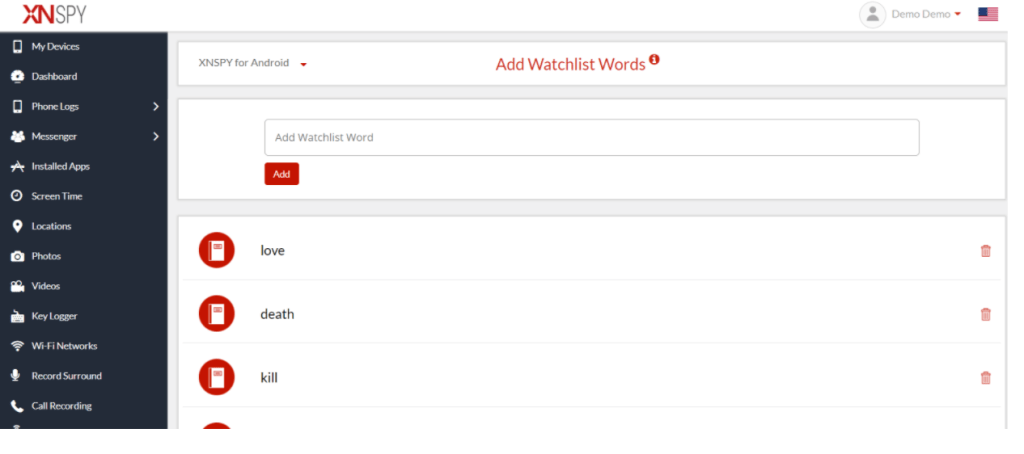
  • Watch List Word Alerts: The watch list alert feature is among the most valuable features provided by the XNSPY mobile monitoring app. You can add any word, contact number, or a location to the app’s watch list and XNSPY will immediately notify of any relevant activities. For example, you can add words related to pornography to the list. The app will watch out for those terms and if they are mentioned in any text message or typed into a search engine, XNSPY will quickly send you an alert. Unlike with other monitoring apps, you do not need to track phone data at all times. XNSPY will provide the right information at the right time. This way, you can intervene in a timely fashion.
Child Monitor App Watchlist Words
Use Watchlist Words for Monitoring
  • XNSPY Additional Functions: Other features available with the app include a keylogger that creates a record of all keystrokes, calendar access, and an analytics report that lists important information. This includes details such as top callers, most-visited websites, and other data.

Sounds good! How much does XNSPY cost?

There are two versions of the XNSPY app available for subscription. The basic version costs USD 4.99 per month but doesn’t offer all features. On the other hand, the premium version costs USD 7.49 a month but offers all available features. We suggest you opt for the premium version as the price difference between the two is marginal.

XNSPY Costs
XNSPY Plan Options

Is it compatible with my phone?

XNSPY mobile monitoring app is compatible with all Android versions above 4.0 and supports all iOS versions above 6.0. Most mobile phones currently in use are running on one of the aforementioned versions, so compatibility should not be a problem.

Let’s explore some of the important features of XNSPY and identify its usefulness.

How do I install and use the app?

While the installation process is different for both Android and iOS. Let’s go through this step by step on how to install XNSPY on both operating systems.

XNSPY For Android

  • Step 1: Head over to the XNSPY website and select a suitable subscription package. Make the payment and then check your email inbox.
  • Step 2: The email will contain a download URL, your XNSPY login credentials, and instructions on how to install the app. 
  • Step 3: You only need physical access to the phone once, so you can install the app. You’ll download Xnspy using a download URL emailed to you. It should not take more than a couple of minutes. XNSPY is completely hidden after that point.
  • Step 4: Wait for 24–48 hours so the app can begin transferring data from the phone. 
  • Step 5: Log in to your XNSPY account on the app’s website and select the relevant Android phone in the “My Devices” tab on the top left corner.
  • Step 6: You can access all the data and device control options via the menu bar on the left. All monitoring is remote. You can log in to your account from any web browser, anywhere in the world.

XNSPY For iPhone

  • Step 1: Visit the XNSPY website and make the payment on your chosen subscription package.
  • Step 2: Wait for an email that contains instructions on how to install the app, along with your unique log in details.
  • Step 3: You do not need to physically access the iPhone to install XNSPY. However, you need to have the Apple ID details of the phone you wish to monitor.
  • Step 4: Make sure that the iCloud backup feature is set to “on” for the device. You can do so in phone settings.
  • Step 5: Log in to your XNSPY account and select the relevant iPhone from the “My Devices” tab.
  • Step 6: Enter the Apple ID details and wait for verification.
  • Step 7: You can now access all data and use device control options through the tab on the left.


XNSPY Additional Considerations

Okay, I get it; but are there any pros & cons I need to consider?

Yes. Like all other services, XNSPY mobile monitoring app also has some advantages and disadvantages. Let’s take a quick look at some pros and cons.

Pros

  • XNSPY is among the most affordable monitoring apps currently available on the market.
  • The watch list alert feature is particularly unique and available with other services.
  • The app enjoys a solid reputation owing to its quality customer support.

Cons

  • Features such as microphone recording or screenshots are quite intrusive.
  • There is no content filtering service.
  • You may have to root or jailbreak the device if you want to use some specific features.

What’s the Verdict

XNSPY is a sophisticated monitoring app that offers a good combination of functions. The app has its drawbacks, such as a lack of content filtering systems. Considering that many such apps are free of cost, this limitation should not be a problem. At any rate, the app more than makes up for it with unique features such as watch list alerts, along with a very affordable price tag.

These characteristics make XNSPY the best child monitoring app for 2020.

XNSPY Specs

XNSPYAvailability
PriceUSD 4.99 per month or USD 7.49 per month.
CompatibilityAll Android versions +4.0 and iOS versions +6.0.
Live customer supportAvailable
Call logsYes
Call recordingYes
SMS & MMSYes
GPS trackingYes
Live call recordingNo
GeofencingYes
Web browsing historyYes
EmailsYes
IM appsYes. Please visit the website for more details.
Social media appsYes. Please visit the website for more details.
Content filteringNo
PhotosYes
VideosYes
AudioYes
Microphone recordingYes
ScreenshotsYes
App managementYes
Screen-time managementYes
Remote camera No
KeyloggerYes
Watch list alertsAvailable for specified words, phrases, contacts, and locations.
RootingOnly required for some features. Please visit the website for more details.
JailbreakOnly required for some features. Please visit the website for more details.

What to Read Next

Best Streaming TV Services 2020 | Honest Reviews, In-depth Comparisons, & Helpful Advice

You want to learn how to watch tv online so you can cut the cord and get rid of cable tv, but you’re confused by all the options? I can help — in this video review from my YouTube Channel, I’ll give you HONEST reviews and Helpful Tips for all of the following: ATT TV Now, FuboTV, Hulu with Live TV, Philo, PlutoTV, Sling TV, Vidgo, & YouTube TV. PLUS we’ll talk about HD Antennas, LOCAST, Amazon Prime Video, Netflix and the Roku Channel.


Hi, I’m Mike, That Helpful Dad. I’m just an Average Joe who ditched cable a couple years ago and moved to watching TV online. I’ve learned a lot along the way and my reviews and tips may help YOU learn how to stream tv online and save a lot of money. Enjoy!


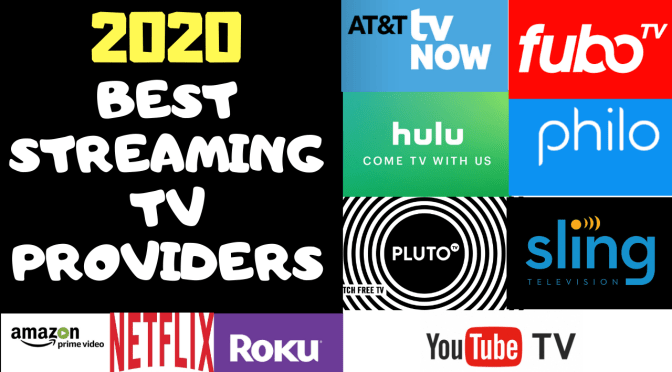
Best Streaming TV Providers for 2020

Video Table of Contents

(Skip Ahead in the vid using these time markers)

If you enjoyed this vid…


Best Streaming Providers 2020 – My Ranks

This is just one man’s opinion, but as it stands now, here are my current rankings for the best TV Streaming Services based on various factors.

If you care (or don’t care) about Live+Local TV, then I rank the best streaming tv providers as follows…

If LOCAL Channels DO Matter

  1. YouTube TV
  2. Hulu Plus Live TV
  3. ATT TV Now (but highest cost)
  4. Fubo TV
  5. Sling TV
  6. Vidgo
  7. Pluto TV
  8. Philo TV

If Local Channels do NOT Matter

  1. Pluto TV (so much content, all free)
  2. Sling TV
  3. Philo TV
  4. YouTube TV
  5. Hulu Plus Live TV
  6. ATT TV Now
  7. Fubo TV
  8. Vidgo

If you care (or don’t care) about Price, then I rank the best streaming tv providers as follows…

If you DO care about Price

  1. Pluto TV (100% Free)
  2. Philo TV
  3. Sling TV
  4. YouTube TV
  5. Vidgo TV
  6. Hulu Plus Live TV
  7. ATT TV Now
  8. Fubo TV

If you do NOT care about Price

  1. ATT TV now (most flexibility + Locals too)
  2. Sling TV (also very flexible, but limited locals)
  3. YouTube TV
  4. Fubo TV
  5. Hulu Plus Live TV
  6. Pluto TV (so much content)
  7. Philo TV
  8. Vidgo TV

Need More Help Cutting the Cord?

Visit my home page for more cord cutting tips. All subscribers to my free email list can get a FREE 35+ page Step-by-Step Guide on How to Watch TV Online and get rid of your high cable tv bills.


Did You Know?

If you enjoy reading That Helpful Dad’s articles, you may also like…

Best Streaming TV Provider Sling, Hulu, YouTube TV, ATT TV Now, Fubo, Philo, Pluto

Which Streaming TV Provider is the best? We compare AT&T TV Now, Fubo TV, Hulu with Live TV, Philo TV, Pluto TV, Sling TV, YouTube TV, Amazon, & Netflix.

UPDATE: since this article was published there have been changes in the streaming tv app world so we have recorded a new video – you can watch the NEW VIDEO here or continue reading this article (the info is still valuable but may not be as current what’s in the new article).

Original Article…

Want to ditch cable tv and watch tv online? This article and video will help you. We’ll compare all the major streaming tv providers and talk about questions like:

  • What channel packages are available?
  • Is there a DVR?
  • Do they offer a Free Trial?
  • How many streams can you watch at once?
  • Do they have local news and sports?
  • Can you add on premium channels like HBO, Showtime, etc?
  • What about International programming?
  • We talk about all this and more!

That Helpful Dad

I can Help You…
Hi, I’m Mike, That Helpful Dad. I ditched cable a couple years ago and moved to watching TV online. My reviews and tips will help YOU learn how to stream tv online and save a lot of money. Enjoy!

Best Streaming TV Providers 2019-2020 Video

SKIP AHEAD in this video using this Table of contents:

  • 01:00 Website link for in-depth reviews of individual streaming apps: ThatHelpfulDad.com
  • 02:00 Article: Step-by-Step Guide to Watching TV Online WITHOUT Cable
  • 02:40 AT&T TV Now Review
  • 07:30 FuboTV Review
  • 10:30 Hulu with Live TV Review
  • 13:11 Article: 10 Questions to Ask BEFORE You Cut The Cord
  • 14:14 Philo TV Review
  • 15:00 PlayStation Vue Eulogy
  • 15:50 Pluto TV Review
  • 18:09 Roku Channel Review
  • 19:04 Sling TV Review
  • 23:30 YouTube TV Review
  • 26:15 Amazon Prime Video CHANNELS
  • 27:30 Netflix Review

Subscribe and Share:


Watch More Vids:

Visit my home page for more vids about Netflix, streaming tv apps, and cord cutting tips. All subscribers can get a FREE 35+ page Step-by-Step Guide on How to Watch TV Online and get rid of your high cable tv bills.


What to Read Next?

Sling TV Review
NFL Redzone Online
Best Streaming TV Providers
How to Watch TV Online

How to Take a Full or Partial Screenshot on Windows 10, a Chromebook, or a Mac

If you’re looking for instructions on how to take a full or partial screenshot on your Windows 10 PC, your Chromebook, or your Mac computer, this brief article can help you. The instructions here are not unique and you can find them on plenty of sites, but I’m tired of looking them up elsewhere so I’m putting them on my site too. 🙂

Table of Contents

  1. How to Take a Screenshot on a Windows 10 PC
  2. How to Take a Screenshot on a Chromebook
  3. How to Take a Screenshot on a Mac

I. How to Take a Screenshot on a Windows 10 PC

A. How to take a FULL Screenshot on a Windows 10 PC

  • Press the Windows Logo button+PrtScn buttons on your keyboard to save the screenshot to a file. This will save the full screenshot into a folder called Screenshots that is a sub-folder of your Pictures Folder under your This PC Menu.

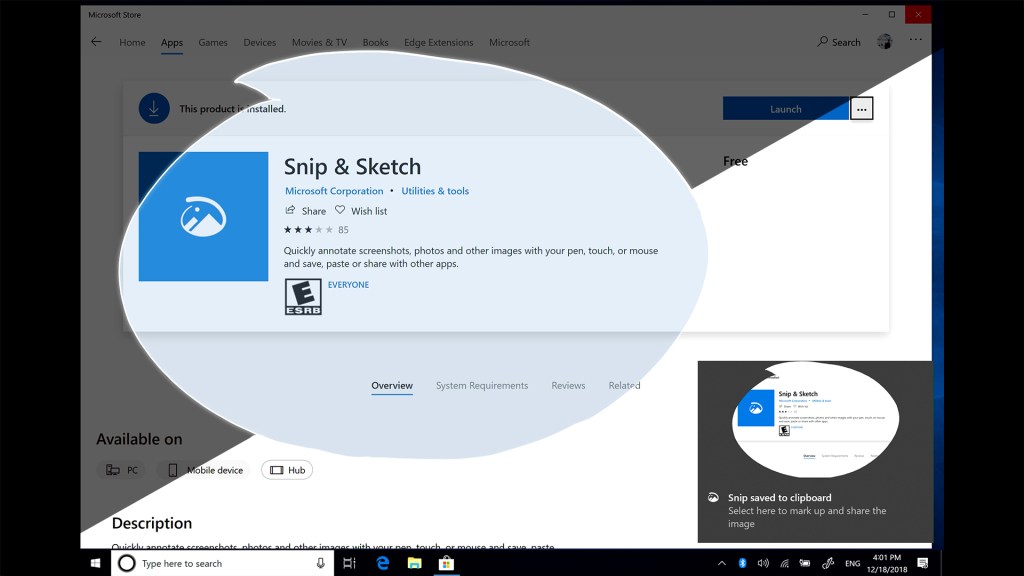
This is a really easy option, assuming you have it already installed on your PC (if not visit the Microsoft App store to download the new Snip & Sketch app). Then go to your apps and open (‘launch’) it. It’ll look like this…

Snip & Sketch

Once Snip & Sketch is open, you’ll be able to use this powerful little app to take full or partial screenshots, markup the pics, and much more. Just click the “NEW” button in the top LEFT of the tool’s menu to get started – here’s what it looks like…

Snip & Sketch has a lot more to it than just screenshots so if you want to know more, check out this helpful article from WindowsCentral.

  • A 3rd option for a full screenshot is to Press the Windows Logo button + G to open the new Game Bar option in Windows 10. These screenshots will be in the Captures Folder which is a sub-folder of the VIDEOS Folder on your This PC Menu
Windows 10 Game Bar Screenshot

HowtoGeek has a nice article about screenshots if you’re more interested in this topic.

B. How to take a PARTIAL Screenshot on a Windows 10 PC

  • The easiest way is to just press the Windows Logo + Shift Key + S key. Then you can select the area you want to take a partial screenshot of.
  • Use the Windows 10 Snip & Sketch Tool (formerly Snipping Tool app) as noted above.

II. How to Take a Screenshot on a Chromebook

Screenshots on a Chromebook are pretty simple. All the screenshots are stored in your FILES Folder.

A. How to take a FULL Screenshot on a Chromebook

Press the Control + Shift Window Key. It looks like this…

Chromebook Full Screenshot Keys

B. How to take a PARTIAL Screenshot on a Chromebook

Press the Control key + the Shift key + the Shift Window Key. It looks like this…

Chromebook Partial Screenshot keys

III. How to Take a Screenshot on a Mac

A. How to take a FULL Screenshot on a Mac

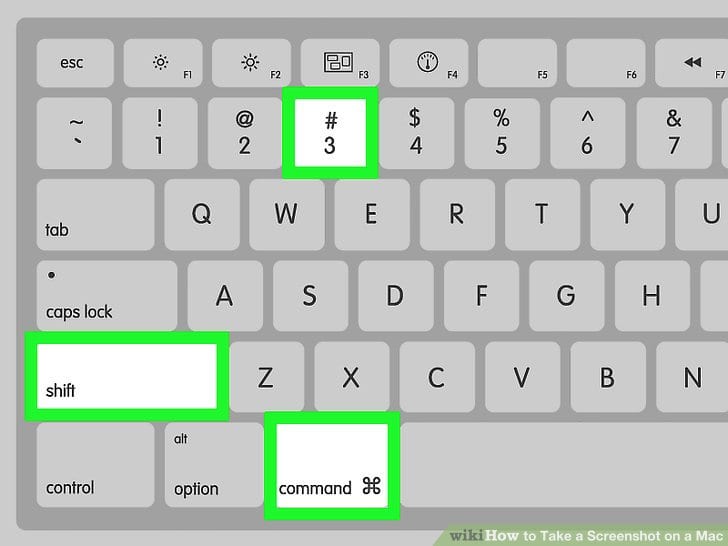
Instructions from Apple: “Press Shift key + Command key + 3 key. Find the screenshot on your desktop.”

Mac Full Screenshot – from WikiHow

B. How to take a PARTIAL Screenshot on a Mac

Instructions from Apple: “Press Shift key + Command key + 4 key. Drag to select the area of the screen to capture. To move the entire selection, press and hold Space bar while dragging. After you release your mouse or trackpad button, find the screenshot on your desktop.”

Mac Partial Screenshot

There are obviously other ways to take screenshots on your computer, but these are the ones I use because they seem to be the easiest. If you have one you recommend, let me know in the comments below.


amzn_assoc_placement = “adunit0”; amzn_assoc_search_bar = “true”; amzn_assoc_tracking_id = “thathelpfulda-20”; amzn_assoc_search_bar_position = “bottom”; amzn_assoc_ad_mode = “search”; amzn_assoc_ad_type = “smart”; amzn_assoc_marketplace = “amazon”; amzn_assoc_region = “US”; amzn_assoc_title = “Shop Top Chromebooks”; amzn_assoc_default_search_phrase = “Chromebook”; amzn_assoc_default_category = “PCHardware”; amzn_assoc_linkid = “3ed97b559d840c0c9b59ab67d4c85a7b”; amzn_assoc_default_browse_node = “13900871”; //z-na.amazon-adsystem.com/widgets/onejs?MarketPlace=US

What to Read Next

Best Chromebooks
Nest vs Ring Doorbell
Search Google by Date

Best Live TV Streaming Services for Cord Cutters – Sling TV, Hulu, AT&T Now, Fubo TV, Philo, YouTube TV, & More

Best TV Streaming Services

How to Stream Live TV – Are you considering cutting the cord and looking for tips on how to watch tv online without cable? Do you want to learn how to live stream local news and sports? Are you trying to figure out how to watch movies online without cable? If you answered “Yes” to any of these questions then this article is for you – I’ll give you reviews for all the best tv streaming providers AND also give you step-by-step instructions on how to cut the cord and ditch cable tv forever. You’ll probably save a ton of money and you’ll be much happier when you discover how easy it is to stream tv online without cable. Ready, let’s go!

[lwptoc]

Best Streaming TV Providers
Mike, That Helpful Dad

Editor’s Note: Hi, I’m Mike, known online as “That Helpful Dad” and I’m happy to share my tips with you. If you enjoy this article, be sure to visit my home page and  subscribe to my blog (it’s free) so you’ll get all my tips. Please let me know if you enjoyed this article or have any questions. I’m here to help. 

There are many articles online that talk about how to cut the cord and ditch cable tv by switching to a tv streaming service provider like Sling, Hulu, Roku, Amazon, etc.

This article is different for a few reasons:

  1.  My goal is to help you find streaming tv providers that are true “cable alternatives” such that they will allow you to enjoy an internet tv viewing experience that is similar to cable, but without the high cost of cable.​
  2. I want to show you how to stream to  WITHOUT having to use an antennae, without having to use any complicated equipment, without having to use a computer, and without having to download a bunch of different apps to your tv. 
  3. This article is particularly well suited for older adults like myself because I am providing a step-by-step guide than anyone of any age can use to learn how to stream tv online. Even my 70+ year old mother in law Rose is now streaming live tv! 🙂

What do I mean when I say we want a streaming tv provider that is a “true cable alternative?”

Simply that the streaming tv provider (for example Sling, Hulu, YouTube TV, etc) offers a viewing experience that is similar to cable tv (with similar networks, access to live local news and sports, a DVR, channel guide, etc), so that if you “cut the cord: on cable and choose to watch tv online, you won’t miss cable tv because you’ll have everything you had with cable – except the high cost!

Guide to Streaming TV Online – Summary

If you follow the steps in this Essential Guide to Cord Cutting, you’ll learn how to choose a streaming tv service provider easily and quickly and most importantly you’ll set yourself up success streaming live tv online.

Consider the following questions…

  1. Are you interested in HONEST REVIEWS of streaming tv service providers like Sling TV, AT&T Now, Fubo TV, Philo TV, Hulu Plus Live TV, Pluto TV, or YouTube TV, etc?
  2. Would you like a Step-by-Step Guide on How to Stream Live TV so it can be super easy?
  3. Do you want to know about topics such as:

If you answered ‘yes’ to any of these questions then this article is for you and you’ll want to bookmark this post so you can refer back to it as you make your cord cutting decisions.

Inside this Essential Guide to Streaming Live TV you’ll find links to helpful articles about how to cut the cord, in-depth videos on specific cord cutting topics, and more. Not only will we discuss all the major streaming service provider options for watching tv online, but we’ll also talk about some important considerations you need to think about like finding local channels, whether or not you need a cloud DVR, and how easy/hard it is to find content on the various platforms.

I invite YOU to join the discussion so we can help each other finally cut the cord and ditch cable tv forever!

Why Listen to Me? Becuase I am a Real Life Cord Cutter

I’m a real consumer just like you, not a paid endorser. I provide honest reviews people can trust and I’ve been doing it for years on this blog and my YouTube Channel. After years of frustration dealing with cable companies, I recently took the leap and cut the cord. I now stream all my tv online and my family couldn’t be happier!

Sharing how to stream live tv is something I’m passionate about, but I realize that many people my age are still intimidated by the prospect of trying to watch internet tv and get rid of cable so on this page you’ll find lots of resources to help you make process of switching to streaming tv easier.

In this article I detail what I learned along the way in the hopes that it will be useful to you as you make YOUR decision about the best streaming tv provider for your family. There’s a lot to consider and it’s easy to overlook some of the ‘hidden’ details that can be the difference between a positive experience or a frustrating one. That’s where I can help. 

Streaming TV 101 – Target Audience for these Tips

While I am hopeful that there is something for everybody who is interested in this topic, I recognize that not everybody will find it useful. Like most of the other articles on this site, this info will probably be most helpful to people of my generation (the 35-55+ crowd). Tell me if this sounds like you:

  1. You’ve watched cable tv all your life, but you’re frustrated with the increasing cost of cable, the long-term contracts, the poor customer service, all the hidden fees and fake ‘taxes’ on the cable bill, and having to pay ridiculous charges for all those cable boxes.
  2. You are looking for cord cutting options that will allow stream tv online BUT you want an overall experience that is as similar to cable tv as possible.
  3. You don’t want to have to buy an antennae to get local channels – you want all your tv one place.
  4. You hate commercials and want to be able to fast forward through them OR at least know IF you can (and that depends on which tv streaming service you pick). 
  5. You like reading honest reviews from real consumers and are tired of fake ‘promotional’ reviews that don’t give you the real pro’s and con’s you need to know.

If this sounds like you, then this article is for YOU. BTW if you like my tips, be sure to sign up for my weekly email tips so you can read them at your leisure. Visit my home page to sign up. 

If you’re a millennial or someone who is already super tech-savvy then the info here is probably gonna be too basic for you.  No worries. I understand. But hey, if you have some tips to share about this topic, by all means, help us older folks out and add your comments to the mix.  

FREE Step-by-Step Guide to Cut the Cord

E-Book Version


You should see a pop-up window that offers this free gift but if you didn’t get one just click my pic to visit my home page and subscribe to my site – it’s a free subscription and you’ll get 4 free e-gifts – one of which is my 35-page Guide to Streaming TV Online.

Video Version

This is a 30+ minute comprehensive video that will  walk you thru the the process I personally followed to cut the cord and now exclusively watch streaming tv online. Watch this vid and it will set you up for success.

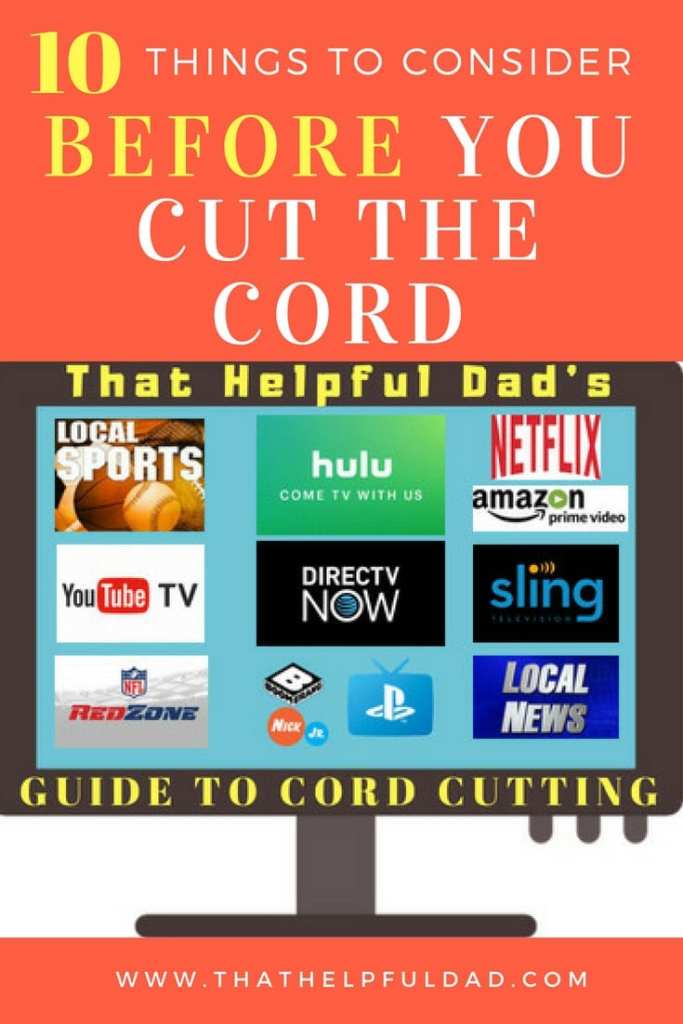
10 Things to Know BEFORE You Try to Stream Live TV

STOP – before you spin your wheels trying to stream live tv and not really knowing what you’re doing or where to start, let me save you some time. There are some important considerations you need to know about BEFORE you cut the cord. These include:

  1. How to stream LIVE LOCAL Sports and News.
  2. What Channel Lineups and Channel Packages are offered by the different streaming tv service providers? Can you customize the channel packages with Sling, DirecTV Now, and others? 
  3. Does every streaming tv service provider offer a DVR? Are they all the same?
  4. What On-Demand TV Shows and Movies are offered? Can you skip through commercials while watching on-demand content?
  5. Is there a limit on the number of tv’s you can stream on at one time?
  6. How will you access the streaming tv service providers app? Do you have enough internet speeds? Do you need a wifi mesh router to reduce buffering?
  7. Can you add premium channels like HBO, Showtime, NFL Redzone? What if a particular channel you want to watch isn’t available? 
  8. What promotions are available from Sling, DirecTV Now, and others?
  9. What about a Channel Guide? Is the service easy to use to find what you want to watch? 
  10. How much can you really save by cutting the cord? Is it really worth your time and efforts?

These topics are so important that I’ve discussed them in detail in a separate article. Check it out here…

Streaming TV Service Providers – Main Options

Here are the online tv streaming service providers we’ll be discussing in this article:

  1. Sling TV
  2. DirecTV Now (now called AT&T Now)
  3. Hulu with Live TV (AKA Hulu Plus)
  4. YouTube TV
  5. Fubo TV
  6. Philo TV
  7. Pluto TV

I recognize there are other options that will allow you to stream tv online such as Pluto TV and standalone services like Netflix, Amazon Prime Video, Kodi, and lots more, however this particular article is focused on the streaming tv service providers that will allow you to have an overall experience that is as close as possible to cable tv – that means being able to watch LIVE TV, view LOCAL channels, watch major ‘cable’ tv networks (ESPN, TBS, HGTV, etc), watch Regional Sports Networks, use a DVR, have a channel guide, and more. 

Cord Cutting Streaming TV Provider Reviews – The VIDEO

I’ll give you HONEST reviews and Helpful Tips for all of the following: ATT TV Now, FuboTV, Hulu with Live TV, Philo, PlutoTV, Sling TV, Vidgo, & YouTube TV. PLUS we’ll talk about HD Antennas, LOCAST, Amazon Prime Video, Netflix and the Roku Channel.

Streaming TV Service Providers – The Reviews

Sling TV Review – Summary

Sling TV was the first major online tv service provider and it’s still one of the most popular.

Pro’s: 3 channel packages and numerous customization options. Stream anywhere. Low overall costs ($20-40). 50-hour DVR. Good user interface. Easy to use overall.

Con’s: Terrible Local Channel and Regional Sports availability in many areas (need to use a separate antennae). DVR is $5 extra, doesn’t work on all channels, and you can’t always skip commercials. Orange plan only offer 1 stream at a time. To get all their channels you have to subscribe to Orange + Blue plan.

Read the full Sling TV Review here.

Sling TV Review – VIDEO

AT&T NOw (DirecTV Now) Review – Summary

AT&T Now (formerly DirecTV Now) is a major player in the online tv service provider world and it’s rapidly growing in popularity.

DirecTV Now used to be the streaming tv service provider my family used but we have since moved away from them. 

Pro’s: Numerous customization options, and up to 120 channels! Excellent local channel and regional sports channel availability. Stream anywhere.  Good user interface – similar to watching cable tv. HBO is included in some plans. Overall DTVN is very easy to use. 

Con’s: Higher costs starting in 2019. Only 2 streams at once unless you pay more. Free DVR is only 20 hours (you can pay $10 to get 100 hours), you can’t always skip commercials (especially for on-demand content) and the commercials are often annoying).

Read the full AT&T Now (DirecTV Now) Review.

DirecTV Now Review – VIDEO

PlayStation Vue Review

PlayStation Vue is actually pretty awesome and you do NOT need to own a PlayStation to use this service. This was the streaming tv service my family used and it had everything you could want in a streaming tv app.

MAJOR UPDATE:  Sony chose to discontinue PlayStation Vue as of January 2020. It is no longer an available option. 

Read the full PlayStation Vue Review here

PlayStation Vue Review – VIDEO

Hulu with Live TV Review – Summary

Hulu with Live TV (AKA “Hulu Plus”) may be a good option for some people seeking to cut the cord, but it’s still a relatively new service and there are some kinks to keep in mind. 

Pro’s: 60 channels for about $4r. Good local tv and regional sports coverage. 3 simultaneous streams and paid option for ‘unlimited’ streams. 50-hour Free DVR. 

Con’s: only 1 channel lineup no customization options. Can’t skip commercials with DVR unless you pay $15/month for “Enhanced DVR” (also provides 200 hours storage).  Hulu recently update their interface to include a passable channel guide.

Read our full review of Hulu Plus Live TV Here.

Hulu Plus Live TV Review – VIDEO

YouTube TV Review – Summary

YouTube TV is another relatively new ‘major’ player in the world of online tv service providers. Given that Google owns YouTube (and just about everything else in the world) I would expect that YouTube TV will continue to improve over time. Right now (in my opinion) it’s still too raw for most people looking to cut the cord.

Pro’s: up to 80 channels for about $40. Awesome Free DVR with UNLIMITED storage and you can usually fast forward through commercials. Decent user interface. Sometimes great promotions (like up to 2 months free). They’ve recently added more local channels.

Con’s: still not available in many areas. Lack of local live tv and regional sports networks in some areas. May not work on Amazon Fire TV devices. Only ONE channel lineup and minimal customization options. You can’t skip commercials for on-demand content and if there is an on-demand version of show you recorded on the DVR it will bypass your DVR recording and make you watch commercials! No HBO option.

Read our full YouTube TV review here

YouTube TV Review – VIDEO

Fubo TV Review

Fubo TV used to be a streaming tv provider focused mainly on sports, however in 2019 they switched their content to become a major player in the overall streaming tv business. Fubo TV is now one of the top ways to watch tv online and offers numerous channel packages for you to stream live tv. 

Philo TV Review

Philo TV is a low-cost leader which can provide a great experience for you and a boatload of quality channels you will watch for a low cost – provided you don’t care about local channels. 

2020 – Best Streaming TV Apps

Ranking the Streaming TV Service Providers

Based on the info provided in our detailed reviews for each service and using a ranking scale that is focused on choosing a streaming tv service that is most like a traditional cable tv viewing experience, here are my personal rankings. 

If Local Channels Matter (News, Weather, Sports)

  1. YouTube TV
  2. Fubo TV
  3. ATT TV Now
  4. Hulu Plus Live TV
  5. Sling TV
  6. Philo TV

If Local Channels Do NOT Matter

  1. Pluto TV (it’s FREE!)
  2. Sling TV 
  3. Philo TV
  4. YouTube TV
  5. Fubo TV
  6. DirecTV Now
  7. Hulu Plus Live TV

Tips for Specific Streaming TV Topics

Streaming TV Resources from Amazon

I use the Amazon Firestick for all my streaming tv needs. You can read my article about how to decide which Amazon Firestick is best for you here.

Also, I have a Beginner’s Guide to Watching Online TV with Amazon Prime Video – you can watch that here

For additional insights on Amazon Prime Video checkout these links too…

Streaming TV with Netflix

I’d be remiss if I didn’t at least mention Netflix as an option for streaming tv online. Although Netflix is not an option if you want to watch live tv or have an experience similar to cable, it’s still a great option for watching tv and movies online. Here are some articles about Netflix Streaming Tips…

Best Netflix Series
A Guide to Netflix
Best Netflix Movies

Streaming TV Tips – What’s YOUR Take?

That concludes our Essential Guide on How to Stream Live TV. Was this helpful? If so, please share this article with your friends.

Have YOU already learned how to watch tv online? What streaming tv service provider are YOU using? What tips have you learned that can help others – let us know so we can all learn together. Thanks!

What to Read Next?

There’s more to life than streaming tv, check out these other helpful tips too…

Big Green Egg vs Kamado Joe
Live a Legacy Life


How to Watch Super Bowl LIII ONLINE – Which Streaming TV Services and Apps can you watch it on?

Want to watch Super Bowl LIII online but not sure how? This article and video can help. We’ll review all the streaming tv service providers that offer CBS (the channel showing the Super Bowl), talk about what to do if your provider does not offer CBS, and review the FREE apps you can use to watch the Rams-Patriots Super Bowl.

If you are new to cord cutting and streaming tv online, it’s important to know that all of these major streaming services offer a FREE TRIAL so if you are a new subscriber you can sign up for free and watch the Super Bowl online for free too. Bonus!

Basic Info about Super Bowl LIII

Date: Sunday Feb 3, 2019

Time: 6:30pm EST

Teams: New England Patriots vs Los Angelos Rams

CHANNEL: CBS

Quickest Possible Way

If you do not already have a streaming tv service provider like one of those listed below (or even if you do), by far the easiest way to watch the Super Bowl online is to simply download the CBS  or CBS Sports App onto an Amazon Fire Stick. Open the app and watch the game. 

If you don’t yet have a Fire Stick, buy one today, plug it into an HDMI port on your tv, log in with your Amazon id, download the CBS or CBS Sports App, and enjoy. 

Here’s all you need. 

Amazon Fire Stick

Streaming TV Service Providers

If you already have a streaming tv service provider then this section is for you. In this section we’ll review the following streaming tv service providers: DirecTV Now, Hulu with Live TV, FuboTV, Sling TV, PlayStation Vue, and YouTube TV. Specifically we’ll tell you if they offer CBS or if you need to find another solution:


DirecTV Now = YES

In most locations, DirecTV Now does offer CBS so most subscribers should be good.

Be sure to check your local zip code with DTVN to make sure. 

CLICK HERE to check YOUR Local DirecTV Now channels

If you don’t get CBS live in your area, look at the recommended solutions below. 


FuboTV = Yes

In most locations, FuboTV does offer CBS so most subscribers should be good.

Be sure to check your local zip code with FuboTV to make sure.

CLICK HERE to check YOUR local Fubo Channels

If you don’t get CBS Live in your area with Fubo, look at the recommended solutions below. 


HULU Plus Live TV = YES

In most locations, Hulu with Live TV does offer CBS so most subscribers should be good. Keep in mind this is NOT regular Hulu, this is the streaming service Hulu with Live TV

Be sure to check your local zip code with Hulu Plus to make sure.

CLICK HERE to check YOUR local Hulu Plus Channels.

If you don’t get CBS Live in your area with Hulu, look at the recommended solutions below. 


PlayStation Vue = YES

In most locations, PlayStation Vue does offer CBS so most subscribers should be good. 

Be sure to check your local zip code with PlayStation Vue to make sure.

CLICK HERE to check YOUR local PlayStation Vue Channels.

If you don’t get CBS Live in your area with PS Vue, look at the recommended solutions below. 


Sling TV = NO

Unless you speak Spanish and have the ESPN Deportes channel as part of the “Best of Spanish” extra package on Sling Orange then you are NOT going to be able to watch the Super Bowl on Sling TV. The reason is because Sling TV does NOT offer CBS and that’s the network that is showing the Super Bowl.

This is a real shame because Sling TV is the #1 provider of online streaming tv services. But with CBS there are not a lot of options for Sling TV Users within the Sling TV universe.

To their credit, Sling has not tried to hide from this issue and has put together a Help Guide for their subscribers who want to watch the Super Bowl online. You can read the Sling Super Bowl Help Guide here: https://help.sling.com/en/support/solutions/articles/46000000195-can-i-watch-the-super-bowl-on-sling-tv-

Sling is recommending any of the following as solutions for Sling TV users to watch the Super Bowl online:

  1. OTA Antennae
  2. CBS App or CBS Sports App (see below)
  3. LoCast App (see below)


YouTube TV = Maybe

In some locations, YouTube TV does offer CBS so some subscribers should be good. 

Be sure to check your local zip code with YouTube TV to make sure.

CLICK HERE to check YOUR local YouTube TV Channels.

If you don’t get CBS Live in your area with YouTube TV, look at the recommended solutions below. 

Other Options – APPS

If you don’t get CBS on your streaming tv provider’s channels, then just use one of the following apps…


The game will be available to stream for free on the CBS Sports app, or on cbssports.com without the need for a cable login. CBS Sports is available on many devices including Roku, Amazon Fire and Apple TV, as well as iOS and Android smartphones and tablets.

Visit https://www.cbs.com/all-access/


As noted above, the game will be available to stream for free on the CBS Sports app, or on cbssports.com without the need for a cable login. CBS Sports is available on many devices including Roku, Amazon Fire and Apple TV, as well as iOS and Android smartphones and tablets.

Visit: https://www.cbssports.com/mobile


Customers in the Denver, New York, Philadelphia, Boston, Chicago, Houston and Dallas markets can watch local channels, including the Super Bowl on CBS for free using the Locast app or by visiting locast.org. The Locast app is available for your Android or iOS smartphone, laptop or Roku device.

Visit https://www.locast.org/

How to Watch the Super Bowl Online – The Video

You May Also Like


13 Tips to Get People to Open Your Emails AND Respond

Email is great IF people actually OPEN your emails…

Email is a great way to communicate with customers and Email Marketing as a strategy continues to be one of the most effective ways to attract, retain, and build relationships with long-term customers, but unfortunately, email response rates often leave a lot to be desired because many customers don’t respond to the emails you send them and all too often you don’t even know if the customers are even opening your emails to begin with.

Open Your Emails

Email Overload = Low Email Open Rates and Even Lower Email Response Rates

Why don’t customers open your emails? Why don’t customers respond to your emails?

The answer to both these questions is fairly simple – just like you, your customers are super busy, just like you, your customers get tons of email (way more than they could ever read), and just like you, your customers are now using email tools that pre-filter ‘promotional’ emails (especially those sent from email marketing companies like Mailchimp, GetResponse, Drip, AWeber, and the like).

As a result, there’s a very real possibility that your email response rates are low because…

  1. That ‘perfect’ email you took so long to craft may never even be seen by your customer because it got filtered into a promotional tab.
  2. If your customer does happen to see the email, they may not recognize its value and instead just ignore it.
  3. Even if they do read your email they may not bother to reply.

All of these are bad options if you’re trying to build a business relationship with your customer.

So is there anything you can do to increase the odds your customers will open AND reply to your emails?

Thankfully, yes.

Increase Email Response Rates

The 13 tips in this article can dramatically improve your email response rates. Not only will more customers open your emails, but if you use these tips consistently more customers will actually respond to your emails too.

How do I know these email tips work?

Because like everything else i recommend on the Helpful Dad site, I’ve personally tested each one of these tips and I can assure you they work. I use them in my own businesses every day and they’ve helped me achieve consistent success with customer emails. They can help YOU too.

Where did these tips come from?

Just to be clear I didn’t invent these tips nor and I taking credit for them – there are a variety of sources for these ideas and I’ve listed them in the references at the end of this article).  As with much of the knowledge on this site, I’ve curated this wisdom and packaged it in easy form for you to use. I’ve collected a LOT of email tips over the years and what you’re reading here is a whittled down list of the email best practices that have consistently worked for me to get people to open my emails and respond to them. Put these email tips to the test yourself and let me know your results.

13 Tips to Get Your Emails Opened

Get People to Open Your Emails Tip #1 – Avoid the ‘promotion’ filter of your customer’s inbox.

To do this, try sending ‘plain text’ emails.

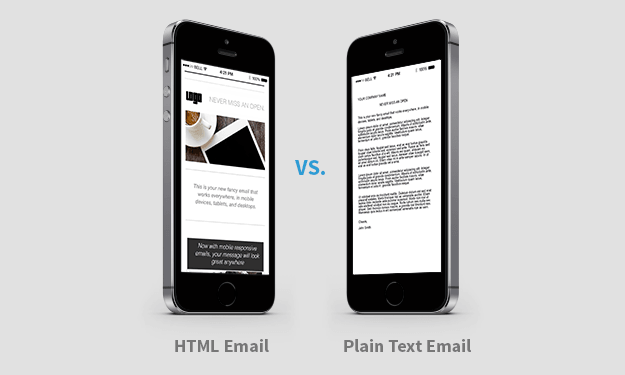
Take a look at these emails – one is ‘html’ and the other is ‘plain text.’

Yes html emails look nice and pretty and the plain text are less fancy (minimal formatting, no pics, etc) but the fact is that plain text emails don’t get filtered as much as HTML emails.

Filtered emails = not seen emails.

Emails not seen = game over before you even started.

Get Your Email Opened Tip #2 – Where possible, avoid mass emails and send each email directly to ONE customer at a time.

If you must send email to multiple people, try keeping the group small (say 2-4 people). Generally, I only send emails to single customers (because of my #1 most effective tip below which, for some strange reason is actually #4 on my list?), but if I do combo emails I make sure it’s to customers of the same company.

The more you increase the group, the greater the chance that your email won’t get opened because…

When people see other names on the distribution list they will often ‘defer action’ to someone else in an effort to save time themselves.

Another way of saying this is – they don’t open your email because they figure someone else on the list will. Thus they save time for themselves.

Get People to Open Your Emails Tip #3 – How to Avoid Corporate Intranet Filters.

As much as possible (and especially for introductory emails to new customers) try to avoid sending attachments.

All too often corporate IT servers seem to filter out emails with attachments as a way to prevent an email virus from infecting their networks.

Don’t take the risk your email gets quarantined to the Land of the Unknown Email.

If you have to send an attachment, establish the connection with the customer first, get their buy-in that they actually want the attachment, and then ask for the best way to send it to them.

Find out from your customer is attachments allowed by their corporate email filter, if so how can you avoid the filter, and if something like  Dropbox or Google Drive share a better alternative, etc?.

Get Customers to Open Your Emails Tip #4 – Use the Power of the SUBJECT LINE

This is actually my #1, most important, if-you-do-nothing-else-do-this tip. (I don’t know why it’s not listed first – perhaps because I like the number “4” best?)

In any case, this single tip has increased my own email response rate by at least 10x!

And it’s so simple…

Instead of writing generic, easy to overlook subject lines, write a compelling, action-oriented subject that (and this is the super-important part) starts with the customer’s name.

That sounds so obvious on paper, but yet 99% of people writing emails don’t do this put their customers name in the subject line. That’s a shame, because if you put the customer’s name in the subject line, that alone will get more people to open your emails.

Let me give you some examples…

Blah Subject Line: “Contract Options for Your Review”

Better Subject Line: “Attention: New Widget Contract Choices (Action Required)”

Best Subject Line: “Jim: New Widget Contract Options (Feedback Requested by Friday)”

Which one of these emails do you think Jim is going to open? Which would YOU open if you were Jim and your job was dealing with Widget contracts for your company?

I’ve used all of these email subject lines in my career and I can tell you that email #3 is the one that gets opened way more than the other two options combined.

Let’s analyze email #3’s subject line again…

Jim: New Widget Contract Options (Feedback Requested by Friday)

What makes this a good email subject line?

  1. The email subject line is specific to “Jim” so Jim knows it’s for him – that alone will increase the odds the email gets opened. (BTW I like to use first names whenever possible to establish long-term rapport and because (as Dale Carnegie says) ‘the sound of someone’s name is the most beautiful music to that person’, but if you can’t do that for some reason then full/formal names also work).
  2. This email subject line uses the word “New” which is a hook that generates interest and leads to people wanting to open the email to see what’s ‘new.’
  3. The email subject line clearly identifies a product (in this case “Widgets”) and assuming that Jim is interested in Widgets, he’s likely to open the email.
  4. The email subject line briefly details the main content (in this case ‘contract options’) and again assuming Jim is interested in new pricing options for his Widgets, he’s likely to open the email.
  5. And finally, the email subject line lets Jim know that not only is his ‘feedback’ requested (making him feel important) but his feedback is needed by a specific day (Friday).

What’s all this add up to? When Jim scans through his mass of emails for the day, you’ve just made it very easy for him to hone in on an email that is specific to him, has clearly identifiable content that (presumably) interests him, and requires his action by a certain day (pro tip – try to make the action day within the same week to create a sense of urgency).

The result – more of your emails get opened.

How do you know if someone opens your email?

This is a bit of a side tip – ever since Outlook made it harder for us to get an “Email Read Receipt,” it’s become more difficult to know when someone actually opens your email. Thankfully there are tools that can help you.

I use one called “Mailtrack”  – it’s a free service that has been a worthy replacement for the Outlook Read Receipt function. The only caveat is that Mailtrack is exclusive to Gmail – if you can live with that parameter you’ll love it.

So now that you are getting people to open your emails, how do you get them to reply?

Tip #5 – Be Brief, Be Brilliant, and Be Gone = Get More Email Replies

Emails are not a place to write your next book (something I’ve often been guilty of since I love to write), but there’s a concept called “TLDR” which stands for ‘too long, didn’t read.’ THta’s a killer when it comes to emails.

Email View or Not View

TLDR – Email Not Read = Email Not Responded to.

Remember, your customers are busy.

Think of your email recipient like a little squirrel – you’ve got a nut, you’ve convinced the squirrel to take a step towards you, he’s interested, when he gets near, don’t drown him with a bucket full of nuts, just give him the little one he wanted.

The same holds for your email – you got the customer to open it, don’t overwhelm them with a 10 paragraph, single-spaced manifesto. Just give them the bite-sized version.

Your email should be easy to digest, short, and easy to see what action is needed by them so that it is easy for them to respond to.

Tip #6 – BLUF leads to more people responding to emails.

BLUF stands for ‘bottom line up front.’

Remembering that your customer is busy, help them save time (and increase your reply rate) by putting the action you want them to take in the very first line of your email.

Although you may not want to hear this, realize that…

Even IF your customer opens your email, they may only read the first line before deleting it or ‘saving’ it for another time.

Knowing this, make sure they read the single most important thing you need them to do/know by putting it that first line of your email.

Hopefully, that first line will compel more people to read your email beyond just the first line, but just in case they don’t you’ll at least have gotten them to see what your email ‘ask’ is and then you’ve put the ball in their court.

Tip #7 – Use Bullets to Get People to Respond to Emails

Don’t expect your customer to read your entire email.

  • Recognize they are likely to just scan it (much like you are probably doing to this article – are you even reading THIS line? If so put a comment below).
  • Put your important points in bullet format to draw attention to them.
  • This is especially important for the email body (the part that your customer is least likely to read – kind of like this section of my article).

Get People to Open Your Emails and Get Them to Respond Tip #8 – Establish Credibility

Establish Credibility with your Email Customers.

This one is really important for customers you don’t know well, initial introductions in emails, or when you’re trying to set a meeting at a conference you’ll both be attending.

Let the new customer how you know them (for example, “I was referred by Mr. MaGoo” and then put “Mr. Magoo” in the “CC” line of the email.  Naturally you will have already confirmed with Mr. Magoo that you can reference him).

By putting the mutual reference in the email by name, when the new customer you are trying to connect with sees the name of someone they know (Mr. Magoo) AND sees that Mr. Magoo is in the CC line this makes your credibility skyrocket.

This technique dramatically increases your email reply rate because the customer also feels a sense of ‘obligation reply’ to the mutual reference.

It’s a powerful tool so don’t abuse it.

Bonus Tip –  if you’re both gonna be at a conference, reference that event to validate yourself and use that as a SMART goal opportunity for a live meeting – another winner.

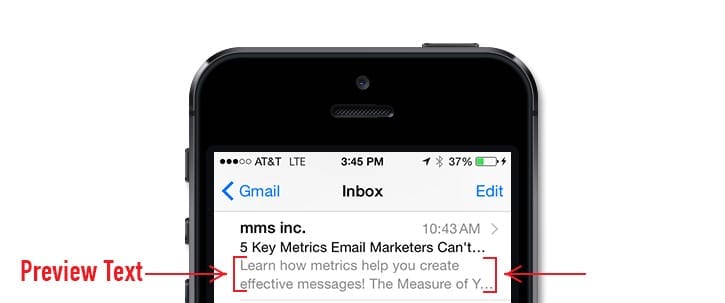
Tip #9 – Remember The “Smartphone Preview” to Get People to Open Your Emails

Most people read email (first) on their mobile devices. Emails on mobile look a lot different than on desktops/laptops.

Space is smaller so long emails become super looooooooong. Long email thus get nixed, which means long emails have less chance for a reply.

If you really want to make it easy for people to open your emails and to respond to them, try to keep your email bodies “mobile-view friendly.”

Tip #10 – Setting Simple, Clear Expectations for a Reply = More People WILL Reply to Your Email.

If you already have a good relationship with a customer and your email requires a response, give them a courtesy ‘heads-up’ that you’re sending them an email AND expecting a reply.

Again people are busy – that doesn’t mean they don’t want to help you, just that…

They may not realize you want a reply.

Make it easy for them to reply to your emails.

Send your customer a quick text, give a call to their admin, or find another way (LinkedIn, hallway chat, etc) to ensure they understand you’re expecting a reply to your email.

Don’t yet have a good relationship? Connect with them on LinkedIn (with a personal message as part of the connection) and once they accept your connection invite, then send them a brief note via LinkedIn messaging about why you connected and that you’re sending them a win-win email that would benefit them to reply to.

These first 10 tips will make more people open your email AND make it easy for people to reply to your emails. That’s great, but how do you take your Email Game to the next level?

Increasing Email Response Rates – The Next Level

Tip #11 – Make it easy to meet. 

You want to set up a time to talk? Whether you want to chat by phone, do a webex, or meet live, the worst thing you can do is close with a blase offer like ‘if you’re interested let me know when you can talk’ or something similar.

Instead, (and I’m gonna beat this drum again) remember your customers are busy, so…

Make it easy for them by offering them date/time suggestions upfront.

Here’s an example…

“What’s a good time to [chat/meet/etc]? Would Monday, May 1 at 4, or 5 pm EST work? How about Wed May 3 at 10 or 11 am EST? If not suggest a day/time that works for you.”

Using this tactic speeds the process up because it removes the guesswork and rather than make the customer do the work of finding the time to meet, all they need to do is check their calendar to see if one of your suggested times will work.

Tip #12 – The Best DAY and TIME to send Emails

Timing is everything in the world of email overload. If you’re trying to break free of the email clutter…

Send your emails at times when your customers are most available to read them.

Good times to consider are…

  • When are they on Social Media and in ‘work mode?’ In my business, it’s Sunday Evening as they get ready for the work week so a brief, action-oriented email sent at this time gets great response rates.
  • Other times during the week that work well are mid-morning (after they’ve had a chance to settle into the day) or mid-afternoon (after lunch but are not yet in ‘go-home’ mode) – both are great times when people check emails.
  • I also try to avoid Mondays (people are usually too busy) and Fridays (people just want to clear their desks and focus on the weekend).

Email Tip #13 – Update Subject Lines During Replies To Avoid Email Conversation Views.

A great way to get your emails lost in the shuffle of email filter tools is NOT to update subject lines – don’t let that happen to you. Instead…

  • Remove those “RE” and “FW” identifiers – they only create clutter and are sure-fire bundle targets.
  • Be sure to modify the subject line in some way to make it stand out and not get bundled in ‘conversation view’ emails because bundled emails = lost emails and lost emails = emails not replied to = lost business.
  • Change subject lines as the needs of the conversation changes – put new actions first, note important dates, or better yet make a whole new email (using these great email tips of course!).

Get People to Open Your Emails AND Get them to Reply  – The Bottom Line

Use these 13 tips and you’re pretty much guaranteed to get more people to open your emails and more importantly get them to reply to you.

These email tips worked for me and they can work for you too. And when they do help you get more people to open and reply to your emails  be sure to let me know.

Now go forth and start hitting ‘send’ with more confidence that someone is actually listening!

References – Increase Email Response Rates

References:

  1. https://optinmonster.com/is-email-marketing-dead-heres-what-the-statistics-show/
  2. https://www.prontomarketing.com/2018/01/13-tips-for-effective-email-marketing/
  3. https://www.martechadvisor.com/articles/marketing-automation-2/rethinking-email-marketing-effectiveness/
  4. https://digitalagencynetwork.com/email-marketing-still-effective-strategy-2018/
  5. DreamIt Email Tips Video

Want More Tips Like This?

My blog is focused on providing ‘practical solutions’ to real life problems. If you want to make sure you never miss a tip AND get some cool freebies in the process, be sure to subscribe to follow me.

Let’s talk again soon.

~Michael