Tag Archives: how to

How to Secure your Wi-Fi Network – 12 tips

In today’s interconnected world, securing your Wi-Fi network is crucial to protect your personal information, sensitive data, and connected devices from potential threats. With cyberattacks on the rise and hackers constantly seeking vulnerabilities, implementing robust security measures for your Wi-Fi network is essential. In this How To Guide, we’ll walk you through step-by-step instructions and best practices to ensure the security of your Wi-Fi network, safeguarding your digital assets and maintaining your privacy.

Understanding Wi-Fi Security:

Before delving into the specifics of securing your Wi-Fi network, it’s important to understand the fundamentals of Wi-Fi security protocols and potential vulnerabilities.

Wi-Fi Security Protocols:

  • WEP (Wired Equivalent Privacy): An outdated and insecure protocol susceptible to brute-force attacks.
  • WPA (Wi-Fi Protected Access): Introduced as a replacement for WEP, WPA offers stronger encryption methods, but earlier versions (WPA and WPA2) have known vulnerabilities.
  • WPA3: The latest Wi-Fi security protocol, offering enhanced encryption and protection against various attacks. It’s recommended to use WPA3 whenever possible for improved security.

Common Wi-Fi Vulnerabilities:

  • Weak Passwords: Default or easily guessable passwords make your Wi-Fi network vulnerable to unauthorized access.
  • Lack of Encryption: Unencrypted Wi-Fi networks allow attackers to intercept and eavesdrop on data transmissions.
  • Outdated Firmware: Failure to update router firmware leaves your network exposed to known security vulnerabilities.
  • Unauthorized Access: Failure to restrict access to authorized users increases the risk of unauthorized devices connecting to your network.

Now that we have a foundational understanding of Wi-Fi security, let’s explore how to secure your Wi-Fi network effectively.

Step-by-Step Guide to Securing Your Wi-Fi Network:

Change Default Settings:

  • Access your router’s settings by typing its IP address into a web browser.
  • Change the default admin username and password to a strong, unique combination to prevent unauthorized access to your router’s settings.
  • Disable remote management to prevent attackers from accessing your router’s settings remotely.

Update Firmware:

  • Regularly check for firmware updates from your router manufacturer and install them promptly to patch known vulnerabilities and improve security.
  • Enable automatic firmware updates if your router supports this feature to ensure you’re always running the latest version.

Enable Encryption:

  • Use WPA3 encryption if your router and devices support it for the highest level of security. Otherwise, opt for WPA2 encryption.
  • Choose a strong passphrase (at least 20 characters long) for your Wi-Fi network password, comprising a mix of letters, numbers, and special characters.

Hide SSID (Service Set Identifier):

  • Disable SSID broadcasting to prevent your network name from being broadcasted publicly.
  • While hiding the SSID won’t make your network invisible to determined attackers, it adds an extra layer of obscurity and may deter casual attempts to connect to your network.

Implement Network Segmentation:

  • Create separate network segments for different types of devices, such as IoT devices, guest devices, and personal devices.
  • Use VLANs (Virtual Local Area Networks) to isolate network traffic and restrict access between segments, preventing unauthorized devices from accessing sensitive data.

Enable Network Firewall:

  • Activate the firewall feature on your router to filter incoming and outgoing traffic and block suspicious or malicious connections.
  • Configure firewall rules to restrict access to specific ports and protocols, further enhancing network security.

Enable MAC Address Filtering:

  • MAC address filtering allows you to specify which devices are allowed to connect to your Wi-Fi network based on their unique MAC addresses.
  • While MAC address filtering alone isn’t foolproof (MAC addresses can be spoofed), it adds an additional layer of access control.

Disable WPS (Wi-Fi Protected Setup):

  • WPS is a feature that allows users to connect devices to a Wi-Fi network quickly by pressing a button or entering a PIN.
  • However, WPS is vulnerable to brute-force attacks and should be disabled to prevent unauthorized access to your network.

Enable Network Monitoring and Logging:

  • Configure your router to log network activity and monitor for unusual or suspicious behavior.
  • Regularly review the logs for any signs of unauthorized access or suspicious activity and take appropriate action if necessary.

Physical Security Measures:

  • Place your router in a secure location to prevent physical access by unauthorized individuals.
  • Consider using a lockable cabinet or enclosure to protect your router from tampering or theft.

Regularly Review Connected Devices:

  • Periodically review the list of connected devices on your router’s admin interface to ensure that only authorized devices are connected.
  • Remove any unfamiliar or unauthorized devices from the network immediately.

Educate Users:

  • Educate family members or employees about the importance of Wi-Fi security and best practices for protecting their devices and credentials.
  • Encourage the use of strong, unique passwords for Wi-Fi and other online accounts.

Can you do it?

Securing your Wi-Fi network is an ongoing process that requires vigilance and proactive measures to mitigate potential risks and vulnerabilities, but you CAN do it. By following the step-by-step instructions and best practices outlined in this guide, you can significantly enhance the security of your Wi-Fi network and protect your digital assets from unauthorized access and cyber threats. Remember to regularly update your security measures, stay informed about emerging threats, and adapt your defenses accordingly to maintain a secure and resilient Wi-Fi environment.

What to Read Next?

How to Set Up Dual Monitors: A Comprehensive Guide for Mac and Windows PC Users

In today’s digital age, having multiple monitors can significantly enhance productivity and workflow efficiency for both Mac and Windows PC users. Whether you’re a creative professional needing more screen space for design work or a multitasker like me who’s always looking to streamline workflow, setting up dual monitors is a relatively simple process that can yield substantial benefits. In this guide, we’ll walk you through step-by-step instructions on how to set up dual monitors for both Mac and Windows PC systems, highlighting the similarities and differences along the way.

Understanding Dual Monitors:

Before diving into the setup process, it’s essential to understand the basics of dual monitors. Dual monitors, also known as dual display or multi-monitor setup, involve connecting two monitors to a single computer, allowing you to extend your desktop across both screens. This setup offers several advantages, including increased workspace, improved multitasking capabilities, and enhanced productivity.

Setting Up Dual Monitors on a Mac:

Mac users can easily configure dual monitors using the built-in features of macOS. Here’s a step-by-step guide to setting up dual monitors on your Mac:

Step 1: Check Compatibility and Ports:
Ensure that your Mac supports dual monitors and identify the available ports for connecting your monitors. Most modern Mac computers come equipped with Thunderbolt or USB-C ports, which can be used to connect external displays.

Step 2: Connect the Monitors:
Using the appropriate cables or adapters, connect your additional monitor(s) to the available ports on your Mac. For example, if your Mac has Thunderbolt 3 ports, you may need Thunderbolt to HDMI or Thunderbolt to DisplayPort adapters to connect the monitors.

Step 3: Adjust Display Settings:
Once the monitors are connected, navigate to “System Preferences” on your Mac and select “Displays.” In the Displays preference pane, you’ll see options to arrange and configure the connected monitors. You can choose to mirror your displays or extend your desktop across both screens. Adjust the resolution, refresh rate, and orientation as needed.

Step 4: Arrange Display Layout:
Drag and arrange the display icons to match the physical layout of your monitors. You can specify the primary display and set the arrangement to your preference. macOS allows for flexible positioning of displays, making it easy to customize your workspace.

Step 5: Fine-Tune Settings:
Explore additional display settings in System Preferences to customize the behavior of your dual monitors further. You can adjust color profiles, display mirroring options, and screen savers according to your preferences.

Keyboard Shortcut for Mirroring (Mac): Press Command + F1 to toggle between extended desktop mode and mirrored display mode. If you’re using an external keyboard with a Mac laptop, you may need to use the “fn” key along with the Command + F1 shortcut.

Setting Up Dual Monitors on a Windows PC:

Windows PC users can also configure dual monitors using the native features of the operating system. Here’s a detailed guide to setting up dual monitors on your Windows PC:

Step 1: Check Compatibility and Ports:
Verify that your Windows PC supports dual monitors and identify the available ports for connecting your monitors. Most modern PCs feature HDMI, DisplayPort, or VGA ports for connecting external displays.

Step 2: Connect the Monitors:
Using the appropriate cables or adapters, connect your additional monitor(s) to the available ports on your PC. Ensure that the monitors are securely connected and powered on.

Step 3: Adjust Display Settings:
Right-click on the desktop and select “Display settings” from the context menu. In the Display settings window, you’ll see options to configure the multiple displays. Windows allows you to extend, duplicate, or project your desktop onto the connected monitors. Select the “Extend desktop to this display” option to use dual monitors.

Step 4: Arrange Display Layout:
Drag and drop the display icons to arrange the monitors according to their physical placement. You can specify which monitor is the primary display and adjust the orientation as needed. Windows offers flexibility in arranging displays, allowing you to create a seamless workspace.

Step 5: Fine-Tune Settings:
Explore additional display settings in the Display settings window to customize the behavior of your dual monitors. You can adjust the resolution, orientation, scaling, and…

Keyboard Shortcut for Mirroring (Windows PC): Press Windows key + P to open the “Project” menu and cycle through different projection modes. Select the “Duplicate” option to mirror your screen onto the connected monitors.

What to Read Next…

How to Speed Up a Slow Computer

Is your computer crawling along at a snail’s pace, leaving you frustrated and unproductive? Don’t despair; there are several steps you can take to breathe new life into your sluggish machine. Whether you’re dealing with a desktop, laptop, or even a tablet, this guide will walk you through a variety of methods to speed up your system and get it running smoothly again. Give one or more of these a try and they may just solve your problem!

12 Tips for Speeding Up Your Computer

  1. Identify the Culprit:
    • Before diving into fixes, it’s essential to identify what’s causing your computer to slow down. Common culprits include too many startup programs, malware infections, outdated hardware, and a cluttered hard drive.
  2. Perform a Virus Scan:
    • Malware and viruses can wreak havoc on your computer’s performance. Run a full system scan using reliable antivirus software to detect and remove any malicious programs that may be lurking on your system.
  3. Clean Up Your Hard Drive:
    • Over time, your hard drive can become cluttered with unnecessary files, such as temporary files, old downloads, and cached data. Use disk cleanup tools to remove these files and free up disk space. Additionally, consider uninstalling unused programs to further declutter your system.
  4. Defragment Your Hard Drive:
    • Fragmentation occurs when files are stored in non-contiguous clusters on your hard drive, leading to slower read and write times. Running a disk defragmentation tool can reorganize these files and improve overall system performance.
  5. Upgrade Your Hardware:
    • If your computer is still running slowly after performing the above steps, it may be time to consider hardware upgrades. Adding more RAM or upgrading to a solid-state drive (SSD) can significantly improve performance and responsiveness.
  6. Manage Startup Programs:
    • Many programs automatically launch when you start your computer, consuming valuable system resources. Disable unnecessary startup programs to speed up boot times and free up memory for other tasks.
  7. Update Your Operating System and Drivers:
    • Outdated software and drivers can cause compatibility issues and hinder performance. Make sure your operating system is up to date with the latest patches and updates, and regularly check for driver updates from your hardware manufacturer’s website.
  8. Optimize Your Web Browser:
    • If you spend a lot of time browsing the web, your browser’s performance can have a significant impact on your overall computing experience. Clear your browser cache, disable or remove unnecessary extensions, and consider using a lightweight browser for better performance.
  9. Adjust Visual Effects:
    • Fancy visual effects and animations may look nice, but they can also consume valuable system resources. Consider disabling or reducing visual effects in your operating system settings to improve performance.
  10. Upgrade Your Internet Connection:
    • A slow internet connection can make your computer feel sluggish, especially when streaming videos or downloading large files. Consider upgrading to a faster internet plan or using a wired connection for better speed and stability.
  11. Keep Your System Cool:
    • Overheating can cause your computer to slow down or even crash. Make sure your computer is adequately ventilated and free of dust and debris. Consider investing in additional cooling solutions, such as fans or cooling pads, if necessary.
  12. Consider a Fresh Install:
    • If all else fails and your computer is still running slowly, you may want to consider performing a fresh install of your operating system. This will erase all data on your hard drive, so be sure to back up any important files before proceeding.

Look, we all know a slow computer can be a frustrating problem, but it’s not insurmountable. By following the steps outlined in this guide, you can identify the underlying causes of your computer’s sluggishness and take appropriate action to fix them. Whether it’s cleaning up your hard drive, upgrading your hardware, or optimizing your software settings, there are plenty of ways to speed up your system and get it running like new again.

What to read next…

How to Encrypt your Emails for Enhanced Privacy and Security – GMAIL, Outlook, Apple Mail, and more

In an age where digital privacy is increasingly important, encrypting your emails is one of the most effective ways to safeguard sensitive information from prying eyes. Whether you’re communicating with colleagues, clients, or friends, email encryption ensures that only intended recipients can access the contents of your messages. In this How To Guide, we’ll explore the importance of email encryption, the different encryption methods available for Gmail, Outlook, Apple, and more, as well step-by-step instructions on how to encrypt your emails for enhanced privacy and security.

Understanding Email Encryption:

Email encryption is a process that converts the content of an email message into a scrambled, unreadable format (cipher text) to protect it from unauthorized access during transmission. Only the intended recipient with the corresponding decryption key can decipher and read the encrypted message.

Importance of Email Encryption:

  • Protects Confidential Information: Encrypting emails prevents unauthorized individuals, including hackers and cybercriminals, from intercepting and accessing sensitive information such as financial data, personal details, and proprietary business information.
  • Ensures Privacy: By encrypting your emails, you maintain the privacy of your communications, reducing the risk of unauthorized surveillance or data breaches.
  • Regulatory Compliance: In certain industries, such as healthcare and finance, email encryption is mandated by regulations such as HIPAA (Health Insurance Portability and Accountability Act) and GDPR (General Data Protection Regulation) to ensure the protection of sensitive data.

Types of Email Encryption:

  • Symmetric Encryption: Uses a single shared key to both encrypt and decrypt messages. While efficient, symmetric encryption requires securely sharing the encryption key with the recipient.
  • Asymmetric Encryption (Public-Key Encryption): Employs a pair of cryptographic keys – a public key and a private key. The public key is used to encrypt messages, while the private key is used to decrypt them. This method eliminates the need for sharing encryption keys, enhancing security.
  • End-to-End Encryption: Ensures that only the sender and the intended recipient can read the contents of an email by encrypting messages on the sender’s device and decrypting them on the recipient’s device. End-to-end encryption provides the highest level of security, as even the email service provider cannot access the encrypted messages.

Now that we understand the importance and different methods of email encryption, let’s explore how to encrypt your emails using popular email clients and encryption tools.

Step-by-Step Guide to Email Encryption:

Using Built-In Encryption Features:

Gmail:

  • Compose a new email message in Gmail.
  • Click on the “More options” (three dots) icon at the bottom of the compose window.
  • Select “Confidential mode” from the menu.
  • Set expiration dates and permissions (such as preventing forwarding or downloading) for added security.
  • – Optionally, set a passcode to further restrict access to the email.
  • – Click “Save” to apply the confidential mode settings and send your encrypted email.

Outlook:

  • Compose a new email message in Outlook.
  • Click on the “Options” tab in the email compose window.
  • Select “Encrypt” from the “Permissions” group.
  • Choose whether to encrypt the message and attachments or just the message.
  • Send the email as usual, and it will be encrypted during transmission.

Apple Mail (macOS):

  • Compose a new email message in Apple Mail.
  • Click on the “Security” icon (lock with a curved arrow) in the email compose window.
  • Choose “Encrypt Message” from the dropdown menu.
  • If the recipient’s public key is available, Apple Mail will automatically encrypt the message.

Using Third-Party Encryption Tools:

  • PGP (Pretty Good Privacy):
    • Install a PGP-compatible email client or plugin, such as GPG Suite for macOS or Gpg4win for Windows.
    • Generate a public-private key pair using the PGP software.
    • Share your public key with your contacts and obtain their public keys.
    • Compose a new email message and select the option to encrypt the message using PGP.
    • Enter the recipient’s public key to encrypt the message before sending it.
  • S/MIME (Secure/Multipurpose Internet Mail Extensions):
    • Obtain an S/MIME certificate from a trusted certificate authority (CA) or your organization’s IT department.
    • Import the S/MIME certificate into your email client.
    • Compose a new email message and enable S/MIME encryption.
    • Select the recipient’s certificate to encrypt the message using S/MIME.

Using Encrypted Email Services:

  • Consider using encrypted email services that prioritize privacy and security, such as ProtonMail, Tutanota, or Hushmail.
  • Sign up for an account with the encrypted email service provider of your choice.
  • Compose and send emails within the encrypted email platform, where messages are automatically encrypted end-to-end.

Best Practices for Email Encryption:

  • Use Strong Encryption Algorithms:
    • Opt for encryption methods that utilize robust cryptographic algorithms, such as AES (Advanced Encryption Standard) for symmetric encryption and RSA or ECC for asymmetric encryption.
  • Protect Your Private Keys:
    • Safeguard your private encryption keys by storing them securely and avoiding sharing them with unauthorized individuals.
  • Regularly Update Encryption Software:
    • Keep your email client, encryption plugins, and encryption tools up-to-date to ensure they incorporate the latest security patches and enhancements.
  • Verify Recipient’s Encryption Support:
    • Before sending encrypted emails, verify that your recipients support email encryption and have the necessary encryption keys or certificates.
  • Educate Users:
    • Educate users about the importance of email encryption and how to securely exchange encryption keys or certificates. Encourage them to adopt encryption practices to enhance the security of their communications.

Time for Action

Encrypting your emails is a fundamental step towards protecting your privacy and ensuring the confidentiality of your sensitive information. By leveraging encryption technologies and following best practices, you can mitigate the risks associated with unauthorized access, interception, and surveillance of your email communications. Whether you’re using built-in encryption features in popular email clients, third-party encryption tools like PGP and S/MIME, or encrypted email services, prioritizing email encryption empowers you to communicate securely in an increasingly interconnected digital world.

Remember, email encryption is just one aspect of maintaining robust cybersecurity hygiene. Stay informed about emerging threats, regularly update your security measures, and remain vigilant against potential vulnerabilities to safeguard your digital assets effectively.

By implementing email encryption as part of your cybersecurity strategy, you contribute to a safer and more secure online environment for yourself and others.


What to read next

How to Add an Attachment in Gmail: A Comprehensive Guide

Let’s review how to add an attachment in GMAIL – whether it’s a document, an image, or any other type of file. We’ll even discuss the nuances of doing this on a MOBILE device too.

Step-by-Step Guide to Adding an Attachment in Gmail

1. Logging into Your Gmail Account

Before you can send an email with an attachment, you need to be logged into your Gmail account. Follow these steps:

  1. Open your web browser and go to Gmail.
  2. Enter your email address and click “Next”.
  3. Enter your password and click “Next” again.
  4. Once logged in, you will be directed to your inbox.

2. Composing a New Email

To attach a file, you need to start composing a new email:

  1. In the top-left corner of the Gmail interface, click the “Compose” button. This will open a new message window.
  2. In the “To” field, enter the recipient’s email address.
  3. Fill in the “Subject” line with the topic of your email.
  4. Write your message in the body of the email.

3. Adding an Attachment

Gmail allows you to attach files from your computer, Google Drive, or insert images. Here’s how to attach files from different sources:

Attaching Files from Your Computer

  1. In the new message window, look for the paperclip icon at the bottom toolbar and click on it. This is the “Attach files” button.
  2. A file explorer window will open. Navigate to the location on your computer where the file you want to attach is stored.
  3. Select the file and click “Open”. The file will begin uploading, and once completed, it will appear at the bottom of the email.

Attaching Files from Google Drive

  1. If your file is stored in Google Drive, click the Google Drive icon next to the paperclip icon.
  2. A new window will open, displaying your Google Drive files.
  3. Select the file you want to attach and click “Insert”. You have the option to insert it as a Drive link or as an attachment. Choose the appropriate option based on the file type and your preference.

Inserting Images

  1. To insert an image directly into the body of the email, click the “Insert photo” icon (a small picture icon) in the toolbar at the bottom.
  2. You can choose to upload an image from your computer, use a photo from your Google Photos, or enter a URL.
  3. Select the image and it will appear in the body of your email.

4. Managing Attachments

Once you’ve attached your files, you might need to manage them before sending your email:

  1. Removing Attachments: If you need to remove an attachment, hover over the file and click the small “X” that appears on the top-right corner of the file thumbnail.
  2. Previewing Attachments: Gmail allows you to preview attachments before sending. Simply click on the file to open a preview window.

5. Sending the Email

After attaching the necessary files and composing your message, sending the email is straightforward:

  1. Double-check the recipient’s email address, subject line, and message content.
  2. Click the “Send” button at the bottom-left corner of the compose window.
  3. Your email, along with the attached files, will be sent to the recipient.

Troubleshooting Common Issues

While attaching files in Gmail is generally a smooth process, you might encounter some issues. Here are common problems and their solutions:

File Size Limit

Gmail has a file size limit of 25 MB for attachments. If your file exceeds this limit:

  • Compress the file using file compression software like WinRAR or 7-Zip.
  • Upload the file to Google Drive and share the link.

Unsupported File Types

Certain file types may be blocked by Gmail for security reasons:

  • Change the file extension if it’s a simple text or image file (e.g., rename .exe to .txt).
  • Use Google Drive to share the file.

Slow Upload Speeds

Large files may take longer to upload, especially with a slow internet connection:

  • Ensure you have a stable internet connection.
  • Attach files during off-peak hours when internet speed might be faster.

Mobile App Attachment

If you are using the Gmail mobile app, the process is slightly different:

  1. Open the Gmail app and tap the compose button.
  2. Tap the paperclip icon to attach a file.
  3. Choose the file from your phone’s storage or Google Drive.

Tips for Effective Email Attachments

To ensure your emails with attachments are well-received, consider these tips:

  • Name Your Files Clearly: Use descriptive file names so the recipient knows what each attachment is without opening it.
  • Compress Large Files: Compressing files not only reduces their size but also groups multiple files into one, making it easier for the recipient.
  • Mention Attachments in the Email: Reference the attached files in the body of your email to ensure the recipient notices them.

Conclusion

Adding attachments in Gmail is a simple yet powerful feature that enhances the functionality of your emails. Whether you’re sending a crucial business document, a collection of vacation photos, or any other type of file, Gmail provides an intuitive interface to make the process seamless. By following the steps outlined in this guide, you can confidently attach and send files, ensuring your communications are effective and complete.

How to Search Google by Date (using Google Date Filters) – 3 Key Tips!

Search Google By Date – Article Summary

Are you trying to search Google for specific topics organized by DATE – such as search results for the last day, month, or year? If so, this article and video can help you. I’ll show you…

  1. How to use the TOOLS menu to FILTER Google search so that you only see search results from the past year, past month, past day, even past hour.
  2. How to filter Google search results for a CUSTOM Date Range.
  3. How to SORT the Google search results BY DATE (instead of relevance). What this means is that you can sort results by oldest to newest or newest to oldest instead of just seeing the results organized by Google’s algorithm.  
  4. And more. 

[lwptoc]
Search Google By Date

Editor’s Notes:

  1. This article is part of a series of tips about how to use various Google Products to make life easier.
  2. This particular tip applies to Google Search via the full desktop version of Chrome. Unfortunately Google Mobile doesn’t offer the “Tools” drop-down feature any longer – thanks for Brian Burke for pointing this out to the group. 

Search Google by Date – Tips & Screenshots

In this section, we’ll show you screenshots for how to set up a FILTER so that you can search Google by date.

This is the step-by-step process on how to get Google’s search results to show by the most recent Year, Month, Week, Day and past hour. It also works if you want to filter Google’s search results by custom dates too.

How to FILTER Google Search Results by Date

  1. Enter you search terms in Google as you normally do.
  2. Click on the TOOLS menu (to the right of Settings on the Search Menu under the Google Search Bar) to begin the Search Google by Date filtering process.
  3. Click on the ANY TIME drop down menu and instead choose to FILTER Google Search by latest year, month, week, 24 hours, or hour (OR) choose “Custom Range” and enter your own date range.
  4. Enjoy your filtered results.

Filter Google by Date

How to SORT Google’s Search Result by Date

Another useful technique that allows you to search Google by date is to use the SORT feature. This allows you to bypass Google’s search results algorithm so that you can see the MOST CURRENT NEWS about your topic. 

Here’s how:

  1. First you have to set up a search by date range – i.e. you have to use the Tools Menu and pick a TIME range as we did above (search by hour, day, week, month, year, or custom).
  2. After you do this a new drop down filter will appear. The default setting is ‘sort by relevance’ as you can see in the first picture below.
  3. You want to click on the ‘sort by relevance’ and choose the ‘sorted by date’ option from the drop box – as you can see in second picture below…

Notice the “Sort by Relevance” selection

Notice the ‘sorted by date’ option is selected

How to Search Google by Date – The Video

Wanna see all this in video tutorial form? We got you covered there too. 

https://youtu.be/Dn-4f3IAP6w

Search Google by Date – Conclusion

Did this article teach you what you wanted to know about how to search Google by Date? 

Do you have another method that works better? If so, please let me know. 

Additionally if you tried this method and it did NOT help you search Google by date please let me know so we can keep this article updated and all learn together. 

Thanks and Happy Searching!

Other Articles You Might Enjoy

If you enjoyed this article about how to search Google by date, you may also enjoy these other tips too…


Mike, That Helpful Dad

Thanks for visiting with us today – be sure to visit our homepage and subscribe to our blog – you’ll get all my tips by email AND a boatload of free gifts to download. Enjoy!

How to Take a Full or Partial Screenshot on Windows 10, a Chromebook, or a Mac

If you’re looking for instructions on how to take a full or partial screenshot on your Windows 10 PC, your Chromebook, or your Mac computer, this brief article can help you. The instructions here are not unique and you can find them on plenty of sites, but I’m tired of looking them up elsewhere so I’m putting them on my site too. 🙂

Table of Contents

  1. How to Take a Screenshot on a Windows 10 PC
  2. How to Take a Screenshot on a Chromebook
  3. How to Take a Screenshot on a Mac

I. How to Take a Screenshot on a Windows 10 PC

A. How to take a FULL Screenshot on a Windows 10 PC

  • Press the Windows Logo button+PrtScn buttons on your keyboard to save the screenshot to a file. This will save the full screenshot into a folder called Screenshots that is a sub-folder of your Pictures Folder under your This PC Menu.

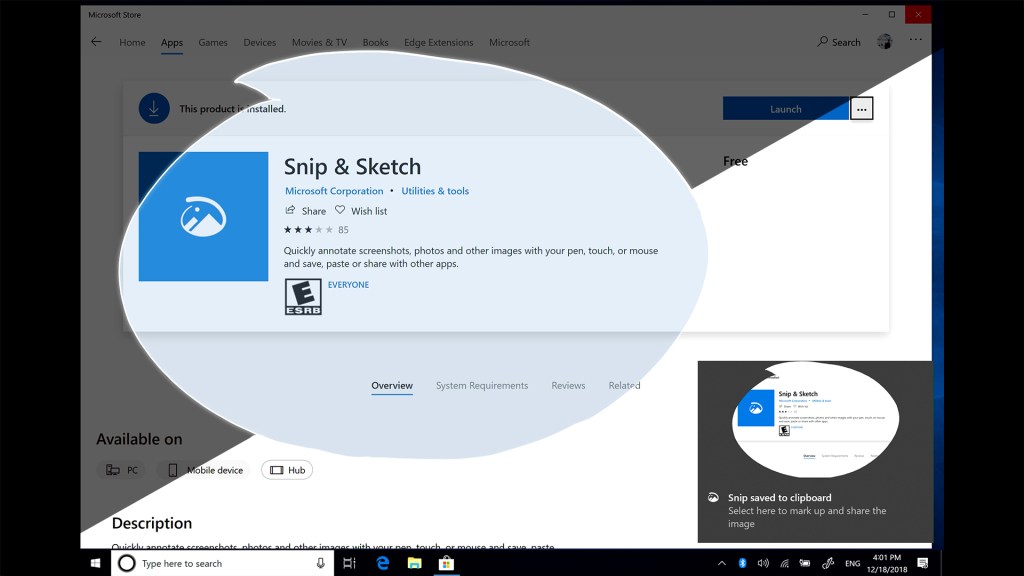
This is a really easy option, assuming you have it already installed on your PC (if not visit the Microsoft App store to download the new Snip & Sketch app). Then go to your apps and open (‘launch’) it. It’ll look like this…

Snip & Sketch

Once Snip & Sketch is open, you’ll be able to use this powerful little app to take full or partial screenshots, markup the pics, and much more. Just click the “NEW” button in the top LEFT of the tool’s menu to get started – here’s what it looks like…

Snip & Sketch has a lot more to it than just screenshots so if you want to know more, check out this helpful article from WindowsCentral.

  • A 3rd option for a full screenshot is to Press the Windows Logo button + G to open the new Game Bar option in Windows 10. These screenshots will be in the Captures Folder which is a sub-folder of the VIDEOS Folder on your This PC Menu
Windows 10 Game Bar Screenshot

HowtoGeek has a nice article about screenshots if you’re more interested in this topic.

B. How to take a PARTIAL Screenshot on a Windows 10 PC

  • The easiest way is to just press the Windows Logo + Shift Key + S key. Then you can select the area you want to take a partial screenshot of.
  • Use the Windows 10 Snip & Sketch Tool (formerly Snipping Tool app) as noted above.

II. How to Take a Screenshot on a Chromebook

Screenshots on a Chromebook are pretty simple. All the screenshots are stored in your FILES Folder.

A. How to take a FULL Screenshot on a Chromebook

Press the Control + Shift Window Key. It looks like this…

Chromebook Full Screenshot Keys

B. How to take a PARTIAL Screenshot on a Chromebook

Press the Control key + the Shift key + the Shift Window Key. It looks like this…

Chromebook Partial Screenshot keys

III. How to Take a Screenshot on a Mac

A. How to take a FULL Screenshot on a Mac

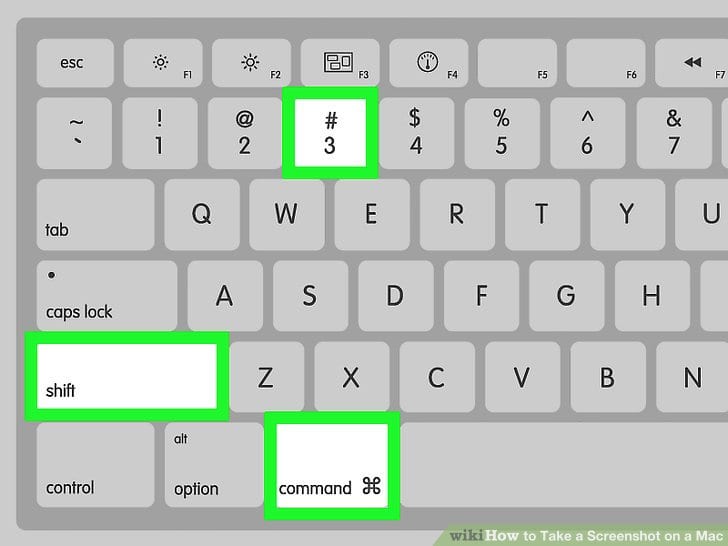
Instructions from Apple: “Press Shift key + Command key + 3 key. Find the screenshot on your desktop.”

Mac Full Screenshot – from WikiHow

B. How to take a PARTIAL Screenshot on a Mac

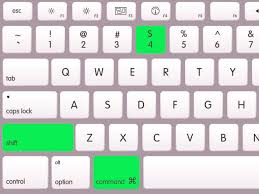
Instructions from Apple: “Press Shift key + Command key + 4 key. Drag to select the area of the screen to capture. To move the entire selection, press and hold Space bar while dragging. After you release your mouse or trackpad button, find the screenshot on your desktop.”

Mac Partial Screenshot

There are obviously other ways to take screenshots on your computer, but these are the ones I use because they seem to be the easiest. If you have one you recommend, let me know in the comments below.


amzn_assoc_placement = “adunit0”; amzn_assoc_search_bar = “true”; amzn_assoc_tracking_id = “thathelpfulda-20”; amzn_assoc_search_bar_position = “bottom”; amzn_assoc_ad_mode = “search”; amzn_assoc_ad_type = “smart”; amzn_assoc_marketplace = “amazon”; amzn_assoc_region = “US”; amzn_assoc_title = “Shop Top Chromebooks”; amzn_assoc_default_search_phrase = “Chromebook”; amzn_assoc_default_category = “PCHardware”; amzn_assoc_linkid = “3ed97b559d840c0c9b59ab67d4c85a7b”; amzn_assoc_default_browse_node = “13900871”; //z-na.amazon-adsystem.com/widgets/onejs?MarketPlace=US

What to Read Next

Best Chromebooks
Nest vs Ring Doorbell
Search Google by Date