Google Bard is an advanced AI chatbot developed by Google, leveraging its extensive experience in artificial intelligence and natural language processing. Bard is designed to assist users in generating text, answering questions, providing translations, and much more, by engaging in conversational interactions. It uses Google’s proprietary language models, including the latest Gemini model, which builds on previous models like LaMDA and PaLM 2, to provide more accurate and nuanced responses.
How to Access Google Bard
Step 1: Sign In
To begin using Google Bard, visit the official Google Bard website. Click on the “Sign In” button and log in with your Google account credentials.
Step 2: Enter Your Prompt
Once signed in, you will be directed to the main interface where you can start interacting with Bard. Simply type your question or prompt into the input box and press the “Enter” key or click the arrow button to submit your query.
Key Features and Options
1. Main Interface Options
Edit Prompt: Allows you to edit your previously sent message.
View Other Drafts: Provides alternative drafts of Bard’s response to your query.
Regenerate Drafts: Lets you regenerate the response if you are not satisfied with the initial answer.
Export Response: You can export Bard’s response to Google Docs or as a draft in Gmail.
Google It: Opens a new tab to search Google for more information based on your query.
Feedback: Thumbs up or down buttons help improve Bard by providing feedback on the quality of its responses.
2. Advanced Features
Voice Input: Use the microphone to input queries via voice, a feature especially useful for hands-free operation.
Sharing and Exporting: Share responses via public links, or export them to Google Sheets, Docs, Colab, or Replit. This feature is particularly useful for collaborative work and coding projects.
Pinned and Recent Threads: Manage your conversations by pinning, renaming, or deleting previous threads. This helps in keeping track of ongoing projects or repeated queries.
Practical Applications
1. Content Creation
Google Bard can assist in writing various types of content such as emails, poems, scripts, and code. It’s an invaluable tool for writers and developers looking to generate creative content or automate parts of their workflow.
2. Information Retrieval
Unlike a traditional Google search, Bard provides direct answers to queries in a conversational manner, which can be further expanded or clarified through follow-up questions. This makes it an excellent tool for quickly gathering and understanding information.
3. Summarization
Bard can summarize long articles or documents, extracting key points to provide a concise overview. This feature is especially useful for researchers and students who need to digest large amounts of information efficiently.
4. Translation
Google Bard supports over 100 languages, making it a powerful tool for translation. Whether you need to translate a sentence or an entire document, Bard can handle the task with ease.
Benefits and Limitations
Benefits
Real-Time Data: Bard provides up-to-date information by accessing current internet data through Google Search.
User-Friendly Interface: Its conversational interface is easy to use, even for those who are not tech-savvy.
Multifunctional: From generating creative content to summarizing articles and translating languages, Bard offers a wide range of functionalities.
Limitations
Accuracy Issues: As with any AI, Bard’s responses can sometimes be inaccurate or incomplete. Users are encouraged to verify critical information.
Dependence on Google Ecosystem: Bard’s full potential is realized when integrated with other Google services like Docs, Sheets, and Gmail. This could be a limitation for users not deeply embedded in the Google ecosystem.
Future Prospects
Google is continuously improving Bard by updating its language models and adding new features. As AI technology advances, Bard is expected to become even more accurate and versatile, offering enhanced capabilities for both personal and professional use.
Conclusion
Google Bard represents a significant advancement in AI-driven conversational agents, offering a wide range of functionalities that can enhance productivity and creativity. By understanding its features and capabilities, users can effectively leverage Bard to meet their diverse needs, from content creation to complex problem-solving.
For more detailed information and to start using Google Bard, visit the official Google Bard website.
Google Gemini is the latest in AI technology developed by Google DeepMind, designed to provide state-of-the-art performance across a variety of tasks through its multimodal capabilities. This advanced AI model is integrated into numerous Google products and services, aiming to enhance user experience, improve productivity, and offer sophisticated assistance for both personal and professional use.
Overview of Google Gemini
Gemini represents a significant leap in AI technology, offering advanced capabilities in understanding and processing different types of information, including text, images, audio, and video. The Gemini family includes models of various sizes and capabilities, optimized for different use cases:
Gemini Ultra: The most powerful model, designed for highly complex tasks.
Gemini Pro: A versatile model suitable for a wide range of tasks and scalable applications.
Gemini Nano: An efficient model optimized for on-device tasks, particularly in mobile applications.
Key Features and Capabilities
Multimodal Processing: Gemini is natively multimodal, allowing it to seamlessly integrate and process information from various sources such as text, images, audio, and video. This capability makes it highly effective for tasks that require understanding and reasoning across different types of data.
High Performance: Gemini models, particularly Gemini Ultra, achieve state-of-the-art performance on numerous benchmarks, outperforming previous models in tasks such as natural language understanding, image recognition, and complex problem-solving.
Long Context Windows: Gemini 1.5 introduces a breakthrough in long-context understanding, processing up to 1 million tokens, which enables it to handle more extensive and complex inputs efficiently.
Efficiency and Scalability: Gemini’s architecture is designed for efficiency, utilizing techniques like the Mixture-of-Experts (MoE) to selectively activate relevant parts of the model, enhancing its performance while reducing computational requirements.
How to Use Google Gemini
Accessing Gemini
Online Access: You can access Gemini through its dedicated website ( gemini.google.com ). It provides a free version powered by Gemini Pro, where users can interact with the model similarly to using a web-based AI assistant.
Mobile Apps: For Android users, the Gemini app can be downloaded from the Google Play Store. Alternatively, users can opt-in to an upgrade within Google Assistant. For iOS users, Gemini is accessible via the Google app, which includes the new AI functionalities.
Google Services Integration: Gemini is being integrated into Google’s Workspace applications such as Docs, Sheets, and Slides. Users with the Google One Premium AI Plan can access Gemini Ultra within these apps, allowing for advanced AI assistance in document creation and data management.
Using Gemini
Personal Assistance: Gemini can be used for a variety of personal tasks. For instance, users can ask it to summarize articles, generate photo captions, or provide step-by-step guides for tasks like repairing a flat tire. The AI’s ability to understand and process images and text makes it a versatile personal assistant.
Professional Use: In professional settings, Gemini can assist with writing cover letters, creating schedules, and managing communications. Its integration with Google Drive allows it to access and utilize data stored in your files, providing a highly customized and efficient workflow.
Development and Custom Applications: Developers can use Gemini’s capabilities through Google’s AI Studio and Vertex AI. These platforms provide access to Gemini’s APIs, allowing for the creation and deployment of custom applications that leverage the model’s advanced AI functionalities.
Subscription Services
For users seeking the most powerful features, Google offers a subscription service called Gemini Advanced, part of the Google One Premium AI Plan. This subscription provides access to Gemini Ultra, enabling enhanced capabilities and performance for both personal and professional use.
Ethical Considerations and Safety
Google has emphasized the importance of safety and ethical considerations in the development and deployment of Gemini. This includes measures such as watermarking generated images to prevent misuse and ensuring that the AI adheres to ethical guidelines in its operations. The company is continuously working on improving these safeguards to mitigate potential risks and ensure responsible usage – whether this proves to be true or not will be discovered over time. Given Google’s past history with censorship, one has to be somewhat concerned.
Is Google Gemini right for you?
Google Gemini represents a significant advancement in AI technology, offering powerful, flexible, and efficient capabilities across various domains. Whether for personal assistance, professional productivity, or custom application development, Gemini provides a robust platform for leveraging AI’s potential. Its integration into Google’s ecosystem ensures that users have seamless access to its features, making it a valuable tool for enhancing everyday tasks and complex projects alike. As Google continues to refine and expand Gemini’s capabilities, it is poised to become an indispensable part of the digital landscape – let’s just hope it’s a future in which humanity remains in control of the AI tools we’re using.
Let’s review how to add an attachment in GMAIL – whether it’s a document, an image, or any other type of file. We’ll even discuss the nuances of doing this on a MOBILE device too.
Step-by-Step Guide to Adding an Attachment in Gmail
1. Logging into Your Gmail Account
Before you can send an email with an attachment, you need to be logged into your Gmail account. Follow these steps:
Once logged in, you will be directed to your inbox.
2. Composing a New Email
To attach a file, you need to start composing a new email:
In the top-left corner of the Gmail interface, click the “Compose” button. This will open a new message window.
In the “To” field, enter the recipient’s email address.
Fill in the “Subject” line with the topic of your email.
Write your message in the body of the email.
3. Adding an Attachment
Gmail allows you to attach files from your computer, Google Drive, or insert images. Here’s how to attach files from different sources:
Attaching Files from Your Computer
In the new message window, look for the paperclip icon at the bottom toolbar and click on it. This is the “Attach files” button.
A file explorer window will open. Navigate to the location on your computer where the file you want to attach is stored.
Select the file and click “Open”. The file will begin uploading, and once completed, it will appear at the bottom of the email.
Attaching Files from Google Drive
If your file is stored in Google Drive, click the Google Drive icon next to the paperclip icon.
A new window will open, displaying your Google Drive files.
Select the file you want to attach and click “Insert”. You have the option to insert it as a Drive link or as an attachment. Choose the appropriate option based on the file type and your preference.
Inserting Images
To insert an image directly into the body of the email, click the “Insert photo” icon (a small picture icon) in the toolbar at the bottom.
You can choose to upload an image from your computer, use a photo from your Google Photos, or enter a URL.
Select the image and it will appear in the body of your email.
4. Managing Attachments
Once you’ve attached your files, you might need to manage them before sending your email:
Removing Attachments: If you need to remove an attachment, hover over the file and click the small “X” that appears on the top-right corner of the file thumbnail.
Previewing Attachments: Gmail allows you to preview attachments before sending. Simply click on the file to open a preview window.
5. Sending the Email
After attaching the necessary files and composing your message, sending the email is straightforward:
Double-check the recipient’s email address, subject line, and message content.
Click the “Send” button at the bottom-left corner of the compose window.
Your email, along with the attached files, will be sent to the recipient.
Troubleshooting Common Issues
While attaching files in Gmail is generally a smooth process, you might encounter some issues. Here are common problems and their solutions:
File Size Limit
Gmail has a file size limit of 25 MB for attachments. If your file exceeds this limit:
Compress the file using file compression software like WinRAR or 7-Zip.
Upload the file to Google Drive and share the link.
Unsupported File Types
Certain file types may be blocked by Gmail for security reasons:
Change the file extension if it’s a simple text or image file (e.g., rename .exe to .txt).
Use Google Drive to share the file.
Slow Upload Speeds
Large files may take longer to upload, especially with a slow internet connection:
Ensure you have a stable internet connection.
Attach files during off-peak hours when internet speed might be faster.
Mobile App Attachment
If you are using the Gmail mobile app, the process is slightly different:
Open the Gmail app and tap the compose button.
Tap the paperclip icon to attach a file.
Choose the file from your phone’s storage or Google Drive.
Tips for Effective Email Attachments
To ensure your emails with attachments are well-received, consider these tips:
Name Your Files Clearly: Use descriptive file names so the recipient knows what each attachment is without opening it.
Compress Large Files: Compressing files not only reduces their size but also groups multiple files into one, making it easier for the recipient.
Mention Attachments in the Email: Reference the attached files in the body of your email to ensure the recipient notices them.
Conclusion
Adding attachments in Gmail is a simple yet powerful feature that enhances the functionality of your emails. Whether you’re sending a crucial business document, a collection of vacation photos, or any other type of file, Gmail provides an intuitive interface to make the process seamless. By following the steps outlined in this guide, you can confidently attach and send files, ensuring your communications are effective and complete.
Google Bard vs. Google Gemini: Understanding the Differences. In the rapidly evolving landscape of AI technologies, Google has introduced two powerful models: Bard and Gemini. While both serve as advanced AI tools, they have distinct functionalities and target different user needs. Here’s an in-depth look at the key differences between Google Bard and Google Gemini so you can know which one to use for which purpose.
Core Functionality of Bard vs Gemini
Google Bard:
Bard is primarily a conversational AI chatbot designed to engage users in interactive dialogues. It excels in generating creative content such as stories, poems, and detailed text responses. Bard is intended for direct consumer use, making it accessible and user-friendly for everyday tasks like writing, answering questions, and providing recommendations.
Google Gemini:
Gemini, on the other hand, is a multimodal AI platform capable of understanding and generating not just text, but also images, videos, and audio. It is designed to handle a wide range of tasks, including coding, content creation, and complex problem-solving. Gemini’s capabilities extend beyond simple text generation, making it suitable for applications in software development, research, and multimedia content creation.
Technological Foundation
Google Bard: Bard was initially based on Google’s PaLM large language model but has since been upgraded to incorporate elements of the Gemini model. This enhancement has improved Bard’s generative and problem-solving capabilities. However, Bard remains focused on text-based interactions and creative tasks.
Google Gemini: Gemini is built using Google’s latest AI technologies, including Tensor Processing Units (TPUs) optimized for machine learning tasks. It leverages extensive datasets from the internet and other sources to train its models. Gemini’s multimodal approach allows it to process and generate content across different formats, making it a versatile tool for diverse applications.
Usage Scenarios
Google Bard: Bard is tailored for users seeking a conversational AI that can assist with everyday creative and informational tasks. It is ideal for writing assistance, brainstorming ideas, and engaging in natural language conversations. Bard’s ease of use makes it suitable for general consumers who do not require technical expertise.
Google Gemini: Gemini’s strength lies in its multimodal capabilities, making it suitable for more complex and varied applications. It can be used for software development, where it excels in code generation and debugging. Additionally, Gemini’s ability to handle images, audio, and video makes it a powerful tool for content creators, researchers, and professionals who need a comprehensive AI solution.
Special Features and Integrations
Google Bard: Bard offers several features designed to enhance user interaction, such as multilingual support and the ability to generate diverse text formats. It integrates with Google’s ecosystem, providing real-time web access and extensions through plugins, which expand its capabilities.
Google Gemini: Gemini is available in different versions, including Ultra, Pro, and Nano, each tailored for specific use cases. For example, Gemini Nano is optimized for mobile devices, while Gemini Pro and Ultra handle more complex tasks like scientific research and advanced coding. Gemini’s integration into applications like Samsung Notes and its availability through Google Cloud’s Vertex AI platform highlight its versatility and scalability.
Strengths and Limitations
Google Bard: Bard excels in generating human-like conversations and creative text content. However, it can exhibit biases and inaccuracies, and its creative output may sometimes lack originality. Bard’s reliance on existing data sources can lead to repetitive or incorrect information.
Google Gemini: Gemini stands out for its multimodal proficiency, advanced reasoning, and robust performance in complex tasks. It has demonstrated superior capabilities in areas like Massive Multitask Language Understanding (MMLU). However, its complexity and advanced features mean it has a steeper learning curve and may not be as accessible to non-technical users.
Pricing and Accessibility
Google Bard: Bard is available with a basic free tier, with premium options that offer additional features and higher usage limits. This makes Bard accessible to a broad audience, from casual users to professionals seeking more advanced capabilities.
Google Gemini: Gemini’s pricing varies based on the version and usage. The basic API access is free, with limitations on the number of queries. More advanced features, such as those offered by Gemini Pro and Ultra, come with a cost, reflecting their enhanced capabilities and intended professional use.
Bard vs Gemini? It depends on the task
Google Bard and Google Gemini serve different purposes within the AI ecosystem. Bard is designed for engaging, creative conversations and general consumer use, while Gemini offers a more comprehensive, multimodal AI experience suitable for professional and technical applications. Understanding these differences can help users choose the right tool for their specific needs, whether it’s for creative writing, complex problem-solving, or multimedia content creation.
Creating a great job description is a work of art. Just as it is important for a candidate to make a good first impression, the same goes for the company also.
Job descriptions are the synopsis of what the job is all about. Apart from that, a job description also contains a brief description of the company. Basically, when a candidate applies for a job position in a particular company, the first thing he or she reads is the job description.
Therefore, if you are a company and you want to recruit some new employees, then you have to make sure that the job description you are publishing is well-informed and detailed. But as a company, you might ask how we can create a perfect job description in order to attract more candidates and appropriate ones too.
Well, that is what we are going to discuss, but there is a slight filter. What we will be discussing today is for companies who are looking for B2B profile candidates. Therefore, the tips to improve your job description will be focused on B2B profiles. So, let us begin.
The Best Ways to Improve B2B Job Description
B2B is the abbreviation for Business to Business. B2B profiles in a company mean that the employee has to make business deals with other companies and not directly with the customers.
This also indicates that B2B is a corporate profile. Therefore, it is important for companies to create an impressive and attractive job description. And, companies like Atdoorstep are incorporating latest and trendy updates based on B2B jobs.
Pro tips to create a perfect B2B job description.
1-Connect more with the Candidates
The main role of any job description is to attract more candidates. Moreover, appropriate candidates are the perfect fit for the provided role. But the point is, before you post a job description, there are some questions that you need to answer first, like –
Who is the targeted audience?
This question should answer the group of candidates you are looking for, who will satisfy all the requirements for the job post. Therefore, it is very much important to do market research about current in-demand skills.
What service does your company exactly provide?
This means that how the service provided by your company can be making a difference in society. How your company is different from competing companies. It is mandatory for every company to have a unique selling point.
What are the benefits you are providing?
When a candidate applies for a job role, he surfs through numerous company options, for the same job profile. In case, your company is one of them, then in order to stand out among them, you have to create an attractive job description.
Most importantly, the point candidates usually differentiate between the companies is which company is providing the best benefits for the same job role. Therefore, while making a job description you have to make sure that you provide all the points regarding the benefits and culture of your company.
2-Give a proper Job Title
A job title is the headline of a Job description. Therefore, if you want the candidate to read the job description you have to give a proper job title. An appropriate job title tells the candidate a lot about the job profile.
Some companies use creative job titles to attract appropriate candidates. But, this concept has a fifty-fifty chance that you will get your desired candidate. As creative names are still fine, some companies come up with some weird names which in turn confuses the candidate.
Therefore, while coming up with a job title, you have to keep two things in mind — One, you have to step out of the traditional way to give a job title, which means you have to be creative enough with the title you choose for the job role. Second, you have to make sure that you don’t come up with a weird name that will give a completely different idea about the job description or the company.
3-Just keep it Simple
It is important to make sure that your job description is easily understandable and readable. Try not to use any kind of superlatives like, “the best of the best”, “world-class”, “best in the business”, etc. These superlative adjectives can scare away many candidates, especially women and freshers.
Adding more adjectives to the job description can also determine your company’s respect and values. Therefore, it is always recommended that you should keep the job description as simple and informative as possible.
4. Focus on Growth and Development
Job descriptions are meant for a piece of complete information, about the job profile, the candidate is applying for. Moreover, it also tells a little about the company, too. But, that does not mean that you will create a job description that will contain a long boring paragraph and some bullet points that will state the qualification details.
If you do so, then no one is going to even read the job description. So, get this traditional concept out of your head right now. If you want to get more number of desired candidates, then you have to be more innovative with your job description.
As for example:
You can create three or four major subheadings. One will tell a brief introduction of your company, the second will be about the complete job description. The third subhead will contain all the information about the job role, including the day-to-day responsibilities, and lastly the qualification subhead.
That’s it. The more short and crisp your job description is the more you will attract candidates. Talking about growth and development is very important. You don’t want to just talk about your company and the expectations throughout the job description. That will definitely make it more boring for the reader.
For example, you should include how your company will help the candidate with his or her future and career development. Thus, these points are very much important and attract a lot of aspirants.
Moreover, you can also include how the job role in your company will help the candidate to upgrade their skills. What kind of industry exposure, they will be getting after joining the company.
All these points are mandatory for every job description. So, if you haven’t included these in your job description, then go and change it today. You will see the result for yourself.
5. Culture is Everything
Talking about the job environment and company culture in the job description is an added value. And, many companies will agree on this point. Company culture is a key point that every candidate desperately looks for.
Getting recruited into a company is like becoming a part of a new family. And, just like that whenever an aspirant applies for a job, the first question that crosses their mind is what the job culture would be like.
Hence, if you answer this question first, in the job description, then it will be easier for candidates, and as well as you in the long run. This way the candidate will get a proper idea about the company.
6. Create a Job Urgency
This is a trick most companies use to fill up the vacancies rapidly. Despite a real urgency, companies make their job descriptions urgent as they want the candidates to think of it as an important job.
As a result, the companies get quick responses and have the liberty to shortlist, from a huge list of interested candidates. As a result, the job post will reach a huge pool of candidates.
Lastly…
Various companies have different ways of posting their Job Descriptions, but the points we have discussed above are some positive tips and tricks every company should follow in order to gain more number of desired candidates. So, if you have a company that requires new employees, then just follow the above-mentioned tips to make an attractive and eye-catching job description.
Guest Post – About the Author
Sunil Verma is an enthusiastic tech blogger with a creativity-mind and an entrepreneur in himself. His focus and passion adjoin for seeking the latest technological developments and travel. A content crafter who can enchant you with his ideas on home improvements. His love for blogging makes him an inventory and an influencer. Email Id: sunil@magicgroupinc.com
Are you considering buying a larger computer monitor? If so, you’re probably looking at Gaming Monitors of 24 Inches or more and perhaps you’re wondering – can I use a Gaming Monitor for work or is that overkill? If you find yourself in this situation, I’m here to help! In this article, I’ll tell you…
[lwptoc]
Mike
Hi, I’m Mike, That Helpful Dad and this website is all about providing practical solutions to real life problems. I hope you enjoy today’s wisdom – if you do be sure to visit my home page and sign up for my free weekly emails. You can also follow me on YouTube, Twitter, Facebook, and Pinterest. I’d love to hear from you so drop me a comment and let’s chat.
Best Gaming Monitor – TLDR
TLDR? In a hurry? Just want to know what Gaming Monitor I bought?
After all my research I chose the ASUS Rog Strix Curved 27″ Gaming Monitor – read the article to see what else I considered and why or check out my recommendation by clicking on the pic below…
Why Choose a Larger Computer Monitor?
When I decided I wanted to try a larger computer monitor I looked into moving from a standard size monitor (12-19 inches) to a larger monitor (24 inches or more). I did a bit of research on the pro’s and con’s of using a larger monitor (see links below) and continued to find myself with recommendations to buy a “Gaming Monitor” as the best option for my situation. Once I made the decision to go with a gaming monitor I considered a number of top-rated choices (all noted below).
Before we look at my list of the best gaming monitors, you may want to know the reasons why you’d want to upgrade to larger monitor in the first place, and then why you should choose a gaming monitor specifically.
The benefits of using a larger pc monitor (24 inches or more) are numerous, but the most cited reasons are:
Larger monitors provide more productivity;
Larger monitors are easier to view (less eye strain),
Larger monitors now have more affordable pricing so that more people can buy them without breaking the bank.
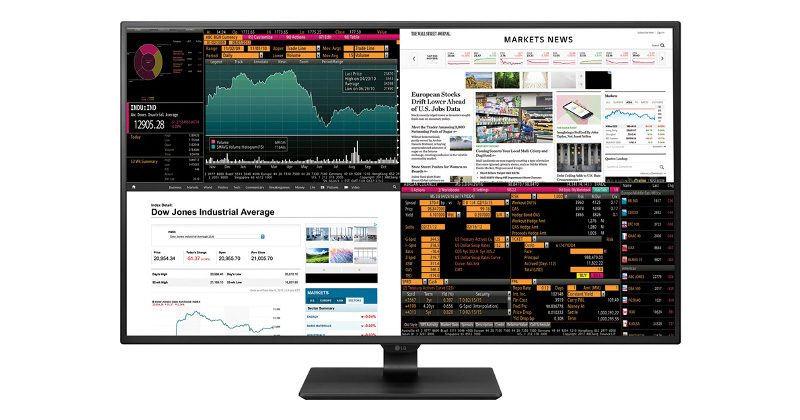
Personally, I work a lot with spreadsheets and multiple windows but standard size monitors (12-19 inches) just don’t provide enough screen space to do any meaningful work with multiple windows. A bigger monitor gives me more ‘screen real estate’ to work with.
Here are some examples.
The #1 benefit of having a larger monitor is the extra space results in greater productivity.
Don’t just take my word for it on why you might want a larger monitor. Here are some helpful articles I read that convinced me to move to a bigger screen…
So why choose a Gaming Monitor vs Regular Monitor?
There are lots of articles on the internet about the differences of gaming monitors vs regular monitors including excellent posts by GamingGeekInnovation.com, and NewEgg.com, and these talk about technical aspescts like Refresh Rates, Resolutions, Inputs, Connectivity, and yada, yada, yada.
If you’re an Average Joe like me, the main thing to know is that Gaming Monitors not only offer more space (like other larger computer monitors) but also offer fantastic picture quality for watching movies, doing your work, and well playing games too! Best of all, because technology has advanced so much and prices have come down with competition, we as the consumer can now get high-end gaming monitors for a low cost. So if you’re gonna buy a larger monitor, then you might as well get a gaming monitor because it gives you all the features you might want (and more).
Gaming Monitors offer the best value for your dollar in the Large Computer Monitor Category.
INVESTING: I can have multiple online trading windows open
PODCASTING: I can have a Google Docs script in one window, Audacity (recording) in another, Shotcut (editing) in another, and my podcasting site in another.
YOUTUBE Channel Work: Similar to the podcasting work, I can have multiple windows open whether the boys and I are recording/editing a new gaming vid or I’m working on my HelpfulDad YT Channel.
GAMING – it’s especially great if you are playing an immersive game or you want to do a Mod in Minecraft that requires some technical knowledge.
And More!!
Best Gaming Monitors to Consider
Now that you know you want a gaming monitor for work (and play), you’ll want to know which gaming monitor to buy, right?
I did lots of research on the best gaming monitors and read thru articles by TechRadar, PC Mag, WireCutter, Digital Trends, and more. Eventually I narrowed top gaming monitor choices down to 24-27″ range (given the size of my desk I felt this size was perfect) and the following categories
Best Full HD Gaming Monitors (1080P or better) 24-27 Inches AND under $500
Why did I choose the ASUS Rog Strix 27″ Curved Monitor?
Since this was my first larger monitor and I don’t do high-end gaming where ultra fast refresh rates are the difference between life and death, I didn’t necessarily wanna drop a grand on a gaming monitor just yet. When I did my research and really narrowed down what I wanted (the best combo of screen space for a reasonable amount of money) I came down to the Alienware 25 and the ASUS Rog Strix 27. In the end the ASUS Rog Strix 27 just felt right – it has more consistent reviews, I liked the curved option, and I liked the warranty.
I’ve owned the ASUS Rog Strix 27 Inch monitor for nearly a year now and it’s met all my expectations!
About the Asus Rog Strix 27″ Curved Gaming Monitor
ASUS ROG Strix 27″ Monitor Review by JP-Modified
Here are the primary features of the ASUS Rog Strix 27″ Monitor:
Size: 27”
Flat vs Curved: Curved to extendyour field of vision so you feel fully immersed in the game. This monitor lets you enjoy wide viewing angles with minimal distortion — so you get better visuals with games, movies, from almost any viewing angle!
Resolution: Full HD (1920 x 1080)
Refresh Rate: Its 144Hz refresh rate and Adaptive Sync/FreeSync paired with 1800R curvature provides smooth, immersive gaming experiences. Did you know? FreeSync Technology delivers the smoothest, fastest, and most breathtaking gaming visuals imaginable by eliminating screen tearing and choppy frame rates, and by minimizing display stutter and input lag.
Tilt/Swivel: Easily find your ideal viewing position with swivel, tilt and height adjustability.
Combo multiple screens? Strix XG27VQ features a super narrow design, making it the ideal solution for almost-seamless multi-display setups for gaming, stock trading, and more.
Daylio App – have you heard of the DAYLIO Micro Diary and Mood Tracker app? I’m in love with this little app – and you should be too. In this article I tell you what Daylio is and how I use it to improve my life. My goal in doing so is to introduce you what I believe is a great product (and best of all it’s FREE) – my hope is that Daylio can make a real difference in your life too.
Daylio App
What is Daylio?
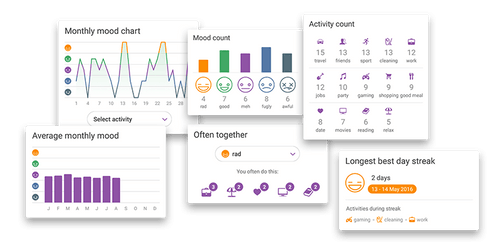
Daylio is an easy to use mobile app that allows you to track your moods and daily activities. With regular use (as little as 5 days) you’ll start getting feedback reports that reveal trends.
Daylio Screenshots
Daylio’s trends help you identify the connection between what activities you do when you feel great and what’s happening in your life when you have bad days.
What I love about Daylio is…
Daylio is one of my favorite apps because it’s easy to use, it’s free, and you can modify the activities to fit your needs.
What I love about this app is that is shows me trends – for the day, month, and even the year. This allows me to VISUALLY SEE if I am living a life that’s in balance or if I’m too heavy in one area vs another. I’ve used this app every single day for over 1000 days and the feedback it’s providing is invaluable!
Daylio makes it so easy to keep a mobile life journal because it takes just a few seconds to toggle on/off what you did that day and/or add/modify activities to suit your own system. Because Daylio is so easy/quick to use, it provides an efficient way for me to keep an on-the-go de facto daily journal about life. Add to that the fact that you can also include free text notes for each day (if you want to) and now you’re talking.
Here’s how I use Daylio
I’ve been using Daylio for over 1000 days continuously as you can see here…
I use the Daylio app to track my daily moods and activities. My goal in using the app is to have a quick and easy way to journal my life AND to be able to see trends in terms of what’s working well for me and what isn’t.
The knowledge I get from Daylio allows me to KNOW what I should be doing more of and what I should be nixing from my life.
Daylio allows me to rate how I felt each day (awesome, good, average, not good, awful) AND it lets me get granular with specific activities – would you believe I’m currently tracking 80+ different daily activities? Ha, if you know me at all, this probably does’t surprise you.
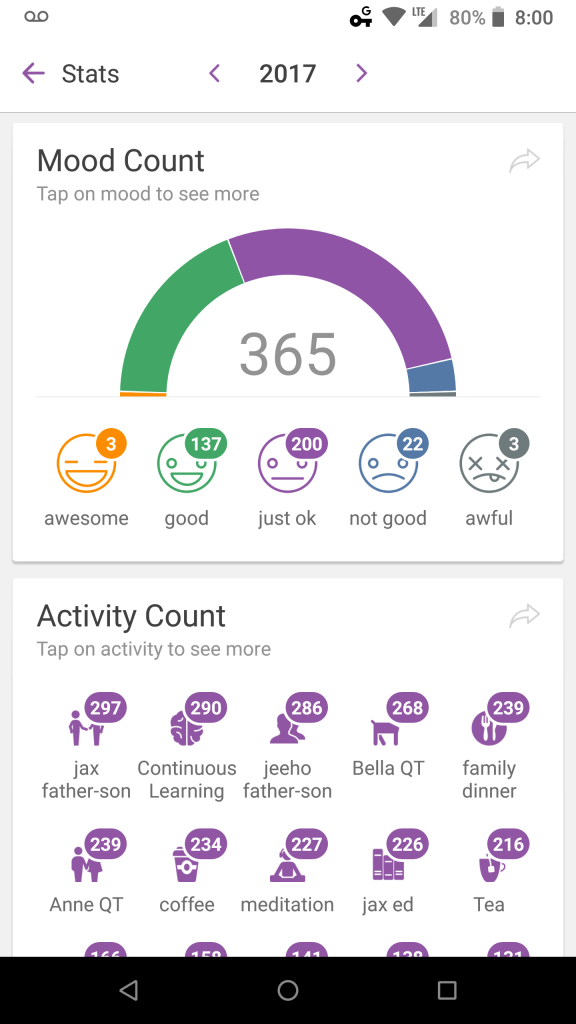
Here is are my mood charts and activity counts for the last 1000+ days. My goal is to have more Awesome + Good days than Just OK + Not Good/Awful Days.
Daylio 2017
Daylio 2018
Daylio 2019
As you can see I’ve been able to improve this over time and the reason WHY I’ve been able to do this is by using Daylio to help me identify the activities that help me achieve a Good Day or better.
If you’re like me, you’re always on the lookout for ways to be more productive. After all, the older we get the more we realize that time is precious – we can’t buy more of it and the sands of the hourglass never stop draining – so if there’s a trick that can help me better use my time I want to know about it. If you’re reading this, I’m guessing YOU do too.
To be more productive, you could try this technique…
Jim Carrey’s Productivity Hack?
Heck, I’d love to supercharge my productivity like Jim is doing in the vid, however for most of us Average Joe’s that little trick may not work. Yet have no fear, because, as always That Helpful Dad is here to help you by sharing a life lesson that anyone CAN use (yes that means YOU) to improve their productivity and reach their goals faster.
It’s called The Rule of 5
And it starts with a story…
The story behind the success of Mark Victor Hansen and Jack Canfield. Do those names ring a bell to you? This pair is the powerhouse behind the uber popular self-help series known as Chicken Soup for the Soul. These books are so legendary that there are now over 250 titles in the series and Mark and Jack have had their books translated into 40+ languages and sold more than 500 million copies worldwide.
Until they got some advice from an old teacher who told them…
“If you would go every day to a very large tree and take five swings at it with a very sharp ax, eventually, no matter how large the tree, it WILL come down.”
They did it – oops!
Recognizing the value of good advice, the story goes that Mark and Jack developed The Rule of 5.
Here’s how the Rule of 5 works…
Every day, do 5 specific things that will move you closer to your goal.
Wait, that’s it?
Yup, it’s not rocket science – but then again, most true wisdom isn’t hard to understand – the real trick is to actually DO it – day in and day out.
The keys to using this trick successfully are as follows:
Be SPECIFIC with your activities each day. Write them down and know exactly what you plan to do.
Make sure your activities are directly related to furthering your main goal – don’t mistake busy work for productivity. If the task isn’t really aligned with your goal, don’t do it.
Be persistent – use the Rule of 5 every day until you reach your goal.
The right actions, done consistently over time, lead to results.
It’s that Journey of 1000 miles and the single steps you take along the way toward the goal – shockingly simple but incredibly effective.
So what happened with Mark and Jack?
They applied this wisdom as follows: every day they did 5 specific things that they believed would move them closer to their dream of selling their books.
Mark said, “every day we did 5 radio interviews, or sent out 5 copies to book editors who might review our book, or called 5 network marketing companies and asked them to buy the book as a motivational tool for their sales people, or we gave a seminar to at least 5 people and sold the books at the back of the room.”
Jack added, “We wrote 5 press releases, we called in to 5 talk shows (sometimes at 3am), we even went to 5 gas stations, bakeries, restaurants, you name it, always selling our book. Day in, day out we did a minimum of 5 things for over two years.”
And then, finally, they broke through!
The tree they were chopping fell (thankfully not on top of them) — they found a publisher who believed in them and that snowball of public momentum continued rolling and hasn’t stopped to this day!
You Can Do It Too
Like Mark and Jack, you can use this wisdom to create real change in your life and achieve your goals.
Will it be easy?
Probably not.
Will you have to work hard?
Probably so.
But if your dream is important to you, if this is your legacy, then why not put in the effort AND use a productivity hack that is proven to work – The Rule of 5.
The Rule of 5 Challenge
Try the Rule of 5 Productivity Hack for 5 Weeks and see if if works for you.
I’d wager that it will – not just a little, but a lot.
I’d also wager that once you get things snowballing in the right direction by using the Rule of 5 and you start seeing success, you’ll be motivated to keep going – which will lead to even more success.
Share This Article
Want to Read the Chicken Soup Books?
If you’ve never read the Chicken Soup books, you’re missing out. There is quite of bit of wisdom for life in these books and there are books for pretty much every occasion. Here’s some of the most popular ones…
Best Chromebooks – I’ve been a longtime fan of Chromebooks and have been using these powerful little laptops for years. In this article, I’ll give you my recommendations for the best Chromebooks for kids, for students, for people looking to replace their traditional laptops with a Chromebook, and for bloggers and online marketers, and for working professionals who want to use a Chromebook for business.
In this article, I’ll also share with you the specific Chromebooks my family uses, give you links to check current prices for Chromebooks on Amazon, and give you numerous websites where you can learn more.
Best Chromebooks Table of Contents
[lwptoc]
I. What is a Chromebook?
Lots of websites talk about how Chromebooks are so different than other laptops, however I don’t agree. Sure, it’s true that Chromebooks use a different operating system (OS) than traditional laptops that use a version of Microsoft Windows or the Apple macOS, but the difference in OS is not as big of a deal as you might think and most importantly that factor should NOT be a reason why you overlook buying a Chromebook.
So what is a Chromebook? It’s simply a laptop that uses the Google Chrome OS and takes advantage of the “Google Universe” to provide you with an experience that leverages the best of both the mobile and laptop words. For this reason a Chromebook is so much more than just it’s Google designed OS. You can learn more about this topic by reading the “Considering a Chromebook” article from Google.
While we’re on it, I should probably also answer the question “is a Pixelbook a Chromebook?” YES, a Pixelbook is Google’s top of the line Chromebook. Some call it the ‘flagship’ model, other’s the ‘premium’ edition, or (as my son JeeHo likes to say) the “Pro Level.” You’ll learn about Pixelbooks and many other Chromebooks on this page.
II. Why Choose a Chromebook over a Laptop?
Most people who are NOT familiar with Chromebooks think they are more like glorified tablets than laptops and/or that Chromebooks can’t perform up to the standards of a traditional laptop therefore they feel that Chromebooks aren’t functional enough to make realistic options for students, bloggers, or professionals. While it’s true that a Chromebook can’t compete with a top of the line desktop (hey size DOES matter in this case) and while it’s also true that there are a select number of users (big time gamers, video editors, etc.) who may need high powered (read: high end, expensive) laptops, the fact is that for the majority of users Chromebooks CAN function as your everyday laptop of choice. Here’s why…
I’ve been using Chromebooks as my laptop of choice for years. Here are 10 reasons why I love Chromebooks instead of traditional laptops that run Windows or MacOS.
1-Chromebooks are lightning fast when it comes to turning on – open the lid and you’re up and running in SECONDS. From a productivity standpoint this is huge. Need to take a quick note? You can do that much faster on a Chromebook because you don’t have to wait for the traditional laptop boot-up process.
2-Chromebooks are lightweight– the average laptop weighs about 5 lbs, while the majority of Chromebook is less than 3 lbs. That makes them easy to carry around for students, kids, and professionals on the go.
3-Chromebooks are NOT bogged down with a bunch of bloatware. That’s another reason why they start up so fast and don’t have a lot of background processes hogging memory.
4-Chromebooks have free, built-in malware and virus protection that is continually updated by Google. With many other traditional laptops you have to pay extra for virus protection that is outdated by the time you manually install and then have to constantly download new updates and patches. Chromebooks get those updates automatically and seamlessly – what could be easier?
5-Chromebooks use the power of the Cloudfrom an app and storage standpoint – this keeps them lean and quick. And BTW you do NOT need to be continually connected to the internet for a Chromebook to work – see the ‘common objection” below for more.
6-Chromebooks use Google Drive Apps such as Google Docs, Google Sheets, and Google Slides which are all compatible with Microsoft Office and Mac Systems so you can edit/print/share/update docs you created with other programs and vice versa. Best of all these apps are FREE and you get updates automatically.
7-Chromebooks always have the most up to date OS – you don’t have to pay for updates and the update process is quick and easy.
8-Chromebooks are inexpensive. Compare the cost of a Chromebook to a laptop and you’ll find time and again that Chromebooks win for 90% or more users.
9-Chromebooks provide you what you need and eliminate what you don’t – this goes beyond just the freedom from bloatware, it’s related to the inherent nature of the operating system on a Chromebook being so ‘lightweight’ from a functional standpoint, the ability to use mobile apps (see below) and the focus on speed. The result is the elimination of all the extra (read: not really necessary) programs, etc that fill up the traditional laptop’s memory banks.
10-Many Chromebooks can now run Android apps – which gives you an experience similar to mobile devices. My Pixelbook for example is basically another extension of my Google Fi phones (Nexus 6P and Pixel XL) when it comes to using most of my apps and this allows me to flip back and forth between devices depending on my needs. This is super convenient.
Common Objection – “But don’t I have to be connected to the internet to use a Chromebook?” This is actually FALSE. Chromebooks do NOT need to be connected to the internet to function. While it’s true that having internet/cloud access allows Chromebooks to perform at their best and is a requirement for certain apps, there are plenty of apps that work offline – these include Gmail, Google Keep, Google Drive apps (Google Docs, Sheets, and Slides), Google Calendar, Google Photos, and the Media Player (music/movies), among others.
Now that we know WHY you should want to choose a Chromebook, let’s look at my picks for the best Chromebook for each category.
III. Best Chromebooks for Kids & Families
In order to qualify as the best Chromebook for kids, the device needs to be easy to use, inexpensive, durable, and ideally have a touchscreen (because let’s face it, our kids have been conditioned that all screens are touchscreens and when they’re not, they get confused, right?). With this in mind, my recommendations are as follows…
[amazon box = “B06W57W6CX”]
[amazon box = “B01DBGVB7K”]
[amazon box = “B01APA6K6M”]
Any of these would make a good choice for families with children, and since they are all under $250, parents will like the value. Of these three, my son Jax (currently in 4th grade) has been using the Acer R11 for a couple years now and loves it – the touchscreen makes a nice feature at this price point and it’s powerful enough to play games like Roblox and Minecraft as well as YouTube Gaming.
IV. Best Chromebooks for High School and College Students
If you’re looking for a Chromebook suitable for High School and College Students you’re going to want something that can handle multiple programs/apps at the same time, is fast and efficient with social media, and is powerful enough to take on the increased workloads of students at this level. For this category I’d suggest the following:
[amazon box = “B01N5G5PG2”]
[amazon box = “B07GD4CMDH”]
[amazon box = “B075JSK7TR”]
In this price range, all of these are fine choices. If the budget allows, I’d go for the Pixelbook since the added horsepower under the hood would make it a usable option for years to come.
V. Best Chromebook for Bloggers and Online Marketers
I fall into this category personally so I know my colleagues and I in this group need a laptop that can handle programs and apps like WordPress, Youtube, Pinterest, Hoosuite, Canva, etc, etc, etc. and keep them all running at the same time. I’m currently typing this on my Pixelbook and that’s where I do most of my blogging activities.
Given my knowledge of the space, here are the best Chromebooks I’d recommend for bloggers and online marketers.
[amazon box = “B07LCSS5H4”]
[amazon box = “B07GD4CMDH”]
[amazon box = “B075JLPLBL”]
The Samsung Chromebook Pro would be the minimal you could probably get by with here. The Acer is another quality machine and I think most would be happy with it, but there is no comparison with the top line Pixelbook in this category – purchase this and don’t look back if you’re budget allows.
VI. Best Chromebooks for Working Professionals
Here’s another category where I have personal experience. As a working professional I am frequently “out in the field.” Working pro’s like me need a laptop we can rely on to power up fast, have a long battery life, be lightweight, travel friendly, and have enough processing power to get the job done.
Here’s my top 3 Chromebooks for Working Professionals:
[amazon box = “B074VB8VT5”]
[amazon box = “B07JWB7QB2”]
[amazon box = “B075JS8NZ7”]
Why these 3? Each offers a key benefit. The Asus offers a 360-degree hinge and a 10+ hour battery. The Pixel Slate is a very strong competitor to the Microsoft Surface Pro’s that are uber-popular with sales & business execs on the go. And again we find the Pixelbook as the do-it-all workhorse in this class. Depending on your needs and budget, any of these would be great choices as the best Chromebook for a working professional.
VII. Best Chromebooks to Replace Traditional Laptops
This category is going to have a wide variation because people use their laptops in different ways. Some only use it for light processing (writing emails and documents) and surfing the web; others want to be able to do a bit of gaming and watch videos in HD; and still others want the top of the line Chromebook that can serve as a workplace laptop. I’ll handle each of these segments by making a different recommendation…
If you mainly plan to use your Chromebook for surfing the web, doing emails, and watching cat videos, you don’t need to spend a lot of money. Here’s a great option:
[amazon box = “B01J42JPJG”]
If you want your Chromebook to be capable of online gaming and watching HD Videos, get an entry level Pixelbook.
[amazon box = “B075JSK7TR”]
If you want the top of the line, best available Chromebook, get the top of the line Pixelbook.
[amazon box = “B079P94MY3”]
VIII. Best Chromebook Under $250
The best Chromebook for under $250 is the ASUS Chromebook C202 – we’ve already discussed this one above. 1500+ reviews on Amazon, and “Amazon Choice” rating, 4+star average user rating, and so many great features make this one an easy choice for this category. If this is your budget, jump on the ASUS Chromebook today…
There are a LOT of choices in this category and we’ve discussed a number of strong candidates for this group on this page above. To boil it down to the bottom line, my recommendation for the best Chromebook under $500 is the Samsung Chromebook Pro (my wife rolls with this one and loves it). It’s usually on sale for under $500.
If you’ve actually read this article in full, it should come as no surprise then when you hear that my recommendation for the best Chromebook for under $1000 is the Google Pixelbook. It’s really a no brainer. Google knocked it out of the parked when they spawned this device and I see no reason why the Pixelbook won’t continue to rule the day not just in the Chromebook world, but eventually in the overall laptop market in the future too.
The Pixelbook is the Chromebook I use every day to manage 4 blogs, my numerous YouTube channels, and run my sales business. Here’s the specific model I’ve been using for over a year now…
I’ll bet you’re thinking I’ll just recommend the most expensive Chromebook for this category right? That would be the Google Pixelbook i7 with 16 GB RAM and 512 GB memory. If I did make that call, I don’t think anyone could fault me because this Pixelbook is a beast. I’d love to have it and if you can afford it, go for it.
HOWEVER, the Pixelbook i7 doesn’t win my vote as the Best Chromebook at ANY Price because I’m trying to make a fair recommendation that will benefit the majority of my readers and the fact is that for most people money IS an issue AND it’s also a fact that most people just don’t need this powerful of a Chromebook.
Therefore I’m giving the award for Best Chromebook at ANY Price to a different Pixelbook – the Google Pixelbook i5 which has 8GB RAM and 256GB memory – this is enough to serve as the best everyday laptop for the majority of people. It’s basically the machine I have but with twice the memory – it was just a lot more expensive when it first came out so I went with the 128GB version. Since the 256GB is now only $100 more than the 128GB version is a great value and it’s the Pixelbook I would buy myself if I needed a new one today. That said, I’ll be honest with you, I haven’t run into a memory issue yet with my 128GB version so it’s really up to you as to which Pixelbook i5 you get – either one is a winner.
If you follow my site, you know my goal is to help save you time when you’re trying to solve a problem or make a buying decision. One of the ways I do that is by providing you with links to some of the websites I used to conduct my research. In this case, I’d recommend all of the following sites:
That’s a question only YOU can decide – drop me a line in the comments and let me know which Chromebook YOU think is best. Thanks for reading and have a great day!
In the non-stop quest to ever improve productivity and make the most of the precious time we have in this world, I submit to you to the concept of “Three to Thrive” – an amazing tool that was developed by Tim Ferriss and Tony Robbins.
Use this simple tool and watch your productivity increase by 300% or more.
Share This Pin Friendly Image
Three to Thrive – Origins
I first heard of the Three to Thrive concept when I read Tim Ferriss’ Tools of Titans book – he was talking with Tony Robbins about Morning Routines and during the discussion Tony talked about something called ‘Three to Thrive – a technique he uses to improve his focus on what’s important each day. Tony’s Three to Thrive list is comprised of the “three things that he’s going to make happen each day.”
As Tony explained to Tim…
“It’s important to visualize the list to and see it as though it’s already been done.”
Tim Ferriss further expanded what makes the Three to Thrive concept so powerful…
“If you win the morning, you win the day.”
How to Create YOUR Three to Thrive List
Let’s not over-complicate things here. If you want to use the Three to Thrive technique is very simple — look at your To-Do List, identify 3 items that have a high ROI, and focus on completing these 3 tasks TODAY. Do this each day and watch your productivity (and results!) skyrocket.
Tips about Three to Thrive:
What’s a “High ROI” item? There are a number of ways to answer this question.
I like to ask myself, “if I invest the time to do this task, will it give me a good return for the time I spent on it?”
Alternatively the famous time management book “The Time Trap” recommends you consider the relative Importance and Urgency of a Task to determine it’s priority.
Tim Ferriss takes this a step further and recommends you ask yourself the question, “If I do this task, will it make other tasks on my to-do list unimportant or no longer necessary?”
Do your Three to Thrive tasks as soon as you can during the day.
This isn’t rocket science – similar to the concept of “Eat That Frog” if you can focus on getting your Three to Thrive tasks done as early in the day as possible, you’ll increase your odds of winning the day.
Handy To Do List Cheat Sheet.
If you want to see the time management cheat sheet I use to prioritize my tasks, head over to my home page and collect the cheat sheet as one of the cool freebies I give away to all my readers. Click my pic below…
More about Tony Robbin’s Morning Routine
If you like the Three to Thrive concept and want to expand it further, check out more about Tony Robbin’s Morning Routine.
Tony’s AM Ritual includes 3 parts – and the Three to Thrive concept is one of those parts.
His full routine includes a focus on Gratefulness, God, and Three to Thrive list. Basically he spends about three minutes meditating on each of these bucket items.
You can also listen to Tim’s podcast episode #253 where he talks about his morning routine and others from his friends (including Jocko Wilcox, Jaime Foxx, Seth Godin, and others).
My S-M-A-R-T Morning Routine
I created a Morning Routine based on the concepts of Tony Robbins and Tim Ferriss that not only incorporates the Three to Thrive tip, but also is focused specifically on helping ‘worker bee’ type people like me be able to incorporate an AM Ritual into our daily activities but do so in as little as 30 minutes. Read about it here:
If you are looking for a simple tool that is easy to apply to your daily life AND that will give you measurable improvements in your productivity, then start incorporating Three to Thrive into your daily routine.
Give it a try and let me know if it helps you.
If you have other ideas, please share them with us so we can all learn together.
What to Read Next
Practical Wisdom YOU can use today to make a difference in YOUR Life