Tag Archives: google

Gemini Gems: Your Personal AI Assistant – How It Stacks Up Against ChatGPT & Copilot

Introduction

Artificial intelligence is evolving rapidly, and Google’s Gemini has introduced a powerful new feature called “Gems”—customizable AI agents designed to assist with specific tasks. But what exactly are Gems, and how do they compare to other AI agents like ChatGPT’s GPTs or Microsoft Copilot’s plugins?

In this guide, we’ll break down:
What Gemini Gems are and how they work.
How Gems compare to other AI assistants.
Pros & cons of using Gems vs. alternatives.
How to use a Gem (even if you’re not tech-savvy).
3 real-world use cases for everyday users.

Let’s dive in!


What Are Gemini Gems?

Gemini Gems are specialized AI agents within Google’s Gemini (formerly Bard) that can be tailored for different roles—like a personal tutor, fitness coach, or travel planner. Think of them as mini AI assistants that focus on one job exceptionally well.

How Do Gems Compare to Other AI Agents?

FeatureGemini GemsChatGPT’s GPTsMicrosoft Copilot Plugins
CustomizationPre-set roles (limited user tweaking).Fully customizable (users can build GPTs).Limited (mostly Microsoft app integrations).
Ease of UseSimple, no coding required.Requires some setup for custom GPTs.Plugins work automatically in Microsoft apps.
IntegrationWorks best with Google apps (Docs, Gmail).Connects with third-party tools via API.Deep Microsoft 365 integration.
CostFree (for now, may change).Free & paid (GPT-4 Turbo required for best results).Free with Microsoft account.

Pros & Cons of Gemini Gems

Pros:

  • Super simple to use—just pick a Gem and go.
  • Optimized for Google Workspace (Docs, Sheets, Gmail).
  • Free (unlike some advanced ChatGPT features).

Cons:

  • Less customizable than ChatGPT’s GPTs.
  • No third-party plugin support (yet).
  • Still in early stages (fewer Gems available).

How to Use a Gemini Gem (Step-by-Step)

  1. Go to Gemini’s website (sign in with Google).
  2. Click on “Gems” in the sidebar.
  3. Choose a pre-built Gem (e.g., “Writing Assistant,” “Fitness Coach”).
  4. Start chatting! The Gem will adapt to your needs.

(No coding or setup required—perfect for non-techies!)


3 Practical Use Cases for Gemini Gems

1. Writing & Editing Assistant

📌 Use Case: Need help drafting an email, blog post, or resume? The “Writing Gem” can refine your text, suggest improvements, and even adjust tone (professional, casual, etc.).

🔗 Try it: Gemini Writing Assistant

2. Fitness & Meal Planning

📌 Use Case: Want a personalized workout or diet plan? The “Fitness Gem” can generate exercise routines, healthy recipes, and even track progress.

🔗 Try it: Gemini Fitness Coach

3. Travel Planner

📌 Use Case: Planning a trip? The “Travel Gem” can suggest destinations, book flights (via Google Flights), and create itineraries.

🔗 Try it: Gemini Travel Planner


Final Verdict: Are Gemini Gems Worth It?

Best for: Google power users who want quick, no-fuss AI help.
Not ideal for: Developers or those needing deep customization.

👉 Prefer more control? Try ChatGPT’s GPTs.
👉 A Microsoft fan? Use Copilot in Office apps.


What’s Next for Gemini Gems?

Google is likely to expand Gems with more customization and third-party integrations. For now, they’re a simple, free alternative to pricier AI tools.

Have you tried Gemini Gems? Share your experience in the comments! 🚀

🔗 Learn more:


Liked this article? Subscribe for more AI insights! 📩

(Let us know which AI assistant you prefer—Gemini, ChatGPT, or Copilot!)

AI Agents Explained: Your Personal Digital Assistants – What They Are & Why You Should Use One

Introduction

Imagine having a 24/7 assistant that can draft emails, plan vacations, analyze data, or even tutor your kids—all without needing a coffee break. That’s the power of AI agents, the next big leap in artificial intelligence.

But what exactly are AI agents? Are they just for tech experts, or can everyday people use them too? In this guide, we’ll break down:
What AI agents are and how they work.
Why people use them (hint: they save tons of time).
Whether non-techies can benefit (spoiler: yes!).
How hard they are to set up.
The best AI agents right now (and why they stand out).
Real-world use cases for work and life.

Let’s dive in!


What Are AI Agents?

An AI agent is a program that can autonomously perform tasks based on goals, data, and user input. Unlike basic chatbots (which just answer questions), AI agents can:
Take actions (e.g., book flights, send emails).
Learn from interactions (improving over time).
Work across apps (like a human assistant).

Types of AI Agents

TypeWhat It DoesExample
Simple ChatbotsAnswers questions, no actions.Basic ChatGPT (GPT-3.5).
Task-Specific AgentsHandles one job (e.g., scheduling).Google’s Gemini Gems.
Autonomous AgentsMulti-step workflows (e.g., research).AutoGPT, BabyAGI.
Enterprise AgentsBusiness automation (data, CRM).Microsoft Copilot for Sales.

Why Do People Use AI Agents?

  1. Save Time – Automate repetitive tasks (emails, data entry).
  2. Boost Productivity – Get instant research, coding help, or content ideas.
  3. Personalization – Agents adapt to your needs (e.g., fitness plans).
  4. Cost-Effective – Cheaper than hiring human assistants.

Example: A real estate agent uses an AI to draft property listings, schedule showings, and answer client FAQs—freeing up hours every week.


Can Non-Techies Use AI Agents?

Yes! Many modern AI agents are designed for easy, no-code setups.

How Complicated Is Setup?

Agent TypeDifficultyNotes
Pre-built (e.g., Gemini Gems, ChatGPT GPTs)⭐ (Easy)Just click and use.
Customizable (e.g., AutoGPT)⭐⭐⭐ (Advanced)Requires some tech know-how.
Enterprise (e.g., Salesforce AI)⭐⭐ (Moderate)Needs initial setup by IT.

For beginners, tools like Google’s Gems or ChatGPT’s GPT Store are the best starting point—no coding needed.


Top AI Agents Right Now (And Why They Stand Out)

1. ChatGPT’s GPTs (OpenAI)

🔹 Best for: Custom AI assistants.
🔹 Why? Lets users build their own agents (e.g., a “Marketing Coach” or “Travel Planner”).
🔹 Try it: OpenAI GPT Store

2. Gemini Gems (Google)

🔹 Best for: Google Workspace users.
🔹 Why? Seamlessly integrates with Gmail, Docs, and Drive.
🔹 Try it: Gemini Advanced

3. Microsoft Copilot (with Plugins)

🔹 Best for: Microsoft 365/Windows users.
🔹 Why? Automates tasks in Word, Excel, and Teams.
🔹 Try it: Microsoft Copilot

4. AutoGPT (Open-Source)

🔹 Best for: Developers & advanced users.
🔹 Why? Runs multi-step tasks (e.g., market research).
🔹 Learn more: AutoGitHub

5. Inflection’s Pi

🔹 Best for: Emotional support & casual chats.
🔹 Why? Acts like a friendly, empathetic AI companion.
🔹 Try it: Pi by Inflection


3 Real-World Use Cases for AI Agents

1. Personal Assistant (For Busy Professionals)

📌 Agent Used: ChatGPT’s “Email Responder” GPT.
📌 How It Helps: Scans your inbox, drafts replies, and schedules meetings.

2. Fitness & Health Coach

📌 Agent Used: Gemini’s “Fitness Gem”.
📌 How It Helps: Creates custom meal plans and workouts based on your goals.

3. Small Business Automation

📌 Agent Used: Microsoft Copilot for Sales.
📌 How It Helps: Auto-generates client reports, CRM updates, and follow-ups.


The Future of AI Agents

Expect smarter, more autonomous agents that:
🔸 Handle complex workflows (e.g., legal research, medical diagnostics).
🔸 Integrate with more apps (e.g., banking, smart homes).
🔸 Become even easier to use (voice commands, predictive actions).


Final Thoughts: Should You Use an AI Agent?

For non-techies: Start with Gemini Gems or ChatGPT GPTs.
For businesses: Try Copilot or enterprise AI tools.
For developers: Experiment with AutoGPT.

AI agents aren’t just a trend—they’re the future of productivity.

🔗 Want to learn more? Check out:


Which AI agent do you want to try? Let us know in the comments! 🚀

(Subscribe for more AI insights & tips!)

What is Google Bard and what can you do with this AI chatbot technology?

Google Bard is an advanced AI chatbot developed by Google, leveraging its extensive experience in artificial intelligence and natural language processing. Bard is designed to assist users in generating text, answering questions, providing translations, and much more, by engaging in conversational interactions. It uses Google’s proprietary language models, including the latest Gemini model, which builds on previous models like LaMDA and PaLM 2, to provide more accurate and nuanced responses.

How to Access Google Bard

Step 1: Sign In

To begin using Google Bard, visit the official Google Bard website. Click on the “Sign In” button and log in with your Google account credentials.

Step 2: Enter Your Prompt

Once signed in, you will be directed to the main interface where you can start interacting with Bard. Simply type your question or prompt into the input box and press the “Enter” key or click the arrow button to submit your query.

Key Features and Options

1. Main Interface Options

  • Edit Prompt: Allows you to edit your previously sent message.
  • View Other Drafts: Provides alternative drafts of Bard’s response to your query.
  • Regenerate Drafts: Lets you regenerate the response if you are not satisfied with the initial answer.
  • Export Response: You can export Bard’s response to Google Docs or as a draft in Gmail.
  • Google It: Opens a new tab to search Google for more information based on your query.
  • Feedback: Thumbs up or down buttons help improve Bard by providing feedback on the quality of its responses.

2. Advanced Features

  • Voice Input: Use the microphone to input queries via voice, a feature especially useful for hands-free operation.
  • Sharing and Exporting: Share responses via public links, or export them to Google Sheets, Docs, Colab, or Replit. This feature is particularly useful for collaborative work and coding projects.
  • Pinned and Recent Threads: Manage your conversations by pinning, renaming, or deleting previous threads. This helps in keeping track of ongoing projects or repeated queries.

Practical Applications

1. Content Creation

Google Bard can assist in writing various types of content such as emails, poems, scripts, and code. It’s an invaluable tool for writers and developers looking to generate creative content or automate parts of their workflow.

2. Information Retrieval

Unlike a traditional Google search, Bard provides direct answers to queries in a conversational manner, which can be further expanded or clarified through follow-up questions. This makes it an excellent tool for quickly gathering and understanding information.

3. Summarization

Bard can summarize long articles or documents, extracting key points to provide a concise overview. This feature is especially useful for researchers and students who need to digest large amounts of information efficiently.

4. Translation

Google Bard supports over 100 languages, making it a powerful tool for translation. Whether you need to translate a sentence or an entire document, Bard can handle the task with ease.

Benefits and Limitations

Benefits

  • Real-Time Data: Bard provides up-to-date information by accessing current internet data through Google Search.
  • User-Friendly Interface: Its conversational interface is easy to use, even for those who are not tech-savvy.
  • Multifunctional: From generating creative content to summarizing articles and translating languages, Bard offers a wide range of functionalities.

Limitations

  • Accuracy Issues: As with any AI, Bard’s responses can sometimes be inaccurate or incomplete. Users are encouraged to verify critical information.
  • Dependence on Google Ecosystem: Bard’s full potential is realized when integrated with other Google services like Docs, Sheets, and Gmail. This could be a limitation for users not deeply embedded in the Google ecosystem.

Future Prospects

Google is continuously improving Bard by updating its language models and adding new features. As AI technology advances, Bard is expected to become even more accurate and versatile, offering enhanced capabilities for both personal and professional use.

Conclusion

Google Bard represents a significant advancement in AI-driven conversational agents, offering a wide range of functionalities that can enhance productivity and creativity. By understanding its features and capabilities, users can effectively leverage Bard to meet their diverse needs, from content creation to complex problem-solving.

For more detailed information and to start using Google Bard, visit the official Google Bard website.

What is Google Gemini AI and what can you do with it? Gemini Ultra vs Pro vs Nano

Google Gemini is the latest in AI technology developed by Google DeepMind, designed to provide state-of-the-art performance across a variety of tasks through its multimodal capabilities. This advanced AI model is integrated into numerous Google products and services, aiming to enhance user experience, improve productivity, and offer sophisticated assistance for both personal and professional use.

Overview of Google Gemini

Gemini represents a significant leap in AI technology, offering advanced capabilities in understanding and processing different types of information, including text, images, audio, and video. The Gemini family includes models of various sizes and capabilities, optimized for different use cases:

  1. Gemini Ultra: The most powerful model, designed for highly complex tasks.
  2. Gemini Pro: A versatile model suitable for a wide range of tasks and scalable applications.
  3. Gemini Nano: An efficient model optimized for on-device tasks, particularly in mobile applications.

Key Features and Capabilities

  1. Multimodal Processing: Gemini is natively multimodal, allowing it to seamlessly integrate and process information from various sources such as text, images, audio, and video. This capability makes it highly effective for tasks that require understanding and reasoning across different types of data.
  2. High Performance: Gemini models, particularly Gemini Ultra, achieve state-of-the-art performance on numerous benchmarks, outperforming previous models in tasks such as natural language understanding, image recognition, and complex problem-solving.
  3. Long Context Windows: Gemini 1.5 introduces a breakthrough in long-context understanding, processing up to 1 million tokens, which enables it to handle more extensive and complex inputs efficiently.
  4. Efficiency and Scalability: Gemini’s architecture is designed for efficiency, utilizing techniques like the Mixture-of-Experts (MoE) to selectively activate relevant parts of the model, enhancing its performance while reducing computational requirements.

How to Use Google Gemini

Accessing Gemini

  1. Online Access: You can access Gemini through its dedicated website ( gemini.google.com ). It provides a free version powered by Gemini Pro, where users can interact with the model similarly to using a web-based AI assistant.
  2. Mobile Apps: For Android users, the Gemini app can be downloaded from the Google Play Store. Alternatively, users can opt-in to an upgrade within Google Assistant. For iOS users, Gemini is accessible via the Google app, which includes the new AI functionalities.
  3. Google Services Integration: Gemini is being integrated into Google’s Workspace applications such as Docs, Sheets, and Slides. Users with the Google One Premium AI Plan can access Gemini Ultra within these apps, allowing for advanced AI assistance in document creation and data management.

Using Gemini

  1. Personal Assistance: Gemini can be used for a variety of personal tasks. For instance, users can ask it to summarize articles, generate photo captions, or provide step-by-step guides for tasks like repairing a flat tire. The AI’s ability to understand and process images and text makes it a versatile personal assistant.
  2. Professional Use: In professional settings, Gemini can assist with writing cover letters, creating schedules, and managing communications. Its integration with Google Drive allows it to access and utilize data stored in your files, providing a highly customized and efficient workflow.
  3. Development and Custom Applications: Developers can use Gemini’s capabilities through Google’s AI Studio and Vertex AI. These platforms provide access to Gemini’s APIs, allowing for the creation and deployment of custom applications that leverage the model’s advanced AI functionalities.

Subscription Services

For users seeking the most powerful features, Google offers a subscription service called Gemini Advanced, part of the Google One Premium AI Plan. This subscription provides access to Gemini Ultra, enabling enhanced capabilities and performance for both personal and professional use.

Ethical Considerations and Safety

Google has emphasized the importance of safety and ethical considerations in the development and deployment of Gemini. This includes measures such as watermarking generated images to prevent misuse and ensuring that the AI adheres to ethical guidelines in its operations. The company is continuously working on improving these safeguards to mitigate potential risks and ensure responsible usage – whether this proves to be true or not will be discovered over time. Given Google’s past history with censorship, one has to be somewhat concerned.

Is Google Gemini right for you?

Google Gemini represents a significant advancement in AI technology, offering powerful, flexible, and efficient capabilities across various domains. Whether for personal assistance, professional productivity, or custom application development, Gemini provides a robust platform for leveraging AI’s potential. Its integration into Google’s ecosystem ensures that users have seamless access to its features, making it a valuable tool for enhancing everyday tasks and complex projects alike. As Google continues to refine and expand Gemini’s capabilities, it is poised to become an indispensable part of the digital landscape – let’s just hope it’s a future in which humanity remains in control of the AI tools we’re using.

Google Bard vs Google Gemini – which AI chatbot is better for you?

Google Bard vs. Google Gemini: Understanding the Differences. In the rapidly evolving landscape of AI technologies, Google has introduced two powerful models: Bard and Gemini. While both serve as advanced AI tools, they have distinct functionalities and target different user needs. Here’s an in-depth look at the key differences between Google Bard and Google Gemini so you can know which one to use for which purpose.

Core Functionality of Bard vs Gemini

Google Bard:

Bard is primarily a conversational AI chatbot designed to engage users in interactive dialogues. It excels in generating creative content such as stories, poems, and detailed text responses. Bard is intended for direct consumer use, making it accessible and user-friendly for everyday tasks like writing, answering questions, and providing recommendations.

Google Gemini:

Gemini, on the other hand, is a multimodal AI platform capable of understanding and generating not just text, but also images, videos, and audio. It is designed to handle a wide range of tasks, including coding, content creation, and complex problem-solving. Gemini’s capabilities extend beyond simple text generation, making it suitable for applications in software development, research, and multimedia content creation.

Technological Foundation

Google Bard:
Bard was initially based on Google’s PaLM large language model but has since been upgraded to incorporate elements of the Gemini model. This enhancement has improved Bard’s generative and problem-solving capabilities. However, Bard remains focused on text-based interactions and creative tasks.

Google Gemini:
Gemini is built using Google’s latest AI technologies, including Tensor Processing Units (TPUs) optimized for machine learning tasks. It leverages extensive datasets from the internet and other sources to train its models. Gemini’s multimodal approach allows it to process and generate content across different formats, making it a versatile tool for diverse applications.

Usage Scenarios

Google Bard:
Bard is tailored for users seeking a conversational AI that can assist with everyday creative and informational tasks. It is ideal for writing assistance, brainstorming ideas, and engaging in natural language conversations. Bard’s ease of use makes it suitable for general consumers who do not require technical expertise.

Google Gemini:
Gemini’s strength lies in its multimodal capabilities, making it suitable for more complex and varied applications. It can be used for software development, where it excels in code generation and debugging. Additionally, Gemini’s ability to handle images, audio, and video makes it a powerful tool for content creators, researchers, and professionals who need a comprehensive AI solution.

Special Features and Integrations

Google Bard:
Bard offers several features designed to enhance user interaction, such as multilingual support and the ability to generate diverse text formats. It integrates with Google’s ecosystem, providing real-time web access and extensions through plugins, which expand its capabilities.

Google Gemini:
Gemini is available in different versions, including Ultra, Pro, and Nano, each tailored for specific use cases. For example, Gemini Nano is optimized for mobile devices, while Gemini Pro and Ultra handle more complex tasks like scientific research and advanced coding. Gemini’s integration into applications like Samsung Notes and its availability through Google Cloud’s Vertex AI platform highlight its versatility and scalability.

Strengths and Limitations

Google Bard:
Bard excels in generating human-like conversations and creative text content. However, it can exhibit biases and inaccuracies, and its creative output may sometimes lack originality. Bard’s reliance on existing data sources can lead to repetitive or incorrect information.

Google Gemini:
Gemini stands out for its multimodal proficiency, advanced reasoning, and robust performance in complex tasks. It has demonstrated superior capabilities in areas like Massive Multitask Language Understanding (MMLU). However, its complexity and advanced features mean it has a steeper learning curve and may not be as accessible to non-technical users.

Pricing and Accessibility

Google Bard:
Bard is available with a basic free tier, with premium options that offer additional features and higher usage limits. This makes Bard accessible to a broad audience, from casual users to professionals seeking more advanced capabilities.

Google Gemini:
Gemini’s pricing varies based on the version and usage. The basic API access is free, with limitations on the number of queries. More advanced features, such as those offered by Gemini Pro and Ultra, come with a cost, reflecting their enhanced capabilities and intended professional use.

Bard vs Gemini? It depends on the task

Google Bard and Google Gemini serve different purposes within the AI ecosystem. Bard is designed for engaging, creative conversations and general consumer use, while Gemini offers a more comprehensive, multimodal AI experience suitable for professional and technical applications. Understanding these differences can help users choose the right tool for their specific needs, whether it’s for creative writing, complex problem-solving, or multimedia content creation.


What to read next?

How to Search Google by Date (using Google Date Filters) – 3 Key Tips!

Search Google By Date – Article Summary

Are you trying to search Google for specific topics organized by DATE – such as search results for the last day, month, or year? If so, this article and video can help you. I’ll show you…

  1. How to use the TOOLS menu to FILTER Google search so that you only see search results from the past year, past month, past day, even past hour.
  2. How to filter Google search results for a CUSTOM Date Range.
  3. How to SORT the Google search results BY DATE (instead of relevance). What this means is that you can sort results by oldest to newest or newest to oldest instead of just seeing the results organized by Google’s algorithm.  
  4. And more. 

[lwptoc]
Search Google By Date

Editor’s Notes:

  1. This article is part of a series of tips about how to use various Google Products to make life easier.
  2. This particular tip applies to Google Search via the full desktop version of Chrome. Unfortunately Google Mobile doesn’t offer the “Tools” drop-down feature any longer – thanks for Brian Burke for pointing this out to the group. 

Search Google by Date – Tips & Screenshots

In this section, we’ll show you screenshots for how to set up a FILTER so that you can search Google by date.

This is the step-by-step process on how to get Google’s search results to show by the most recent Year, Month, Week, Day and past hour. It also works if you want to filter Google’s search results by custom dates too.

How to FILTER Google Search Results by Date

  1. Enter you search terms in Google as you normally do.
  2. Click on the TOOLS menu (to the right of Settings on the Search Menu under the Google Search Bar) to begin the Search Google by Date filtering process.
  3. Click on the ANY TIME drop down menu and instead choose to FILTER Google Search by latest year, month, week, 24 hours, or hour (OR) choose “Custom Range” and enter your own date range.
  4. Enjoy your filtered results.

Filter Google by Date

How to SORT Google’s Search Result by Date

Another useful technique that allows you to search Google by date is to use the SORT feature. This allows you to bypass Google’s search results algorithm so that you can see the MOST CURRENT NEWS about your topic. 

Here’s how:

  1. First you have to set up a search by date range – i.e. you have to use the Tools Menu and pick a TIME range as we did above (search by hour, day, week, month, year, or custom).
  2. After you do this a new drop down filter will appear. The default setting is ‘sort by relevance’ as you can see in the first picture below.
  3. You want to click on the ‘sort by relevance’ and choose the ‘sorted by date’ option from the drop box – as you can see in second picture below…

Notice the “Sort by Relevance” selection

Notice the ‘sorted by date’ option is selected

How to Search Google by Date – The Video

Wanna see all this in video tutorial form? We got you covered there too. 

https://youtu.be/Dn-4f3IAP6w

Search Google by Date – Conclusion

Did this article teach you what you wanted to know about how to search Google by Date? 

Do you have another method that works better? If so, please let me know. 

Additionally if you tried this method and it did NOT help you search Google by date please let me know so we can keep this article updated and all learn together. 

Thanks and Happy Searching!

Other Articles You Might Enjoy

If you enjoyed this article about how to search Google by date, you may also enjoy these other tips too…


Mike, That Helpful Dad

Thanks for visiting with us today – be sure to visit our homepage and subscribe to our blog – you’ll get all my tips by email AND a boatload of free gifts to download. Enjoy!

10 Reasons to Switch to Google Fi as your Wireless Carrier – Google Project Fi Review

Google Fi – Save Money, Be Happier

I’ve been using Google’s Project Fi (AKA  just Google Fi) now for over 2 years. My average monthly bill is around $30 (incl taxes). In this article I’m going to give you 10 reasons why YOU should consider switching to Google’s Project Fi as your cell phone carrier. Trust me, once you give Fi a try, I doubt you will go back.


Editor’s Note: I am a real consumer of Project Fi not a paid supporter. I honestly do believe in the service. That said, when I share a link to Project Fi’s homepage it is a Referral Link which I hope you will find to be a win-win, because if you sign up for the service, after 30 days of being active we BOTH get a $20 credit. Pretty cool, huh?

Here’s a direct link to the offer if you want to learn more. 

10 Reasons to Switch to Google Project Fi

1.SAVE MONEY.

Since most people nowadays rarely bother to read an entire blog post, I’m starting with the most important reason first.

Switch to Google Project Fi and I’d wager you’ll save a nice little chunk of change.

The average bill for my phone with Verizon Wireless was over $60 a month – that was on a family plan that was supposed to be saving me money and even included a 22% employer discount. It was a fairly basic plan with unlimited talk/text and I averaged 1GB data or less per month. Can you say “screw-job?” Yeah, that’s what I thought too, so I decided to try Google Fi.

So what’s my average bill with Google Project Fi for similar coverage (unlimited talk/text and 1GB data)?

$29 – inclusive of all fees.

I don’t think it takes a math whiz to realize which one is the better deal.

2. GET REFUNDS ON UNUSED DATA

What’s better than rollover data?

How about getting an actual refund on the data you don’t use?

It’s pretty much a flat fee of $10 per GB, but the catch is that with Google Fi you only pay for the data you actually use and get a refund on what you didn’t use.

How’s that for consumer friendly?

3. BETTER COVERAGE INSIDE BUILDINGS

My job takes me inside a lot of big buildings (hospitals, hotels, etc) for extended periods of time. With Verizon I was always frustrated to be without service on many an occasion. My colleagues with AT&T, T-Mobile, etc also seemed to have similar issues.Since I switched to Google Project Fi this hasn’t been an issue.

Why? Because as long as you can connect to wifi inside, you’ll have coverage. And with so many places having wifi now, this make connecting easy.

4. A COMBO OF WIFI AND CELL TOWERS

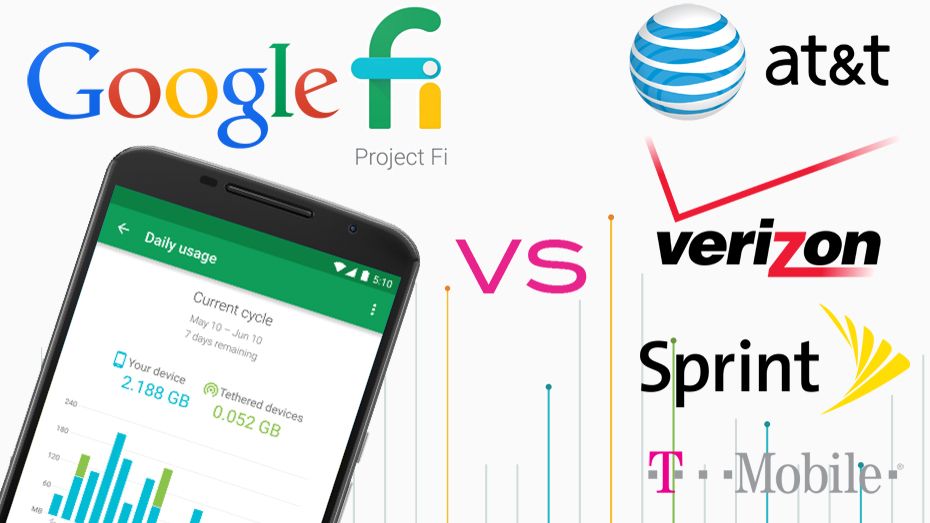
What makes Google’s Project Fi unique is that the coverage for your service is provided by a combo of WiFi and cell towers owned by a variety of carriers.

The benefit of this is that your Google Fi phone will automatically switch back and forth between WiFi or cell towers to provide you the best network coverage – it’s silent, seamless, and happens without you even knowing.

This means less dropped calls and better coverage overall.

Google’s massive scale also means you don’t have to worry about having every WiFi password stored in your phone to connect – Google has an ever-growing list of (public) WiFi networks coded into your phone’s service so you’ll phone connects to many of them automatically.

5. INCREDIBLE INTERNATIONAL DATA “FOR FREE!”

That same $10 per GB you paid for in the US also applies in 120 other countries for no additional fee.

This is simply amazing if you travel internationally even a couple times a year.

With Verizon I used to have to pay $2 per MB or else call them and add a crappy little temporary international plan for either $10/day or an extra $40 a month (for a generous 100MB of data and 100 mins of talk and 100 texts) – gee thanks, Verizon.

With Google Fi there is no need to call or notify them to get access to their international plan because all their plans include international coverage. That means you don’t have to fear international roaming charges so long as you are in one of the 120 counties on the list.

Just use your phone like you do in the US – what could be simpler?

6. GOOGLE USERS UNITE

Assuming you have a google account already (perhaps for your gmail or YouTube usage), then you basically already have a Google Project Fi account since Google Fi is simply an extension of your already existing google account.

This allows you to manage everything with one google account.

Again simple.

If you are one of the few people in the world who somehow doesn’t have a google account, signing up is easy, quick and simple – just click on that login button in the top right hand corner of your Google search page and join the rest of us.

7. SAVE EVEN MORE IF YOU DON’T WANT DATA.

If for some reason you don’t want data, that’s A-OK with Google Project Fi.

Believe it or not, you’re actually allowed to have a plan with Google Fi ex-data if you so desire.

That puts your bill down in the $20/month range and could be perfect for your elderly friends and family who just want talk/text.

Try doing that with Verizon or another carrier!

8. LOW RATES FOR INTERNATIONAL CALLING

When you call another country from the US, (depending on the country you call), average rates are in the 1-4 cents per minute range. Awesome!

How about when you call the US from another country? Once again you’ll enjoy low rates with Google Project Fi. If you’re calling over wifi, those rates are often in the 4cents/minute range (as it was for us while travelling in South Korea recently).

Wifi not available? Need to call over your cell network while in another country? You’ll be looking at approx 20cents/minute – that may not sound as awesome, but keep in mind there are no roaming charges either. Ahhhh…

9. NO CONTRACTS

You heard me right.

With Google Project Fi, you do not have to sign any contract.

Not happy? Leave.

No early termination fees.

No hidden fees.

Nothing to come back and bite you later.

Once again, consumer friendly.

10. USE YOUR OWN PHONE

Admittedly, this is the only one that could be a bit of a problem for some people.

While it’s true that you can indeed use your own phone with Google Project, that phone must be compatible with the Google Fi system.

As of this writing that list is very short and includes only the Pixel and Nexus lines and a few Motorola and LG models.

You can view the current list of all Project Fi eligible phones here:

https://fi.google.com/about/phones/

Is this requirement a big deal? Obviously it could be – especially if you are an Apple fan. Personally I’m an Android guy and have been for some time.

I used to be a Samsung guy before I switched to Google Fi, but a couple years back I gave the Nexus 6P a try and it ended up being the best phone I ever owned. Currently I have a Pixel XL.

Before switching to a  ‘stock android’ phone, I never realized all the bloatware on other phones. Now I could never go back.

The Google Project Fi phones are android-stock phones without bloatware. In addition, not only will you enjoy automatic system updates for your phone, but you’ll quickly discover that there are less bugs to worry about.

With my old Samsung phones I used to dread installing a new system update because it invariably meant problems while Samsung and Google worked out the inevitable bugs.

With Google Project Fi, I haven’t noticed a problem with any update so far because these updates are pretty much built with the Google Fi phones in mind.

And best of all, using a Google Project Fi phone means you also get first access to new Google updates  and exclusive features (for example, UNLIMITED STORAGE on Google Photos) – pretty cool, huh?

MAJOR UPDATE ON  PROJECT FI COMPATIBLE PHONES:

Google Announces that Project Fi will support Samsung, One Plus, and iPhones as well!

This means more users can benefit from the Project Fi Experience.

To learn more about Project Fi click here.

Google Fi – What’s the Bottom Line?

I’ve just given you 10 reasons to switch to Google Fi.

I can honestly tell you that since I switched Google Fi has exceeded my expectations.

I’d encourage you to learn more by checking out Project Fi’s Homepage and seeing if the service is right for you too.

If you liked this article, be sure to share it with a friend. Here’s an easy-share image>>>
More Google Tips





My Favorite Google Products

Get More Tips Like This


How to Set Up Google Alerts to track stocks, coupons, job openings, and more

Do you know about Google Alerts?

Google Alerts allow you to automatically monitor the web for specific topics that interest you. Rather than you manually searching for your topics, if you set up a Google Alert, then Google will automatically email you whenever the topic is mentioned on the web. It’s easy, it’s convenient, and it works.

Watch the video above or check out the screen shots below and see how easy it is to set up a Google Alert. In the video I will also show you what your options are for customizing the emails you get sent.

In order to set up an alert the first step is to know the web address…

The web address is https://www.google.com/alerts 

Ideas for using Google Alerts

If you want to use it to track your favorite celebrities go for it, but if you wanna go a bit beyond the obvious, here are some other ideas for using Google Alerts:

  1. Track your favorite stocks (if there is an important news item you can make a trade faster)
  2. Track news about yourself (to protect your reputation or just stroke your vanity – haha)
  3. Get news about your home town
  4. Use Google Alerts like a de facto Twitter Feed (get news on a trending story using the ‘as it happens’ option – see screenshot below).
  5. Get new promo or coupon codes as they are released (in the search box add the words ‘and’ plus ‘promo code’ or ‘coupon’ to the alert)
  6. Track job openings for a particular company
  7. And so much more.

If you have an special alert you’ve set up, please share it with the group so we can all learn.

Google Alerts – ScreenShots

Google Alerts
How to set up a Google Alert for Amazon


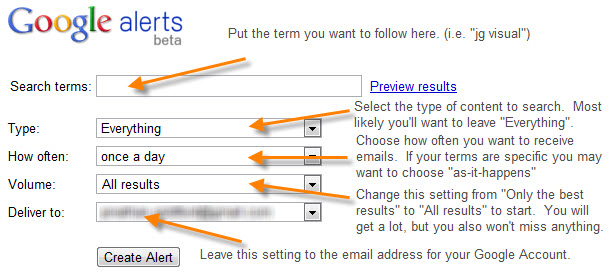
Google Alert Options
Google Alert Set Up Options

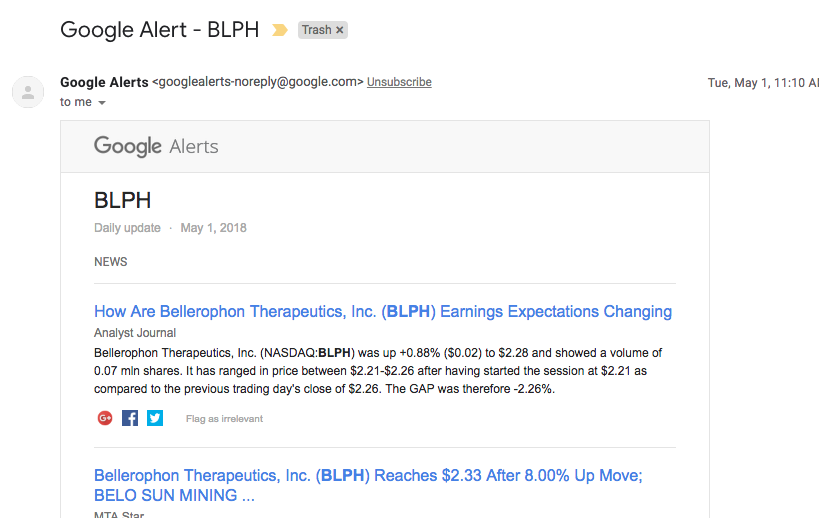
Google Alert Email Example
Example of Google Alert Email

Google Alerts Unsubscribe
How to unsubscribe from Google Alert

That’s for for today. Was this helpful? If so, let me know. Let’s talk again soon.

~Mike, ThatHelpfulDad


Want more tips?

Check out these articles…

https://thathelpfuldad.com/google-rewards-money/

https://thathelpfuldad.com/search-google-by-date-how-to-filter-dates/

https://thathelpfuldad.com/increase-email-response-rates/


Subscribe for FREE GIFTS & More Tips

How to Use Google Flights – Cool Features vs Other Travel Sites

Google Flights – What is it?

Google Flights is a travel booking service like Expedia, Kayak, etc but Google Flights has some cool features that make it convenient to use. In this video I will show you how to use Google Flights and discuss the bonus features Google Flights offers that make booking your travel more convenient with Google Flights.

Google Flights – Screenshot Samples

Google Flights Save Itinerary
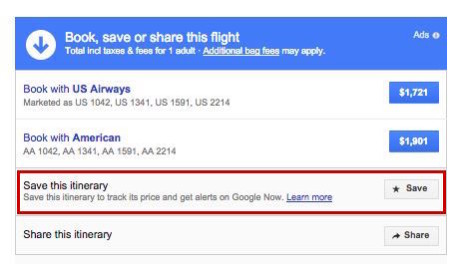
You can save your search for later

Cool Feature – see alternate prices on different dates

Flexible Dates vs Price View

Google Flights – What’s the bottom line?

Google Flights is my new go-to travel booking site. It has lots of great features, is easy to use, and offers me numerous ways to find the best price for my travel options – especially if my dates are flexible. Give Google Flights a try and let me know what you think.


Want more Quick Tips?

https://thathelpfuldad.com/google-rewards-money/

https://thathelpfuldad.com/quick-tips-google-keep-speech-text-tool-youve-looking/

https://thathelpfuldad.com/product/google-wifi/

Quick Tips: Connected to Public Wifi but Still Can’t Get Internet? Here’s a simple solution!

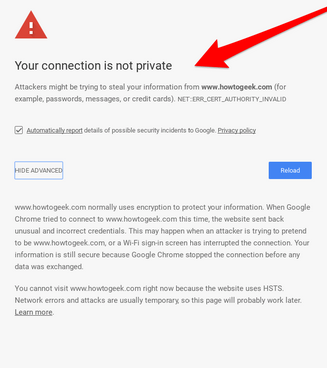
The Problem: You successfully connect to public wifi, but can’t get online.
The Solution: Captive.Apple.com

My Dilemma:

I can’t tell you how many times I’ve connected to a public wifi, thinking I’d be able to do some work while I’m out in the field only to be stymied by the dreaded ‘connected but no internet’ problem. For years I just gave up, until recently I heard about a simple tip that changed everything. I’d like to share that tip with you today.

Screenshots:

Tell me if any of these look familiar to you?

Or how about this one?

It’s frustrating, right? You can see you are connected but still you can’t use the internet, so what gives?

The problem:

Some entity (example Google) is blocking the LOGIN PORTAL that you need to access in order to accept the terms of the company (example Starbucks) that is offering you the opportunity to use their public internet. For some inexplicable reason, the ‘blocking’ involves ‘hiding’ the login portal as a popup so you can’t see it. 

If you can’t get to the login portal to accept their terms then you can’t use the internet.

End of story.

The solution:

Simply go to your browser and type in ‘captive.apple.com’

This will bring up the login portal for the company offering the internet.

It will look something like this:

Once you agree, then you’ll be able to get on the internet.

Why does this work?

I have no idea. I am not a tech guru. I just know that it does work and that’s the bottom line. In fact, I have yet to be in a situation where it did not work for me.

I didn’t even know what the heck a ‘captive’ network was until I heard about this tip. A bit of research revealed more about it. Captive networks are “public networks you can only access if you are subscribed to them (with or without paying). [The captive.apple.com] feature has the main purpose of adding an extra level of protection to users who don’t always use their mobile data connection when in public.” (Source: http://vkrepair.com/captive-apple-networks/)

So why doesn’t everybody know about this?

For all I know they do. Perhaps I am the only one who doesn’t know. But just in case you are in my shoes I wanted to let YOU know too.

Try it out.

Give this a shot and let me know if it works for you too.

Was this life lesson helpful?

If you enjoyed this wisdom I’d invite you to take action by doing one or more of the following:

  1. Share this page with a friend so they can benefit too
  2. Share your wisdom – drop me a line below so I can learn from you.
  3. Follow my blog and let’s stay connected – we can help each other reach new heights.

Let’s talk again soon!