
All posts by ThatHelpfulDad

Naked Sparkling Energy Drinks Review and Tips for How to Use it

Hey there, it’s Mike, That Helpful Dad, and I’m glad you stopped by again.

You know, in this journey of living a “Legacy Life” — where we focus on being better husbands, fathers, and friends—it’s easy to get caught up in the daily grind. The demands of work, family, and personal improvement can leave you feeling drained. I’ve been there. You hit that mid-afternoon wall, and the temptation to grab a sugary coffee or a chemical-laden energy drink is real. But if you’re anything like me, you know that those quick fixes often lead to a crash, bloating, and that general feeling of regret. They don’t support the long-term goals we’re working so hard to achieve.

That’s why I’ve been a big fan of the Naked brand for a while now. They’re all about no-nonsense products with clean ingredients that you can actually understand. No BS, just real-world solutions that I can personally verify work. I’ve talked about their collagen creamer before and how it’s become a staple in my routine. So when I heard they were launching a new product—Naked Sparkling Energy—I had to get my hands on it. I wanted to see if it held up to the high standards the brand has set and if it was something I could honestly recommend to you.

Spoiler alert: it’s a game-changer.


Naked Sparkling Energy: My First Impressions

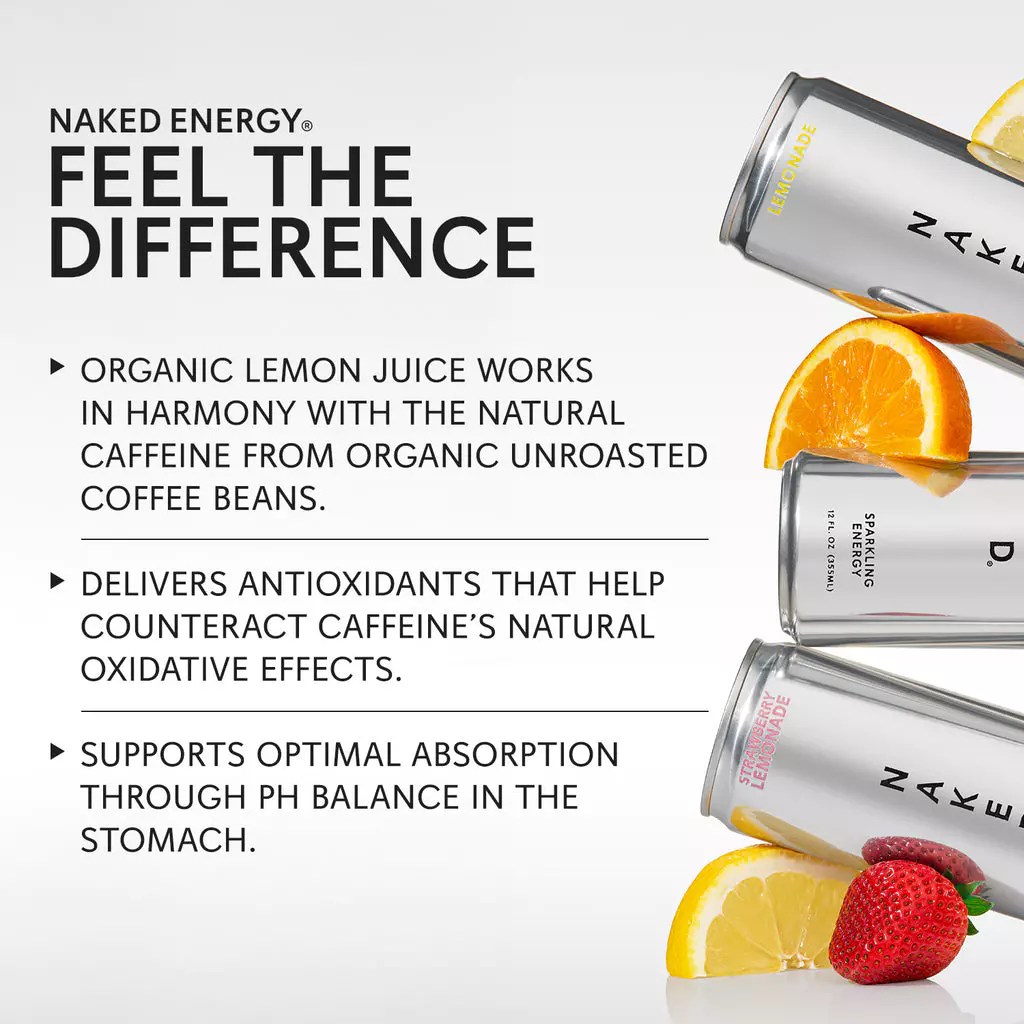
When the cans arrived, the first thing I noticed was the clean, simple design. No flashy colors or aggressive marketing slogans promising to make you a superhero. Just a simple, crisp can that looks as clean as the ingredients inside. The specific flavor I got to try was Lemonade, and let’s just say, the first sip was pure refreshment. It’s light, crisp, and has a natural lemon flavor without the syrupy sweetness you find in so many other drinks. It’s exactly what I’d expect from a brand that prides itself on being transparent.

This isn’t your average energy drink. It’s a clean, plant-based, and non-GMO product that gives you a genuine energy boost. It’s designed for people who want to feel good about what they’re putting in their bodies while still getting the results they need.


Key Ingredients and Nutritional Profile: What’s Inside Matters

As a guy who is mindful of what he consumes, especially with intermittent fasting and fitness being part of my routine, the ingredient list is the first thing I check. And this is where Naked Sparkling Energy really stands out.

First, let’s talk about the caffeine. It contains 200mg of natural caffeine. Where does it come from? Organic unroasted coffee beans. This is a crucial detail. Unlike synthetic caffeine that can hit you hard and then leave you in a crash, natural caffeine provides a smoother, more sustained lift. It’s like a gentle push, not a violent shove. For me, that means no jitters, no anxious energy, just a clean, focused alertness.

Next up, the sweeteners. Many energy drinks are loaded with artificial sweeteners that can mess with your gut, cause bloating, and just generally make you feel crummy. Others are packed with sugar, which can completely derail your health goals and lead to that dreaded blood sugar spike and subsequent crash. Naked Sparkling Energy is different. It’s sweetened with monk fruit and fermented sugar cane (Reb-M). These are plant-based sweeteners that provide a subtle, delicious taste without the negative side effects. The drink has only 15 calories and 0g of sugar per can. This is a huge win for anyone on a low-carb diet or practicing intermittent fasting like me. It won’t break your fast and it won’t cause that uncomfortable bloating that so many other drinks do.

It also contains organic lemon juice, which not only provides a great flavor but also works with the natural caffeine to offer antioxidants and support better absorption. It’s a simple, effective combination that makes a lot of sense.


Naked Sparkling Energy Potential Benefits: More Than Just an Energy Boost

So, what does all this mean for you? The benefits go beyond just a quick pick-me-up.

  • Clean, Sustained Energy: This is the big one. The natural caffeine and clean ingredients provide a smooth, lasting lift that helps you stay focused and productive for hours without the classic energy drink crash.
  • Gut-Friendly: With no artificial sweeteners, sugar, or other hidden ingredients, this drink is easy on your digestive system. It won’t cause the gas, bloating, or discomfort that other products might.
  • Supports Your Lifestyle: Whether you’re intermittent fasting, following a specific diet, or just trying to eat cleaner, this drink fits right in. Its low-calorie, zero-sugar profile makes it a guilt-free option.
  • Mental Clarity and Focus: I found that the clean energy helped me not only with physical tasks but with mental ones as well. It gave me the clarity and focus I needed to tackle long work days and new learning challenges.

Why I Liked Naked Sparkling Energy: Putting It to the Test

I don’t just review products; I live with them. I’ve been using this drink for a couple weeks now, and it has earned a spot in my routine. I’ve used it on a few different occasions.

One day, I had a big project at work that required a lot of focus and extra hours. Instead of reaching for a second cup of coffee that would just make me jittery, I grabbed a can of Naked Sparkling Energy. The difference was night and day. I stayed sharp and productive, and when I was done, I didn’t feel that overwhelming exhaustion. It was a smooth transition to winding down for the night.

I’ve also used it as a pre-workout when I felt a little sluggish. It gave me the perfect boost to power through my workout without feeling like my heart was going to beat out of my chest. It’s the kind of energy that helps you push for that extra rep or an extra mile, not the kind that makes you feel frantic.


Ideas on HOW to Use Naked Sparking Energy: Beyond Just for Drinking Straight

While it’s delicious straight from the can, I’m always looking for ways to maximize the products I use. Here are a couple of ideas you can try:

  • The “Legacy Life” Pre-Workout Mocktail: Mix a can of Naked Sparkling Energy (Lemonade) with a scoop of a clean, unflavored creatine or a BCAAs powder. It gives you the perfect combination of energy and muscle support for your workout.
  • The Afternoon Reset: Pour a can over a cup of ice with a sprig of fresh mint and a slice of lemon. It feels like a fancy, refreshing drink but with all the functional benefits. It’s a great way to break up the monotony of the afternoon and re-energize your mind.

Ideas on WHEN to Use Naked Sparkling Energy: Finding Your Moment

  • Pre-Workout: About 30 minutes before you hit the gym or go for a run.
  • The Mid-Afternoon Slump: When you feel your energy start to dip around 2 or 3 PM.
  • Mental Marathon: During long work sessions, studying, or any activity that requires sustained focus.
  • Road Trips: When you need to stay alert and focused on a long drive without stopping for a sugary coffee.

Where to Buy Naked Sparkling Energy

You can find this product on the official Naked Nutrition website. I always recommend going directly to the source to ensure you’re getting the genuine product and to check out any special offers they might have. You can also find their products on major online retailers like Amazon, as well as in select health food stores.

Here’s the direct link to Naked Sparkling Energy on Amazon


Conclusion: My Final Verdict

In a world full of over-the-top claims and questionable ingredients, Naked Sparkling Energy is a breath of fresh air. It’s a no-nonsense, clean energy drink that does exactly what it says it will. It gives you a clean, sustained lift without the crash, jitters, or bloating. It fits perfectly into a healthy, active lifestyle and supports the kind of living we’re all striving for.

This is a product I can personally verify works, and it’s something I’m proud to recommend to all of you. It’s not about being perfect; it’s about making better choices, one day at a time. And choosing a clean energy drink that fuels your body and mind in a positive way is a step in the right direction.

Until next time, live your best life NOW.

-Mike


How to use an AI “Alert” Agent to Stay Up to Date on your Market Intelligence

We can leverage the Google ecosystem – specifically Google Alerts and Gemini AI – to build your own “Market Intelligence Gathering Agent” for staying informed about the market we are interested in – in this example pharma sales.

The Goal: To establish a system using Google tools to monitor and summarize publicly available information relevant to your market, delivering key insights, with automation where possible.

Step-by-Step Guide Using Google Alerts and Gemini:

  1. Define Your Intelligence Needs: Identify the key areas you need to monitor:
    • Competitor Activities
    • Policy Updates
    • Market Trends
  2. Set Up Google Alerts for Automated Monitoring: Google Alerts allows you to receive email notifications whenever new results match your search queries. This introduces a level of automation.
    • Go to https://www.google.com/alerts.
    • Create alerts for your key intelligence areas. Use specific keywords. Examples:
      • Competitor Activities: "PharmaCorp" AND "Xylo" AND (clinical trial OR approval OR marketing)
      • Policy Updates: reimbursement "rheumatoid arthritis", "FDA" AND "guidance" AND [Therapeutic Area]
      • Market Trends: "emerging trends" AND "[Therapeutic Area]", "KOL insights" AND "[Therapeutic Area]"
    • Configure the alerts to your desired frequency (e.g., “as-it-happens,” “daily,” “weekly”), sources, and delivery method (your Gmail).
  3. Leveraging Gemini for Summarization (When Alerts Arrive): When you receive a Google Alert email with relevant articles, you can use Gemini to quickly summarize the key information.
    • Open Gemini (https://gemini.google.com/).
    • You have a couple of options:
    • Use prompts like:
      • “Summarize the key takeaways from this article regarding [topic].”
      • “What are the implications of this policy update for the market of [Therapeutic Area]?”
      • “Extract the main points about [Competitor Product]’s latest clinical trial results from this text.”
  4. Share Insights via Google Workspace (Gmail, Google Chat): Once Gemini provides a summary, you can easily share it with your team using Gmail or Google Chat.
    • Gmail: Forward the Google Alert email with your Gemini summary or key takeaways.
    • Google Chat: Paste the summary into a relevant team chat room with your analysis.

Example Workflow:

  1. You set up a Google Alert for "New Phase III results" AND "NovoCure" AND "glioblastoma".
  2. You receive an email alert with a link to a press release about NovoCure’s latest trial data.
  3. You copy the text of the press release and paste it into Gemini with the prompt: “Summarize the key findings of this press release regarding NovoCure’s Phase III trial in glioblastoma.”
  4. Gemini provides a concise summary of the trial results.
  5. You share this summary with your neurology sales team via Google Chat, adding your perspective on its potential impact.

Comparing Google vs Microsoft for automation

With Google Alerts, the system proactively sends you information based on your defined keywords, rather than you having to manually initiate a search each time with Microsoft Copilot.

However, the summarization and sharing steps still involve some manual interaction with Gemini and Google Workspace tools.

Limitations and Advantages (Google):

  • Advantage: Automated Information Gathering: Google Alerts provides a continuous stream of potentially relevant information without manual prompting.
  • Limitation: You still need to manually review alerts and use Gemini for summarization.
  • Advantage: Gemini is specifically designed for conversational AI and text summarization, potentially offering more nuanced summaries than a general-purpose AI in a search context.
  • Advantage: Seamless integration with the Google Workspace ecosystem for sharing.

Getting Started:

  1. Identify your key market intelligence areas.
  2. Set up relevant Google Alerts. Experiment with different keywords and alert settings.
  3. Familiarize yourself with using Gemini for summarizing text.
  4. Establish a communication channel in Google Chat or a distribution list in Gmail for sharing market intelligence.

By combining the proactive monitoring of Google Alerts with the summarization power of Gemini, you can build a robust market intelligence gathering system within the Google ecosystem.

What market intelligence area will you set up a Google Alert for today?

Santa Maria Style Tri-Tip Recipe Two Ways – Weber Kettle vs Traeger

Ah, Santa Maria! Just the name conjures images of sun-drenched vineyards and the smoky aroma of perfectly grilled tri-tip. This regional barbecue tradition from California’s Central Coast is all about simple, high-quality ingredients and letting the flavor of the beef shine through.

Today, we’re diving headfirst into the deliciousness of Santa Maria Style Tri-Tip. I’ll not only give you the classic recipe for the rub and the accompanying salsa but also provide two methods for cooking this fantastic cut: the traditional Santa Maria vibe using a Weber kettle with a Santa Maria attachment, and the ever-convenient Traeger pellet grill. So, whether you’re looking for that direct-heat char or the ease of pellet smoking, we’ve got you covered!

The Star of the Show: Santa Maria Tri-Tip

Tri-tip is a triangular cut of beef from the bottom sirloin. It’s known for its rich, beefy flavor and tender texture when cooked correctly. The Santa Maria style emphasizes this natural flavor with a simple yet impactful seasoning.


The Essential Santa Maria Rub

This rub is the heart and soul of Santa Maria barbecue. It’s minimal but delivers maximum flavor.

Ingredients:

  • 2 tablespoons coarse ground black pepper
  • 2 tablespoons kosher salt (or 1 tablespoon fine sea salt)
  • 1 tablespoon garlic powder

Instructions:

  1. Combine all ingredients in a small bowl.
  2. Generously rub the mixture all over the tri-tip, ensuring all surfaces are coated.
  3. Let the seasoned tri-tip rest at room temperature for at least 30 minutes, or up to a few hours in the refrigerator. Bringing it closer to room temperature before grilling helps it cook more evenly.

The Classic Accompaniment: Pico de Gallo (Santa Maria Style Salsa)

While not strictly part of the grilling process, a fresh and vibrant salsa is a must-have with Santa Maria tri-tip. This simple pico de gallo complements the richness of the beef perfectly.

Ingredients:

  • 2 ripe tomatoes, diced
  • 1/2 white onion, finely diced
  • 1-2 jalapeños, seeded and minced (optional)
  • 1/4 cup chopped fresh cilantro
  • Juice of 1 lime
  • Salt to taste

Instructions:

  1. Combine all ingredients in a bowl.
  2. Gently toss to combine.
  3. Season with salt to taste.
  4. Let it sit for at least 15 minutes to allow the flavors to meld.

Method 1: The Traditional Santa Maria Vibe on a Weber Kettle

While a dedicated Santa Maria grill would be awesome – that’s also a pretty penny, but fear not, you can still capture that classic flavor with an inexpensive Weber Kettle and a Santa Maria attachment like this one – now you can easily transform your Weber kettle into a Santa Maria-style cooker.

Best of all this method utilizes direct heat, allowing for beautiful searing and that signature smoky essence from the coals.

What you’ll need:

Instructions:

  1. Set Up the Attachment and Coals: Install the Santa Maria grill attachment onto your Weber kettle. Light your charcoal in a chimney starter and pour the hot coals onto the charcoal grate, directly beneath where the tri-tip will sit on the elevated grate of the attachment. You’ll want a medium-hot bed of coals.
  2. Position the Tri-Tip: Place the seasoned tri-tip on the elevated grate of the Santa Maria attachment. This positions the meat closer to the heat source than the standard Weber grate, which is key for Santa Maria-style cooking.
  3. Sear: Since the meat is closer to the heat, it will sear relatively quickly. Keep a close eye on it and flip after about 3-4 minutes per side to develop a nice crust.
  4. Cook to Temperature: Continue to cook, flipping occasionally (about every 10 minutes) until the internal temperature reaches 130-135°F for medium-rare (or your desired level of doneness). The Santa Maria elevated grate allows you to control the heat by raising or lowering the cooking surface, or by adjusting the amount of charcoal. This will likely take another 20-40 minutes depending on the thickness of your tri-tip and the heat of your coals.
  5. Rest: Once cooked, remove the tri-tip from the grill and let it rest on a cutting board for 10-15 minutes.
  6. Slice and Serve: Slice the tri-tip against the grain and serve with the fresh pico de gallo, grilled garlic bread, and pinquito beans.

Method 2: Traeger Pellet Grill

Using a Traeger offers consistent temperature and a wonderful smoky flavor, making it a fantastic alternative.

What you’ll need:

Instructions:

  1. Preheat the Traeger: Preheat your Traeger to 225°F (107°C).
  2. Smoke the Tri-Tip: Place the seasoned tri-tip directly on the grill grates. Smoke for about 45-60 minutes, or until the internal temperature reaches around 115-120°F. This allows it to absorb that delicious smoky flavor.
  3. Increase the Heat: Crank up the Traeger to 450-500°F (232-260°C).
  4. Sear: Sear both sides of the tri-tip for about 3-4 minutes per side to create a nice crust.
  5. Cook to Temperature: Continue cooking until the internal temperature reaches 130-135°F for medium-rare (or your desired level of doneness).
  6. Rest: Remove the tri-tip from the Traeger and let it rest on a cutting board for 10-15 minutes.
  7. Slice and Serve: Slice against the grain and serve with your homemade pico de gallo and other favorite sides.

Which Method is Right for You?

Both methods yield fantastic results, just with slightly different nuances. The Weber with the Santa Maria attachment provides that direct heat sear and smoky charcoal flavor reminiscent of the traditional Santa Maria experience. The Traeger offers ease of use and consistent smoky flavor. Ultimately, the best method is the one that fits your equipment and preferences!

So, fire up your grill (whichever kind you choose!), grab a tri-tip, and experience the deliciousness of Santa Maria barbecue.

What are your favorite ways to cook tri-tip? Let us know in the comments below!

Strategic AI Assistance: Top Chatbots for for Busy Business Professionals 🚀

In the business world saving time and making informed decisions are critical. Fortunately, artificial intelligence offers a suite of tools to boost productivity and provide valuable insights. Drawing from my experience, here are the top AI chatbots that I recommend for specific professional tasks, selecting the best fit for each, even if it means a model appears more than once. Bonus – all of these tools are either free or have free tiers you can trial them with.

1. Analyzing a Dense Report or Research Paper 🧐

  • My Pick: Claude (Free Tier)
  • Why it’s the best: Claude’s exceptional ability to process and retain context within lengthy documents makes it invaluable for dissecting complex reports and research. For instance, you can upload a detailed market analysis report and ask Claude to summarize the key trends relevant to your sales strategy or provide the main conclusions of a recent clinical trial. This saves significant time and ensures you grasp the core information quickly.

2. Preparing for a Sales Call or Business Meeting with a Key Client 🤝

  • My Pick: ChatGPT (Free Tier)
  • Why it’s the best: ChatGPT excels at creative brainstorming and understanding different perspectives, making it perfect for pre-call strategizing. You can provide it with background information on your client, their company, and the meeting objectives, and it can help you anticipate their needs, suggest compelling talking points, and even role-play potential conversation scenarios to refine your approach.

3. Creating a Compelling PowerPoint Slide 📊

  • My Pick: Canva AI Features (Free Tier)
  • Why it’s the best: While not a traditional chatbot, Canva’s free AI features directly address the need for rapid and visually engaging slide creation. Simply input the key data or message you want to convey, and Canva’s AI can suggest layouts, graphics, and even text enhancements, allowing you to quickly produce impactful visuals for sales presentations or business briefings without extensive design work.

4. Drafting Professional Emails and Correspondence 📧

  • My Pick: Gemini (formerly Bard)
  • Why it’s the best: Gemini’s strong grasp of language nuances enables it to generate professional, clear, and contextually appropriate emails for various professional interactions. Whether you need to craft a persuasive follow-up to a potential client or communicate sensitive information to a medical colleague, Gemini can help you articulate your message effectively and efficiently, ensuring the right tone and clarity.

5. Brainstorming New Ideas and Solutions 💡

  • My Pick: ChatGPT (Free Tier)
  • Why it’s the best: For generating a wide array of creative ideas and exploring unconventional solutions, ChatGPT’s versatility is unmatched. Whether you’re looking for innovative sales strategies to penetrate a new market or seeking novel approaches to patient education, you can prompt ChatGPT with open-ended questions and receive a diverse set of suggestions to spark your own thinking.

6. Summarizing Meeting Notes and Action Items 📝

  • My Pick: Fireflies.ai (Free Tier)
  • Why it’s the best: Fireflies.ai’s free plan offers automatic meeting transcription and the ability to ask questions about the transcript, making it incredibly efficient for summarizing key discussions and identifying actionable steps. This ensures that everyone is on the same page after a meeting and that no crucial tasks are overlooked, saving valuable time on post-meeting follow-ups.

7. Translating Documents or Communications into Another Language 🌐

  • My Pick: Google Translate
  • Why it’s the best: Google Translate’s accuracy and wide language support make it the go-to free tool for seamless translation. This is particularly valuable for sales professionals dealing with customers who speak different languages, ensuring clear and accurate communication across linguistic barriers.

8. Generating Ideas for Engaging Sales Pitches or Medical Explanations 🗣️

  • My Pick: ChatGPT (Free Tier)
  • Why it’s the best: ChatGPT’s ability to adapt its writing style and generate creative text makes it highly effective for crafting compelling narratives. You can ask it to develop several different opening lines for a sales pitch, helping you connect more effectively with your audience.

9. Quickly Understanding Industry Jargon or Acronyms ❓

  • My Pick: Gemini (formerly Bard)
  • Why it’s the best: Gemini’s robust knowledge base and natural language processing capabilities make it excellent for quickly defining and providing context for unfamiliar industry terms or acronyms. This is particularly useful in the specialized fields of sales and business, where staying abreast of the latest terminology is crucial for effective communication and understanding.

10. Mapping/Connecting Key Opinion Leaders in a Large Integrated Healthcare System 🔗

  • My Pick: ChatGPT (Free Tier)
  • Why it’s the best: While not purpose-built for network mapping, you can leverage ChatGPT’s language analysis to process information about individuals within a healthcare system and identify potential connections and influencers. By providing descriptions of their roles, expertise, and affiliations, you can ask ChatGPT to identify likely Key Opinion Leaders in specific medical areas and suggest potential relationships between them, offering valuable insights for strategic outreach.

Key Takeaway:

Integrating these free AI tools into your daily workflow can significantly enhance your productivity and provide valuable support in the fast-paced environments of sales and business. Experiment with these platforms to discover how they can best assist you in achieving your professional goals.

Learn More:

Which of these AI assistants are you most eager to explore further? Share your thoughts below! 👇

Gemini Gems: Your Personal AI Assistant – How It Stacks Up Against ChatGPT & Copilot

Introduction

Artificial intelligence is evolving rapidly, and Google’s Gemini has introduced a powerful new feature called “Gems”—customizable AI agents designed to assist with specific tasks. But what exactly are Gems, and how do they compare to other AI agents like ChatGPT’s GPTs or Microsoft Copilot’s plugins?

In this guide, we’ll break down:
What Gemini Gems are and how they work.
How Gems compare to other AI assistants.
Pros & cons of using Gems vs. alternatives.
How to use a Gem (even if you’re not tech-savvy).
3 real-world use cases for everyday users.

Let’s dive in!


What Are Gemini Gems?

Gemini Gems are specialized AI agents within Google’s Gemini (formerly Bard) that can be tailored for different roles—like a personal tutor, fitness coach, or travel planner. Think of them as mini AI assistants that focus on one job exceptionally well.

How Do Gems Compare to Other AI Agents?

FeatureGemini GemsChatGPT’s GPTsMicrosoft Copilot Plugins
CustomizationPre-set roles (limited user tweaking).Fully customizable (users can build GPTs).Limited (mostly Microsoft app integrations).
Ease of UseSimple, no coding required.Requires some setup for custom GPTs.Plugins work automatically in Microsoft apps.
IntegrationWorks best with Google apps (Docs, Gmail).Connects with third-party tools via API.Deep Microsoft 365 integration.
CostFree (for now, may change).Free & paid (GPT-4 Turbo required for best results).Free with Microsoft account.

Pros & Cons of Gemini Gems

Pros:

  • Super simple to use—just pick a Gem and go.
  • Optimized for Google Workspace (Docs, Sheets, Gmail).
  • Free (unlike some advanced ChatGPT features).

Cons:

  • Less customizable than ChatGPT’s GPTs.
  • No third-party plugin support (yet).
  • Still in early stages (fewer Gems available).

How to Use a Gemini Gem (Step-by-Step)

  1. Go to Gemini’s website (sign in with Google).
  2. Click on “Gems” in the sidebar.
  3. Choose a pre-built Gem (e.g., “Writing Assistant,” “Fitness Coach”).
  4. Start chatting! The Gem will adapt to your needs.

(No coding or setup required—perfect for non-techies!)


3 Practical Use Cases for Gemini Gems

1. Writing & Editing Assistant

📌 Use Case: Need help drafting an email, blog post, or resume? The “Writing Gem” can refine your text, suggest improvements, and even adjust tone (professional, casual, etc.).

🔗 Try it: Gemini Writing Assistant

2. Fitness & Meal Planning

📌 Use Case: Want a personalized workout or diet plan? The “Fitness Gem” can generate exercise routines, healthy recipes, and even track progress.

🔗 Try it: Gemini Fitness Coach

3. Travel Planner

📌 Use Case: Planning a trip? The “Travel Gem” can suggest destinations, book flights (via Google Flights), and create itineraries.

🔗 Try it: Gemini Travel Planner


Final Verdict: Are Gemini Gems Worth It?

Best for: Google power users who want quick, no-fuss AI help.
Not ideal for: Developers or those needing deep customization.

👉 Prefer more control? Try ChatGPT’s GPTs.
👉 A Microsoft fan? Use Copilot in Office apps.


What’s Next for Gemini Gems?

Google is likely to expand Gems with more customization and third-party integrations. For now, they’re a simple, free alternative to pricier AI tools.

Have you tried Gemini Gems? Share your experience in the comments! 🚀

🔗 Learn more:


Liked this article? Subscribe for more AI insights! 📩

(Let us know which AI assistant you prefer—Gemini, ChatGPT, or Copilot!)

AI Agents Explained: Your Personal Digital Assistants – What They Are & Why You Should Use One

Introduction

Imagine having a 24/7 assistant that can draft emails, plan vacations, analyze data, or even tutor your kids—all without needing a coffee break. That’s the power of AI agents, the next big leap in artificial intelligence.

But what exactly are AI agents? Are they just for tech experts, or can everyday people use them too? In this guide, we’ll break down:
What AI agents are and how they work.
Why people use them (hint: they save tons of time).
Whether non-techies can benefit (spoiler: yes!).
How hard they are to set up.
The best AI agents right now (and why they stand out).
Real-world use cases for work and life.

Let’s dive in!


What Are AI Agents?

An AI agent is a program that can autonomously perform tasks based on goals, data, and user input. Unlike basic chatbots (which just answer questions), AI agents can:
Take actions (e.g., book flights, send emails).
Learn from interactions (improving over time).
Work across apps (like a human assistant).

Types of AI Agents

TypeWhat It DoesExample
Simple ChatbotsAnswers questions, no actions.Basic ChatGPT (GPT-3.5).
Task-Specific AgentsHandles one job (e.g., scheduling).Google’s Gemini Gems.
Autonomous AgentsMulti-step workflows (e.g., research).AutoGPT, BabyAGI.
Enterprise AgentsBusiness automation (data, CRM).Microsoft Copilot for Sales.

Why Do People Use AI Agents?

  1. Save Time – Automate repetitive tasks (emails, data entry).
  2. Boost Productivity – Get instant research, coding help, or content ideas.
  3. Personalization – Agents adapt to your needs (e.g., fitness plans).
  4. Cost-Effective – Cheaper than hiring human assistants.

Example: A real estate agent uses an AI to draft property listings, schedule showings, and answer client FAQs—freeing up hours every week.


Can Non-Techies Use AI Agents?

Yes! Many modern AI agents are designed for easy, no-code setups.

How Complicated Is Setup?

Agent TypeDifficultyNotes
Pre-built (e.g., Gemini Gems, ChatGPT GPTs)⭐ (Easy)Just click and use.
Customizable (e.g., AutoGPT)⭐⭐⭐ (Advanced)Requires some tech know-how.
Enterprise (e.g., Salesforce AI)⭐⭐ (Moderate)Needs initial setup by IT.

For beginners, tools like Google’s Gems or ChatGPT’s GPT Store are the best starting point—no coding needed.


Top AI Agents Right Now (And Why They Stand Out)

1. ChatGPT’s GPTs (OpenAI)

🔹 Best for: Custom AI assistants.
🔹 Why? Lets users build their own agents (e.g., a “Marketing Coach” or “Travel Planner”).
🔹 Try it: OpenAI GPT Store

2. Gemini Gems (Google)

🔹 Best for: Google Workspace users.
🔹 Why? Seamlessly integrates with Gmail, Docs, and Drive.
🔹 Try it: Gemini Advanced

3. Microsoft Copilot (with Plugins)

🔹 Best for: Microsoft 365/Windows users.
🔹 Why? Automates tasks in Word, Excel, and Teams.
🔹 Try it: Microsoft Copilot

4. AutoGPT (Open-Source)

🔹 Best for: Developers & advanced users.
🔹 Why? Runs multi-step tasks (e.g., market research).
🔹 Learn more: AutoGitHub

5. Inflection’s Pi

🔹 Best for: Emotional support & casual chats.
🔹 Why? Acts like a friendly, empathetic AI companion.
🔹 Try it: Pi by Inflection


3 Real-World Use Cases for AI Agents

1. Personal Assistant (For Busy Professionals)

📌 Agent Used: ChatGPT’s “Email Responder” GPT.
📌 How It Helps: Scans your inbox, drafts replies, and schedules meetings.

2. Fitness & Health Coach

📌 Agent Used: Gemini’s “Fitness Gem”.
📌 How It Helps: Creates custom meal plans and workouts based on your goals.

3. Small Business Automation

📌 Agent Used: Microsoft Copilot for Sales.
📌 How It Helps: Auto-generates client reports, CRM updates, and follow-ups.


The Future of AI Agents

Expect smarter, more autonomous agents that:
🔸 Handle complex workflows (e.g., legal research, medical diagnostics).
🔸 Integrate with more apps (e.g., banking, smart homes).
🔸 Become even easier to use (voice commands, predictive actions).


Final Thoughts: Should You Use an AI Agent?

For non-techies: Start with Gemini Gems or ChatGPT GPTs.
For businesses: Try Copilot or enterprise AI tools.
For developers: Experiment with AutoGPT.

AI agents aren’t just a trend—they’re the future of productivity.

🔗 Want to learn more? Check out:


Which AI agent do you want to try? Let us know in the comments! 🚀

(Subscribe for more AI insights & tips!)

10 AI Hacks for Busy Parents: Reclaim Your Time & Sanity

How smart parents are using AI as their 24/7 parenting assistant

Welcome to Article #5 in our AI Tips for Everyday People series! Today we’re tackling the ultimate test of multitasking: parenting. These AI tools will help you save 5+ hours weekly while actually enjoying family time.

Each solution includes:
👶 Age-range suitability
⏱️ Time saved per week
💬 Ready-to-use prompts


1. Magical Storytime AI That Creates Custom Bedtime Stories

“Tell my daughter a story about a unicorn who learns to share”

Tool: Bedtime Stories AI (free)

Why kids love it:

  • Generates stories featuring YOUR child’s name
  • Teaches moral lessons through personalized tales
  • Creates different versions of the same story

💡 Try this now:
“Create a 5-minute bedtime story about a shy dinosaur named [child’s name] who makes their first friend at school. Include a talking tree character.”

📌 Pro Tip: Use Canva Magic Write to turn these into illustrated books


2. Homework Helper That Doesn’t Do the Work For Them

“Explain 4th grade fractions like I’m 5”

Tool: Khanmigo (free trial)

Parent-approved because:

  • Guides without giving answers
  • Adapts to your child’s learning style
  • Works for K-12 subjects

💡 Try this prompt together:
“Help my child understand equivalent fractions using pizza slice examples.”

📌 Pro Tip: Use Photomath to scan and explain math problems step-by-step


3. AI Chef for Picky Eaters

“Make meals my kids will actually eat”

Tool: Yummly + ChatGPT

The lifesaver combo:

  1. Input your kids’ preferences (texture, colors, etc.)
  2. AI suggests recipes hiding veggies in favorites
  3. Generates weekly shopping lists

💡 Magic prompt:
“Create a 5-day meal plan for a 6-year-old who hates ‘mixed foods’ but loves chicken nuggets. Include two hidden vegetable recipes.”

📌 Pro Tip: Try Nestle’s AI Recipe Generator for allergen-friendly options


4. AI Chore Motivator That Actually Works

“Get kids excited about cleaning”

Tool: BusyKid (free basic plan)

Why it’s effective:

  • Turns chores into a game with rewards
  • Teaches financial responsibility
  • Customizable for different ages

💡 Set it up:
“Create a weekly chore chart for my 9-year-old with point values for each task, redeemable for screen time.”

📌 Pro Tip: Connect to Amazon Echo for voice reminders


5. AI-Powered Carpool Coordinator

“Who’s picking up from soccer today?!”

Tool: GoKid (free)

The modern village:

  • Auto-matches nearby families
  • Tracks real-time location
  • Manages emergency contacts

💡 First-time setup:
“Find 3 families in our school district needing alternating Wednesday pickup for 3rd grade.”

📌 Pro Tip: Integrate with Life360 for arrival alerts


BONUS: 5 More Parenting AI Hacks

6️⃣ Baby Monitoring: Nanit analyzes cry patterns and sleep
7️⃣ First Aid: Johnson & Johnson’s AI guides through emergencies
8️⃣ College Prep: CollegeVine’s AI builds perfect school lists
9️⃣ Allowance: Greenlight teaches money skills via AI
🔟 Teen Drivers: Nauto monitors driving habits


Your AI Parenting Starter Plan

This week:

  1. Create your first custom bedtime story
  2. Try one learning helper
  3. Set up the chore motivation system

Which parenting pain point will you tackle first? Share below!

🔜 Coming next: Article #6 – “AI for Seniors: 10 Simple Tech Solutions”

📩 Subscribe for more time-saving AI tips!

AIParenting #FamilyTech #SmartParenting


10 AI Tools for Seniors to Stay Independent & Connected

How technology can help older adults live safer, smarter and more social lives

Welcome to Article #6 in our AI Tips for Everyday People series! Today we’re focusing on AI solutions that help seniors maintain independence while giving peace of mind to their families.

Each tool includes:
👵 Ease-of-use rating (1-5 stars)
📱 Device compatibility
💬 Simple voice commands to try


1. AI Medication Manager That Never Forgets

“Did I take my pills today?”

Tool: PillPack by Amazon (free service) + Medisafe (app)

Why it’s essential:

  • Pre-sorted medication packets arrive monthly
  • AI reminders with escalating alerts if doses are missed
  • Family monitoring option

💡 Try saying:
“Alexa, ask PillPack if I took my 2pm blood pressure medication.”

📌 Pro Tip: Set up Amazon Show for visual reminders


2. Fall Detection That Calls for Help Automatically

“I’ve fallen and I can’t reach my phone”

Tool: Apple Watch Series 8+ or Bay Alarm Medical

Life-saving features:

  • Automatically detects hard falls
  • Initiates emergency call sequence
  • Shares location with family

💡 Setup prompt:
“Call my daughter if I don’t respond after a fall.”

📌 Pro Tip: Lively Mobile Plus works without WiFi


3. AI Photo Organizer That Finds Any Memory

“Show me pictures of my granddaughter from 2010”

Tool: Google Photos (free)

Why seniors love it:

  • Recognizes faces across decades
  • Creates automatic albums and movies
  • Easy sharing with family

💡 Try saying:
“Show me all photos with dogs at the beach.”

📌 Pro Tip: Set up shared family albums


4. Voice-Activated Home Helper

“What’s today’s weather? Remind me about my doctor’s appointment”

Tool: Amazon Echo Show

Everyday uses:

  • Video calls with grandkids hands-free
  • Medication reminders
  • News and entertainment

💡 Try saying:
“Alexa, add oatmeal and bananas to my shopping list.”

📌 Pro Tip: Enable Ask My Buddy for emergency alerts


5. AI Hearing Assistant

“What did they just say?”

Tool: Sound Amplifier (Android) or Live Listen (iPhone)

Key benefits:

  • Reduces background noise in real-time
  • Works with existing headphones
  • Adjusts to different environments

💡 Try saying:
“Amplify voices in this restaurant.”

📌 Pro Tip: Pair with Otter.ai for live captions


BONUS: 5 More Senior-Friendly AI Tools

6️⃣ Vision Helper: Seeing AI reads mail and describes surroundings
7️⃣ Social Connection: GrandPad simplifies video calls
8️⃣ Transportation: GoGoGrandparent orders rides without apps
9️⃣ Meal Planning: Silo suggests senior-friendly recipes
🔟 Brain Games: BrainHQ personalizes cognitive training


Getting Started Guide

Week 1: Set up medication management
Week 2: Add emergency fall detection
Week 3: Enable one social connection tool

Which tool would help your loved one most?

🔜 Coming next: Article #7 – “AI for Pet Owners”

📩 Subscribe for more helpful tech guides!

SeniorTech #AgingInPlace #ElderCareTech #AI


10 AI-Powered Health Hacks for Everyday Wellness

Your personal AI health assistant is just a ‘prompt’ away…

Welcome to Article #4 in our AI Tips for Everyday People series! Today we’re exploring how AI can become your 24/7 health companion – from symptom checking to personalized fitness plans and mental health support.

Each tool includes:
🏥 Who it’s best for
🔗 Direct link to try
💬 Ready-to-use prompts

Let’s upgrade your wellbeing!


1. AI Symptom Checker That Doesn’t Scare You

“Should I actually see a doctor?”

Tool: Ada Health (free)

Why it’s better than WebMD:

  • Asks follow-up questions like a real doctor
  • Rates urgency level (1-10 scale)
  • Saves your history to track recurring issues

💡 Try this now:
“I’ve had a throbbing headache for 3 days with sensitivity to light. No fever. What could this be?”

📌 Pro Tip: Connect with K Health for AI + real doctor reviews ($19/visit)


2. Personalized Meal Plans for Medical Conditions

“What should I eat for my [diabetes/PCOS/high BP]?”

Tool: NutriSense (free trial) + ChatGPT

How it works:

  1. Wear a CGM (continuous glucose monitor) for 2 weeks
  2. AI analyzes how foods affect YOUR body
  3. Creates custom nutrition plan

💡 ChatGPT prompt:
“Create a 7-day gluten-free meal plan for someone with Hashimoto’s thyroiditis focusing on selenium-rich foods.”

📌 Pro Tip: Use MyFitnessPal’s AI to scan packaged foods for trigger ingredients


3. AI Physical Therapist in Your Pocket

“Fix my [back/knee/shoulder] pain”

Tool: Zacurate (free exercises)

What makes it special:

  • Computer vision corrects your form
  • Adapts exercises based on pain level
  • 5-minute daily routines

💡 Try this:
“Show me beginner-friendly exercises for sciatica pain while sitting at a desk.”

📌 Pro Tip: Pair with Eight Sleep for AI-powered recovery tracking


4. Mental Health Chatbot That Actually Helps

“I’m feeling [anxious/depressed/overwhelmed]”

Tool: Woebot (free)

Why therapists recommend it:

  • CBT techniques without judgment
  • Tracks mood patterns
  • Available 3AM when you need it

💡 Starter conversation:
“I’m having panic attacks before meetings. What grounding techniques can I use?”

📌 Pro Tip: For crisis support, try Crisis Text Line (AI + humans)


5. AI Vision for Medication Management

“What’s this pill? When should I take it?”

Tool: Google Lens (free)

Life-saving uses:

  • Identify unknown medications
  • Read prescription labels
  • Set dosage reminders

💡 Try now:

  1. Point camera at pill
  2. Ask: “What are the side effects of this blood pressure medication?”

📌 Pro Tip: Connect to Medisafe for AI-powered reminders


BONUS: 5 More Health AI Hacks

6️⃣ Sleep: Sleep Cycle analyzes snoring patterns
7️⃣ Fitness: Freeletics creates injury-safe workouts
8️⃣ Vision: Seeing AI describes the world for visually impaired
9️⃣ Hearing: Sound Amplifier filters background noise
🔟 Elder Care: CarePredict detects falls automatically


Your AI Health Starter Plan

This week:

  1. Try one diagnostic tool (Ada or K Health)
  2. Set up one wellness tracker (NutriSense or Woebot)
  3. Automate one health task (med reminders or PT)

Which health area will you upgrade first? Tell us in the comments!

🔜 Coming next: Article #5 – “AI for Parents: 10 Time-Saving Hacks”

📩 Subscribe for more life-changing AI tips!

AIHealth #DigitalWellness #HealthcareTech


5 AI Automations That Save 5+ Hours Per Week

Welcome to Article #3 in our AI Tips for Everyday People series! This time, we’re focusing on set-and-forget automations—AI workflows that quietly save you hours each week by handling repetitive tasks in the background.

Each automation includes:
Exact tools to use (all free or freemium)
🔧 Step-by-step setup instructions
💬 Ready-to-use prompts

Let’s reclaim your time!


1. Automatically Organize Your Inbox with AI

“Never miss an important email again”

Tools: Gmail + Sanebox (free tier available)

How it works:
AI learns which emails are important, then:

  • Snoozes newsletters
  • Highlights urgent messages
  • Unsubscribes from spam automatically

💡 Set it up:

  1. Connect SaneBox to your email
  2. Train it for 1 week by moving emails to “SaneLater”
  3. Use this filter prompt:
    “Prioritize emails from [your boss’ name] and flag any with ‘urgent’ or ‘ASAP’ in subject.”

📌 Pro Tip: Combine with Shortwave for AI-powered email summaries.


2. AI-Powered Study Assistant

“Turn textbooks into smart flashcards automatically”

Tools: Quizlet + ChatGPT

The automation:

  1. Upload your study materials
  2. AI generates flashcards and practice tests
  3. Creates personalized study reminders

💡 Try this now:
Prompt for ChatGPT:
“Create 20 flashcards from this biology chapter on cell structure. Include 5 multiple-choice practice questions.”

📌 Pro Tip: Use Otter.ai to record lectures and automatically convert them to study notes.


3. AI Expense Tracking (Zero Receipt Sorting)

“Your personal finance department”

Tools: Expensify (free for basic use) + Google Drive

How it works:

  1. Forward receipts to receipts@expensify.com
  2. AI extracts amounts, dates, and categories
  3. Auto-generates monthly reports

💡 Starter prompt:
“Create a Q3 expense report showing spending by category, with pie charts.”

📌 Pro Tip: Connect to Google Sheets for custom budgeting.


4. Automated Meeting Notes & Action Items

“Attend meetings without taking notes”

Tools: Fireflies.ai (free) + Notion

The magic:

  1. Fireflies joins your Zoom/Teams calls
  2. Records, transcribes, and highlights decisions
  3. Sends summary to Notion

💡 Prompt for post-meeting:
“Identify 3 action items from this meeting. Format as: [Task] | [Owner] | [Deadline].”

📌 Pro Tip: Set up a Notion template to auto-organize these.


5. AI-Powered Grocery Shopping

“Your fridge restocks itself”

Tools: AnyList (free) + Alexa

The flow:

  1. Say: “Alexa, add milk to my AnyList” when you run low
  2. AI predicts when you’ll need more based on usage
  3. Auto-generates shopping lists by store section

💡 Advanced prompt:
“Create a Walmart shopping list organized by aisle, prioritizing items I buy weekly.”

📌 Pro Tip: Connect to Instacart for 1-click reordering.


Your Turn

Start with one automation that addresses your biggest time drain. Many of these take <15 minutes to set up but pay off indefinitely.

Which automation will you try first? Tell me in the comments!

🔜 Coming next: Article #4 – “AI for Health: 10 Ways to Upgrade Your Wellbeing.”

📩 Hit subscribe so you don’t miss it!

AIAutomation #TimeManagement #ProductivityHacks