
Tag Archives: productivity

What Is Claude Projects? A Beginner’s Guide

If you’ve ever caught yourself re-explaining the same background information to an AI chatbot every single time you open a new conversation, Claude Projects was built to solve exactly that problem. It’s one of the most useful — and most underused — features inside Claude, Anthropic’s AI assistant. Here’s what it actually is, how it works, and how to set one up in a few minutes.

Original illustration showing a central Project workspace card connected to three satellite cards labeled Instructions, Knowledge Base, and Conversations, in a green and gray color palette
A Claude Project bundles instructions, a knowledge base, and organized conversations into one workspace.

The Problem Projects Solves

Picture this familiar routine: you open a new chat with an AI tool, and before you can ask for anything useful, you spend three paragraphs explaining who you are, what your business does, what tone you want, and what you’re trying to accomplish. The next day, you do it all over again in a brand-new conversation.

That repetition wastes time and breaks your flow. Claude Projects exists to eliminate it by giving you a persistent workspace that remembers your context so you don’t have to keep repeating yourself.

So What Exactly Is a Claude Project?

At its core, a Project is a self-contained workspace inside Claude that bundles together three things:

  1. Project instructions — standing guidance that tells Claude who you are, what the project is for, and how you want it to behave in every conversation that happens inside that workspace.
  2. A knowledge base — files you upload (documents, spreadsheets, policies, brand guides, transcripts, whatever’s relevant) that Claude can reference automatically, without you re-uploading them each time.
  3. Organized conversations — every chat you have inside a given Project stays grouped together, separate from unrelated work, so a client project doesn’t bleed into your personal writing or a coworker’s task.

Instead of starting from zero in every new chat, you open a Project and Claude is already briefed on the context that matters.

Who Can Use It, and What Does It Cost?

Projects are available to everyone, including free Claude accounts — you don’t need a paid plan to try it. Free accounts can create up to five Projects, and paid plans allow more.

One helpful technical detail: if the files you upload to a Project grow larger than Claude can fit into a single conversation, Claude automatically shifts into a retrieval mode that searches your documents for relevant information rather than trying to hold everything at once. In practice, this means you don’t have to worry about hitting a hard wall if your knowledge base grows over time.

How to Create Your First Claude Project

Setting one up takes about five to fifteen minutes, depending on how much context you want to load in upfront. Here’s the process:
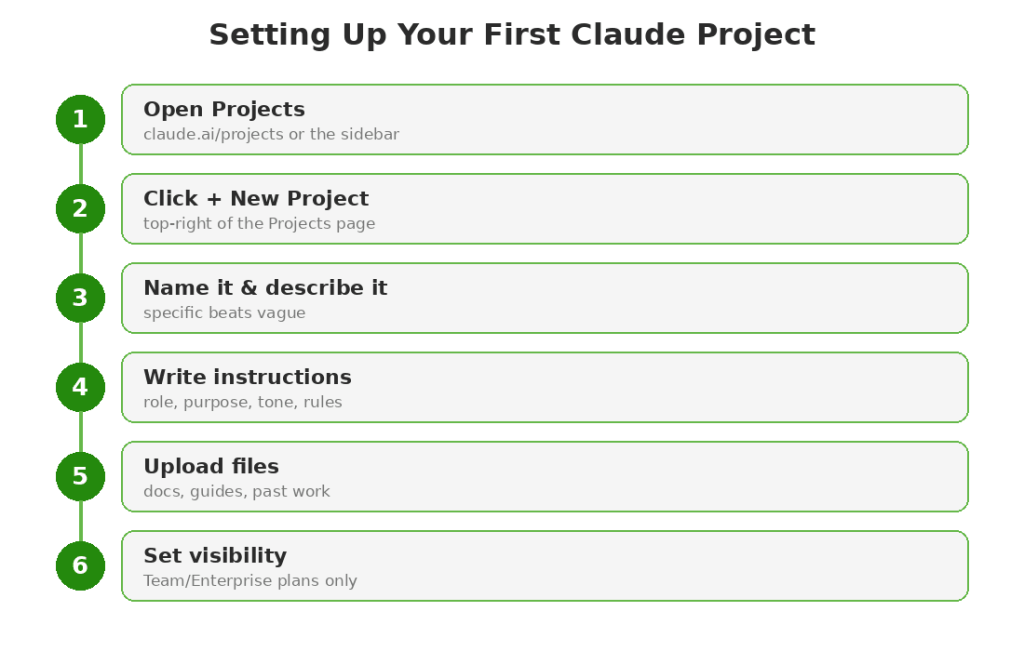
The six steps to setting up your first Claude Project.

1. Open the Projects section. In the Claude interface, look for “Projects” in the left-hand sidebar, or go directly to claude.ai/projects in your browser.

2. Click “+ New Project.” You’ll find this button in the upper right corner of the Projects page.

3. Name your project and add a description. Give it something clear and specific — “Q3 Marketing Campaign” is more useful than “Work Stuff.” Worth noting: Claude doesn’t actually read the project name or description as context, so don’t rely on them to communicate instructions — that’s what the next step is for.

4. Write your project instructions. This is the most important part of setup. Good instructions typically cover four things:

  • Your role or organization (who you are and what you do)
  • The specific purpose of this project
  • The tone and format you want Claude to use
  • Any standing rules that should always apply

A focused half-page of instructions is usually far more effective than three vague pages. Specificity beats length.

5. Upload relevant files. Add documents, spreadsheets, policies, or reference material that Claude should draw on throughout the project — things like style guides, financial reports, research notes, or past examples of work you like.

6. Set visibility (Team and Enterprise plans only). If you’re on a Team or Enterprise account, you’ll choose whether to keep the project private to you and invited collaborators, or share it with your broader organization.

Once it’s set up, every new conversation you start inside that Project automatically inherits the instructions and files — no re-explaining required.

When Should You Actually Use a Project?

Not every task needs one. A one-off question doesn’t call for a dedicated workspace. But Projects earn their keep when you find yourself returning to the same context repeatedly. Good candidates include:

  • A recurring task tied to your role, like drafting weekly client updates or writing proposals in a consistent format
  • Ongoing work tied to one client, product, or account that has its own background and reference material
  • A body of work with reference material you keep consulting, like a style guide or a company policy

If you’re using Claude for the same kind of task more than once or twice, that’s usually the signal it’s time to build a Project around it. If you’re still getting a feel for what AI tools are good for day to day, our 10 Simple & Actionable AI Tips to Make Your Life Easier is a good starting point before you build out a full Project.

Projects vs. Claude’s General Memory

If you’ve used Claude for a while, you may have noticed it can also remember things from past conversations on its own, even outside of a Project. So what’s the difference?

General memory is broad and follows you across every standalone chat — it might recall your job, your writing preferences, or a recurring topic you’ve discussed. A Project’s memory works differently: it’s scoped specifically to that workspace. The instructions, files, and context you build inside a “Client A Proposals” Project stay separate from your “Personal Blog Writing” Project, even though both belong to the same account. That separation is the whole point — it keeps unrelated work from bleeding together and lets you build genuinely specialized workspaces instead of one big undifferentiated pile of context. It’s a similar idea to what we covered in AI Agents Explained: Your Personal Digital Assistants — giving an AI tool a defined scope makes it dramatically more useful than treating it like one giant, undifferentiated assistant.

Tips for Getting the Most Out of a Project

A few practical habits make Projects noticeably more useful:

  • Be specific in your instructions, not exhaustive. A tightly written half-page beats a sprawling document Claude has to wade through. Focus on the details that actually change how Claude should respond — your role, your audience, your tone, and any hard rules.
  • Update instructions as things change. If your project’s purpose shifts, or you’ve learned that Claude keeps making the same kind of mistake, go back and adjust the instructions rather than repeating corrections in every chat.
  • Keep your knowledge base current. Swap out outdated files and add new reference material as it becomes relevant, the same way you’d keep a shared drive folder tidy.
  • Use one Project per distinct body of work. Resist the urge to dump everything into a single mega-project. Separate workspaces for separate clients, topics, or types of work keep Claude’s context focused and relevant.
  • Revisit old conversations inside the Project. Because chats are grouped together, you can scroll back through prior conversations in the same workspace to find a past draft or decision instead of digging through your entire chat history.

A Quick Example

Say you’re a freelance writer who juggles three regular clients. Instead of one long, tangled chat history, you could set up three separate Projects — one per client. Each one holds that client’s style guide, past approved articles, and specific instructions like “always write in second person” or “avoid using the word ‘leverage.’” When you open a new chat inside the “Client B” Project, Claude already knows the voice, the audience, and the ground rules, and you can jump straight into drafting instead of re-briefing it from scratch.

That’s the practical payoff: less setup overhead, more consistency, and a workspace that actually gets more useful the longer you use it.

The Bottom Line

Claude Projects turns Claude from a tool you re-explain yourself to every time into a workspace that already knows the context of what you’re working on. It costs nothing to try, takes just a few minutes to set up, and can save a meaningful amount of repeated typing if you use Claude regularly for the same kind of work. If you haven’t tried it yet, picking one recurring task in your week and building a Project around it is a good place to start.

10 Simple & Actionable AI Tips to Make Your Life Easier

Artificial Intelligence (AI) isn’t just for tech companies—it can be your personal assistant, productivity booster, and even your creativity partner. The best part? You don’t need to be an expert to use it!

In this guide, I’ll share 10 practical, everyday AI tips—each with a specific prompt or action—so you can start using AI right away to save time, reduce stress, and work smarter.


1. Let AI Manage Your Schedule & Reminders

Problem: Forgetting important tasks or double-booking meetings.
Solution: Use AI-powered assistants to automate reminders and manage your calendar.

🔗 Google Assistant | Siri | Alexa

💡 Try this now:
“Hey Google, schedule a dentist appointment for next Thursday at 2 PM and set a reminder 1 hour before.”

📌 Pro Tip: Connect your calendar to ChatGPT (via plugins) and ask:
“Review my schedule for tomorrow—am I overbooked? Suggest time blocks for deep work.”


2. Never Take Notes Again—Let AI Do It

Problem: Missing key points in meetings or lectures.
Solution: AI transcription tools can record, summarize, and highlight action items.

🔗 Otter.ai | Fireflies | Notion AI

💡 Try this now:
“Otter, transcribe this meeting and highlight decisions made.” (Works in real-time!)

📌 Pro Tip: After a call, ask ChatGPT:
“Summarize these meeting notes in 3 bullet points with deadlines.”


3. Automate Email Responses (Without Sounding Robotic)

Problem: Wasting time writing repetitive emails.
Solution: AI tools suggest quick, natural responses.

🔗 Gmail Smart Reply | GrammarlyGO

💡 Try this now:
In Gmail, click the “Smart Reply” suggestions when replying to an email.

📌 Pro Tip: Use ChatGPT to craft better emails:
“Write a polite email to my boss requesting an extension on the project deadline due to unexpected delays.”


4. Get Custom Meal Plans Based on What’s in Your Fridge

Problem: Staring at the fridge, unsure what to cook.
Solution: AI meal planners generate recipes from ingredients you already have.

🔗 ChatGPT | Mealime | Yummly

💡 Try this now:
“ChatGPT, I have chicken, rice, and broccoli—suggest 3 easy dinner recipes under 30 minutes.”

📌 Pro Tip: Snap a pic of your fridge with Google Lens and ask:
“What can I make with these ingredients?”


5. Automate Your Budget & Save Money

Problem: Losing track of spending or missing bills.
Solution: AI finance apps track expenses and negotiate bills.

🔗 Rocket Money | Copilot | Even

💡 Try this now:
“Rocket Money, analyze my last 3 months of spending—where am I overspending?”

📌 Pro Tip: Ask ChatGPT:
“Create a monthly budget for a family of 4 with $5,000 income, prioritizing savings.”


6. Get a Personalized Workout Plan (No Trainer Needed)

Problem: Not knowing how to structure workouts.
Solution: AI fitness apps generate custom plans.

🔗 Freeletics | Fitbod | MyFitnessPal

💡 Try this now:
“Fitbod, create a 20-minute home workout with no equipment.”

📌 Pro Tip: Ask ChatGPT:
“Design a 4-week running plan to go from 5K to 10K.”


7. Improve Sleep with AI-Guided Soundscapes

Problem: Tossing and turning at night.
Solution: AI sleep apps adjust sounds based on your sleep patterns.

🔗 Sleep Cycle | Endel | Calm

💡 Try this now:
“Endel, play a 30-minute wind-down soundscape for better sleep.”

📌 Pro Tip: Ask ChatGPT:
“Suggest a nighttime routine to fall asleep faster based on science.”


8. Never Overpay Again—AI Finds Discounts Automatically

Problem: Missing out on coupon codes or better deals.
Solution: AI shopping assistants apply discounts at checkout.

🔗 Honey | Capital One Shopping | PayPal Honey

💡 Try this now:
Install the Honey browser extension—it auto-applies coupons on Amazon, Walmart, etc.

📌 Pro Tip: Ask ChatGPT:
“Find the best time to book a flight to Tokyo for December.”


9. Learn Anything Faster with AI Tutoring

Problem: Struggling to understand complex topics.
Solution: AI tutors break down concepts simply.

🔗 Khan Academy | Duolingo | ChatGPT

💡 Try this now:
“ChatGPT, explain quantum computing like I’m 10 years old.”

📌 Pro Tip: Use YouTube’s AI summary feature (on mobile) to get key takeaways from long videos.


10. Plan Your Dream Trip in Seconds

Problem: Spending hours researching travel itineraries.
Solution: AI trip planners generate custom travel plans.

🔗 Wanderlog | Roam Around | ChatGPT

💡 Try this now:
“ChatGPT, plan a 5-day budget-friendly trip to Barcelona with must-see attractions.”

📌 Pro Tip: Use Google Lens to translate menus or signs in real-time while traveling.


Final Thoughts: Start Small, Save Time

You don’t need to use all 10 tips at once—pick one or two that solve your biggest pain points and try them today!

Which tip are you most excited to try? Let me know in the comments!

AITips #ProductivityHacks #LifeSimplified #TechForEveryone


Quick Tips: Could GOOGLE KEEP be the Speech-to-Text Tool You’ve Been Looking for?

Summary: Save time (and money) with Google Keep’s Voice Transcription Capabilities and File Sharing

As always, my goal is to share practical wisdom you can use to make life easier. Here are a couple more tips…

  • Use Google Keep as your voice recorder and save time because the file can be instantly exported to a Doc/Word file with no file conversion time (ah, that’s huge).
  • Additionally, you can capture all these voice memos to your heart’s content and they’ll be instantly available for follow-up on all your devices.

My Dilemma: I Found Myself in Need of a Voice Recorder.

Like you, I am always on the lookout for ways to increase my productivity. I have a lot of drive time at work (often four hours per day or more) and to make the most of it I listen to lots of podcasts.

We probably listen to many of the same ones (Ferris, Robbins, Goins, etc) and that’s all well and fine, but what I found is that just passively listening to these recordings was doing myself a great disservice — there’s a lot of wisdom being shared by these thought leaders, yet I wasn’t retaining enough of it so I couldn’t take action on it later and actually benefit from the knowledge.

Taking handwritten notes while driving obviously wasn’t an option, so I looked into buying a voice recorder that would allow me to capture tidbits and ideas I could follow-up on later. Unfortunately, I didn’t like what I found…

The Problem with Voice Recorders
Minor: They are expensive: $50–100 or more depending on the features you want.
Minor: You can’t see what you recorded during the process.
Big: You take extra time to download/convert the voice file to a word/doc file.
BIG: Voice recording is all they do.


Enter Google Keep

 Just in case you are not familiar with Google Keep…

  • It’s marketed as a note taking app.
  • It’s not new (it was launched 2013), but not a lot of people I know use it. Sadly, Google Keep is often overlooked in favor of other more ‘robust’ apps like Wunderlist, Evernote, and others. While those other task tools may be more powerful than Google Keep, I found that I didn’t need all their extra features, didn’t want to pay for them, and didn’t want to invest the time necessary to learn them. I just wanted something that works and “G-Keep” hit the mark for me.
  • What’s great about Google Keep for new users is that it has an easy to understand, minimalist interface, and that means pretty much a zero learning curve.
  • Although it’s considered a minimalist app, G-Keep is a little beast that offers a set of powerful tools that make it a super effective for reminding you to get things done. You can use Keep to create lists, store pics/files/more, collaborate with others on action items, and much more.

Here’s what I was already doing with Google Keep

  • For years I’ve been using Keep to create a series of ‘to do’ lists (shocking, I know). It’s very effective for this purpose and what’s great is that my lists are automatically shared between all my mobile and home devices. As we speak I currently have 7 widgets on my phone and 10 active lists. These include work reminders, home projects, shopping lists, voice recording notes, my 3 to Thrive lists from my SMART Morning Routine, reminders on wisdom tips I want to share with my sons, blogging ideas, and more.
  • I use the G-Keep Android widget to SHOW my to do lists on various home pages of my phone so that I have them ‘always up’ and thus always on my mind. This lets me SEE the tasks so I can be reminded to DO them.
  • I use the checkbox feature on G-Keep to turn my to-do lists into action items so they are easy to remove from view once complete. You can also use G-Keep in paragraph form for standard notes — for example when you are doing the voice recording.
  • As shown in the pic, you can use G-Keep similar to Evernote or Dropbox and store files and share them with others. I work in the medical field and there’s a lot of complex terms, etc to remember…

But what about the Voice Recording?

This is something I only recently discovered with G-Keep as a capability. Now obviously it’s not rocket science and maybe you already knew this, but honestly it was new to me (wait, maybe I shouldn’t I admit that).

Specifically, when I found myself in need of a voice recorder, rather than buy yet another device, I tried using G-Keep as my de facto voice recorder in lieu of getting a dedicated one — it exceeded my expectations for this purpose!

G-Keep is an effective speech-to-text voice recorder.

Suddenly all that podcast wisdom had a place where I could capture it…and easily follow-up on it later. My 4+ hours of drive time was no longer a chore — dare I say I began looking forward to it? (Well, let’s not go that far).

G-Keep is easy to use as a voice recorder. If you know how to type a text, then you already know how to take a note in G-Keep. Additionally, if you know how to push the microphone button on your text keyboard, then you already know how to take a voice-to-text note in G-Keep. Like I said, there’s no learning curve!

Also G-Keep is free — you don’t have to spend money buying a dedicated voice recorder. (Send your donations to The Human Fund please — you’re welcome, George).

Key Features of Google Keep for Speech-to-Text Usage

  1. You can use G-Keep in hands-free mode while driving. (Thanks to its integration with the “OK, Google” Assistant). Just say “OK, Google…Open Google Keep.” Then speak your note.
  2. Using G-Keep as your voice recorder means you don’t need to carry around yet another device.
  3. G-Keep will save you tons of time because it automatically transfers all your speech-to-text notes to your other devices. As soon as the note goes in G-Keep it’s available on all your connected devices (phones, tablets, Chromebooks, Mac, etc).
  4. G-Keep can save you even more time because all your notes can be instantly converted to Google Docs/Word files. You don’t have to do any extra steps (for example if you used a traditional voice recorder, you’d have to possibly convert the file format, download it yourself, etc). With Keep it’s already done. Print your voice notes out, send them to someone else, etc. It’s so easy.

Was this quick tip helpful?

Hey, I realize we’re not splitting the atom here, but I’m hoping that my tips do make a difference for you — even if it saves you 15–20 minutes, that’s more time to spend with your family, right?

If this tip helped you I’d invite you to take action by doing one or more of the following:

  1. Share this page with a friend so they can benefit too
  2. Share your wisdom – drop me a line below so I can learn from you.
  3. Follow my blog and let’s stay connected – we can help each other reach new heights.

Let’s talk again soon!