

If you’ve ever caught yourself re-explaining the same background information to an AI chatbot every single time you open a new conversation, Claude Projects was built to solve exactly that problem. It’s one of the most useful — and most underused — features inside Claude, Anthropic’s AI assistant. Here’s what it actually is, how it works, and how to set one up in a few minutes.

The Problem Projects Solves
Picture this familiar routine: you open a new chat with an AI tool, and before you can ask for anything useful, you spend three paragraphs explaining who you are, what your business does, what tone you want, and what you’re trying to accomplish. The next day, you do it all over again in a brand-new conversation.
That repetition wastes time and breaks your flow. Claude Projects exists to eliminate it by giving you a persistent workspace that remembers your context so you don’t have to keep repeating yourself.
So What Exactly Is a Claude Project?
At its core, a Project is a self-contained workspace inside Claude that bundles together three things:
- Project instructions — standing guidance that tells Claude who you are, what the project is for, and how you want it to behave in every conversation that happens inside that workspace.
- A knowledge base — files you upload (documents, spreadsheets, policies, brand guides, transcripts, whatever’s relevant) that Claude can reference automatically, without you re-uploading them each time.
- Organized conversations — every chat you have inside a given Project stays grouped together, separate from unrelated work, so a client project doesn’t bleed into your personal writing or a coworker’s task.
Instead of starting from zero in every new chat, you open a Project and Claude is already briefed on the context that matters.
Who Can Use It, and What Does It Cost?
Projects are available to everyone, including free Claude accounts — you don’t need a paid plan to try it. Free accounts can create up to five Projects, and paid plans allow more.
One helpful technical detail: if the files you upload to a Project grow larger than Claude can fit into a single conversation, Claude automatically shifts into a retrieval mode that searches your documents for relevant information rather than trying to hold everything at once. In practice, this means you don’t have to worry about hitting a hard wall if your knowledge base grows over time.
How to Create Your First Claude Project
Setting one up takes about five to fifteen minutes, depending on how much context you want to load in upfront. Here’s the process:
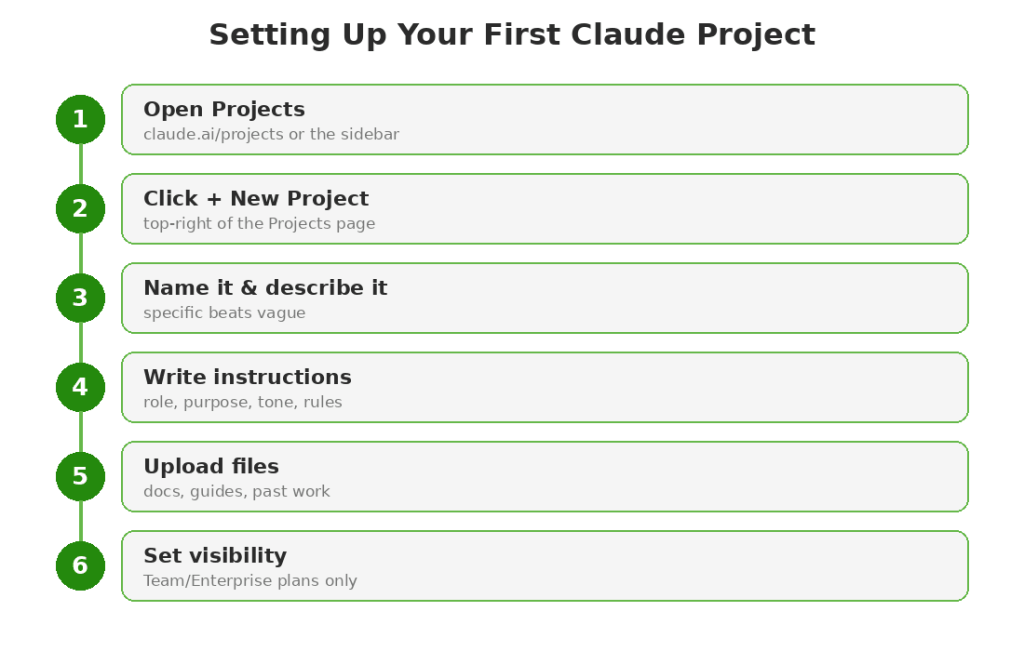
1. Open the Projects section. In the Claude interface, look for “Projects” in the left-hand sidebar, or go directly to claude.ai/projects in your browser.
2. Click “+ New Project.” You’ll find this button in the upper right corner of the Projects page.
3. Name your project and add a description. Give it something clear and specific — “Q3 Marketing Campaign” is more useful than “Work Stuff.” Worth noting: Claude doesn’t actually read the project name or description as context, so don’t rely on them to communicate instructions — that’s what the next step is for.
4. Write your project instructions. This is the most important part of setup. Good instructions typically cover four things:
- Your role or organization (who you are and what you do)
- The specific purpose of this project
- The tone and format you want Claude to use
- Any standing rules that should always apply
A focused half-page of instructions is usually far more effective than three vague pages. Specificity beats length.
5. Upload relevant files. Add documents, spreadsheets, policies, or reference material that Claude should draw on throughout the project — things like style guides, financial reports, research notes, or past examples of work you like.
6. Set visibility (Team and Enterprise plans only). If you’re on a Team or Enterprise account, you’ll choose whether to keep the project private to you and invited collaborators, or share it with your broader organization.
Once it’s set up, every new conversation you start inside that Project automatically inherits the instructions and files — no re-explaining required.
When Should You Actually Use a Project?
Not every task needs one. A one-off question doesn’t call for a dedicated workspace. But Projects earn their keep when you find yourself returning to the same context repeatedly. Good candidates include:
- A recurring task tied to your role, like drafting weekly client updates or writing proposals in a consistent format
- Ongoing work tied to one client, product, or account that has its own background and reference material
- A body of work with reference material you keep consulting, like a style guide or a company policy
If you’re using Claude for the same kind of task more than once or twice, that’s usually the signal it’s time to build a Project around it. If you’re still getting a feel for what AI tools are good for day to day, our 10 Simple & Actionable AI Tips to Make Your Life Easier is a good starting point before you build out a full Project.
Projects vs. Claude’s General Memory
If you’ve used Claude for a while, you may have noticed it can also remember things from past conversations on its own, even outside of a Project. So what’s the difference?
General memory is broad and follows you across every standalone chat — it might recall your job, your writing preferences, or a recurring topic you’ve discussed. A Project’s memory works differently: it’s scoped specifically to that workspace. The instructions, files, and context you build inside a “Client A Proposals” Project stay separate from your “Personal Blog Writing” Project, even though both belong to the same account. That separation is the whole point — it keeps unrelated work from bleeding together and lets you build genuinely specialized workspaces instead of one big undifferentiated pile of context. It’s a similar idea to what we covered in AI Agents Explained: Your Personal Digital Assistants — giving an AI tool a defined scope makes it dramatically more useful than treating it like one giant, undifferentiated assistant.
Tips for Getting the Most Out of a Project
A few practical habits make Projects noticeably more useful:
- Be specific in your instructions, not exhaustive. A tightly written half-page beats a sprawling document Claude has to wade through. Focus on the details that actually change how Claude should respond — your role, your audience, your tone, and any hard rules.
- Update instructions as things change. If your project’s purpose shifts, or you’ve learned that Claude keeps making the same kind of mistake, go back and adjust the instructions rather than repeating corrections in every chat.
- Keep your knowledge base current. Swap out outdated files and add new reference material as it becomes relevant, the same way you’d keep a shared drive folder tidy.
- Use one Project per distinct body of work. Resist the urge to dump everything into a single mega-project. Separate workspaces for separate clients, topics, or types of work keep Claude’s context focused and relevant.
- Revisit old conversations inside the Project. Because chats are grouped together, you can scroll back through prior conversations in the same workspace to find a past draft or decision instead of digging through your entire chat history.
A Quick Example
Say you’re a freelance writer who juggles three regular clients. Instead of one long, tangled chat history, you could set up three separate Projects — one per client. Each one holds that client’s style guide, past approved articles, and specific instructions like “always write in second person” or “avoid using the word ‘leverage.’” When you open a new chat inside the “Client B” Project, Claude already knows the voice, the audience, and the ground rules, and you can jump straight into drafting instead of re-briefing it from scratch.
That’s the practical payoff: less setup overhead, more consistency, and a workspace that actually gets more useful the longer you use it.
The Bottom Line
Claude Projects turns Claude from a tool you re-explain yourself to every time into a workspace that already knows the context of what you’re working on. It costs nothing to try, takes just a few minutes to set up, and can save a meaningful amount of repeated typing if you use Claude regularly for the same kind of work. If you haven’t tried it yet, picking one recurring task in your week and building a Project around it is a good place to start.


would you make a YouTube video on the subject? Miss your videos.
LikeLiked by 1 person