Category Archives: How To and What Is

Product I can’t live without – How I use my BED OF NAILS to destress and find peace

A few years ago I told you how I discovered a Bed of Nails acupressure mats and that I loved it so much I put it on my Essential Guide to Awesomeness list. Later the product earned one of my Editor’s Choice awards. Since I first discovered it, I’ve pretty much been using my Bed of Nails every day, yet the product became an absolute MUST HAVE for me during the Covid plandemic lockdowns that started in 2020 and currently show no signs of ever ending. My bed of nails is one of the key products that has helped me keep my sanity during these crazy times.

FYI – I have the one by SPOONK in the middle

What is a Bed of Nails?

A Bed of Nails is an acupressure mat that you lay on – it has gentle plastic spikes that provide self-healing benefits from a combo of acupuncture and massage.

How does it work?

Bed of Nails originated over 1,000 years ago and was used by gurus in the practice of meditation and healing. Bed of Nails acupressure mats use a modern, ergonomically designed version of that ancient technology, with a Swedish twist, to model those same deep healing effects. With thousands of non-toxic plastic nails, harmless to the skin but with all the healing benefits of its legendary ancestor.

Acupressure has been used for centuries to promote self-healing by rejuvenating and rebalancing the body. 

A Bed of Nails works on the simple principle of acupressure by pressing the stimulation points on the skin to increase circulation and aid relaxation in the inflamed and painful muscle area, relieving muscle, nerve, and back pain. a bed of nails can provide the benefits of a deep tissue massage that lowers the “stress hormone” cortisol while releasing endorphins (or “feel good hormones”), which help create an overall more positive and relaxed state of mind.

Does a bed of nails hurt?

That depends on how you choose to use it. With a bed of nails, YOU control the intensity of the acupressure. There are many options. For example…

How I use my Bed of Nails

Personally I use the “extra intensity” method and I lay on my bed of nails bare skin to mat.

When you use this method you’ll experience a gamut of sensations. When I first started doing this I would describe it as somewhat painful initially, however once you get through the first 5 minutes you start to reach a state of bliss. After 20-30 minutes, you’ll reach a state of ‘gelatinous euphoria’ where the cares of the world melt away. 

I know use my Bed of Nails every night while reading or watching tv in bed and I regularly lay on it for 30, 45, even 60 minutes or more – it does wonders for relieving the stress of the day!

10 Benefits of using a Bed of Nails

People who use a bed of nails like me believe some or all or the following are the benefits of using a bed of nails…

  1. Reduce pain in back, neck, shoulders, hips and joints.
  2. Improved circulation. Improved Digestion.
  3. Increased energy levels
  4. Release tension and find a deep sense of relaxation.
  5. Relaxing muscles and joints. Decreased muscular tension.
  6. Minimizing headaches. Reduce blood pressure.
  7. Increased levels of endorphin. A positive mental outlook.
  8. Increased uptake of oxygen.
  9. Improve sleep quality and relieve insomnia.
  10. Fibromyalgia relief

I can’t speak to the Fibromyalgia relief or whether it reduces headaches, blood pressure, or increases O2, but…

I can tell you FOR SURE that my bed of nails reduces my stess/tension, reduces pain in my back/shoulders, improves my sleep, and gives me more energy.

Get a Bed of Nails for yourself today

If you follow my blog, you know that when I write an article about a product I only recommend products that I personally use and believe in. I’m telling you that my bed of nails is a product I can’t live without and I give it my TOP RATING.

Take my advice and consider getting a bed of nails for yourself today. As I mentioned before, I own one made by Spoonk but there are plenty to choose from on Amazon. Click the pic below and see for yourself – I have it auto-sorted by the most popular 4-star rated bed of nails choices. Your best bets are likely the following market leading brands: Nayoya, Spoonk, Bed of Nails brand, and ProSource Fit.

Shop Here – Click the Pic to see these and many more bed of nails options.

FYI – I have the one by SPOONK in the middle

After you get one and start using it, let us know how you like it.

Enjoy!

Locast.org FREE Live Local TV – Full Review: Save Money, Use Locast!

What is Locast? Locast.org is a not-for-profit organization that provides live, local tv stations to the public. In this article, I’ll give you my review of the Locast TV App and tell you how I am using Locast.org to save money by cancelling my higher priced tv streaming tv apps.


Why Listen to Me?

Hi, I’m Mike, That Helpful Dad. I’m just an Average Joe who ditched cable a couple years ago and moved to watching TV online. I’ve learned a lot along the way and my reviews and tips may help YOU learn how to stream tv online and save a lot of money. Enjoy!


[lwptoc]

What is Locast.org TV?

(From the Locast.org site)

Locast is a public service to Americans, providing local broadcast signals over the Internet in select cities.

How can you watch Locast.org?

  • Visit https://www.locast.org/
  • Sign up online, provide your name and email address, and certify that you live in, and are logging on from, one of the select US cities (“Designated Market Area”).
  • Select among local broadcasters and stream your favorite local station.
  • If you are watching on a computer or mobile device, you can enjoy locast immediately.
  • If you want to watch Locast on your TV then you need to download the Locast app to your smart tv or compatible Digitial Media Player (Firestick, Google Chromecast, Apple TV, Android TV, Roku, etc).
  • Visit https://www.locast.org/activate to connect your Locast App to the Locast account you just setup. Once your app is connected then you can watch Locast via the app on your tv.

How does Locast.org work vs regular cable or streaming apps?

Locast.org is a “digital translator,” meaning that Locast.org operates just like a traditional broadcast translator service, except instead of using an over-the-air signal to boost a broadcaster’s reach, Locast streams the signal over the Internet to consumers located within select US cities.

Ever since the dawn of TV broadcasting in the mid-20th Century,non-profit organizations have provided “translator” TV stations as a public service. Where a primary broadcaster cannot reach a receiver with a strong enough signal, the translator amplifies that signal with another transmitter, allowing consumers who otherwise could not get the over-the-air signal to receive important programming, including local news, weather and of course, sports.

Locast.org provides the same public service,except instead of an over-the-air signal transmitter, Locast provides the local broadcast signal via online streaming.

Do you need an antenna to watch Locast?

No.

Do you need the internet to watch Locast?

YES – You need a broadband Internet connection for optimal performance.

Watch can you watch Locast.org on?

You can watch Locast on your laptop, smartphone, or computer connected to the Internet, AND you can watch Locast on your TV via the Locast app downloaded to your smart tv or compatible Digitial Media Player (Firestick, Google Chromecast, Apple TV, Android TV, Roku, etc)

Is Locast.org really FREE?

YES, you can watch Locast.org for free, however every 15 minutes there will be a brief ‘ad’ asking you to donate to support Locast.org. Remember Locast.org is a non-profit service. If you don’t mind the brief interruption then you can certainly enjoy Locast.org for free.

That said, for as little as $5/month, you can make a donation to support Locast.org by doing this you will remove the Locast.org ad. That means you can watch Locast.org without being interrupted.

I recommended you make a donation to Locast and thereby remove the interruption AND help keep this amazing service available for all of us.

You can make your donation using this link: https://www.locast.org/donate

IMPORTANT TIP: make sure you make a donation using the same email address that you use to sign in to Locast – this donation association will then remove the ads (it may take up for 24 hours for the donation to register to your email address according to Locast).

What cities in Locast.org available in?

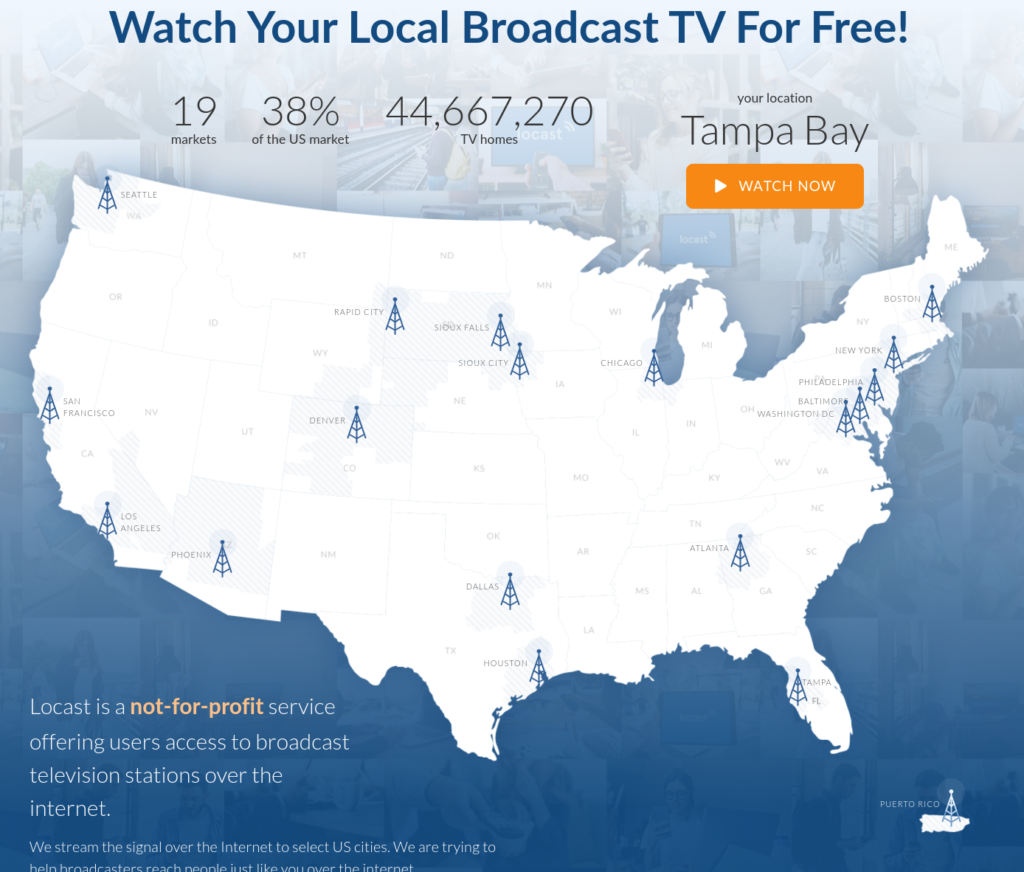
This is the biggest limiting factor. Locast is only available in select markets. Here is a map of the US showing where Locast is located.

Locast.org TV

TIP: if you are not located in one of these cities, you may still be able to watch Locast by using a VPN to ‘update’ your location.


Locast.org TV – The Video Review

In this video, I’ll give you my review of the Locast TV App and tell you how I am using Locast.org to save money by cancelling my higher priced tv streaming tv apps.

#Locast #InternetTV #StreamingTV

Share this vid: https://youtu.be/5FxlOf1uoNA

References in this video:


What to Read Next

How to Cancel Your YouTube TV Subscription

In this article, we’ll show you how to cancel your YouTube TV subscription. Why might you want to do this? Because in July 2020 Google opted to levy a massive 30% price increase – bumping YouTube TV from $50 per month to $65 per month. We believe there are now better alternatives for cord cutters to consider and therefore are recommending you consider cancelling YouTube TV.

I’ll show you how to cancel your YouTube TV membership AND I’ll also tell you what my family is choosing instead of YouTube TV too.


Hi, I’m Mike, That Helpful Dad. I’m just an Average Joe who ditched cable a couple years ago and moved to watching TV online. I’ve learned a lot along the way and my reviews and tips may help YOU learn how to stream tv online and save a lot of money. Enjoy!


A Sad Day

Although we previously awarded YouTube TV our “2020 Editor’s Choice” Award for the Best Streaming Service, with Google’s decision to jack up the price by $15/mo and only add a few meaningless channels in return, we decided YouTube TV was no longer the best option for us and therefore chose to cancel.

If you want to cancel YouTube TV, here’s how…

How to Cancel YouTube TV Subscription On Your Computer.

It’s pretty easy to cancel your YouTube TV Subscription online. Just follow these steps:

  • Visit https://tv.youtube.com/
  • Make sure you are signed in – you’ll know you are signed in, if you see your picture/google id in the top right hand corner of the screen. If you don’t see your id, then be sure to sign in.
  • Click on your id icon and then choose SETTINGS from the drop down menu. It will look like this…
Cancel YouTube TV
  • Once you open the Settings Menu, you’ll see “Membership” on the LEFT Side and you’ll see all the Subscriptions you have in your Google Account.
  • Look for YouTube TV and then be sure to click on the small box to the RIGHT of YouTube TV (next to the price). That’s where you can “Pause Or Cancel Membership” for your YouTube TV Subscription.
How to Cancel YouTube TV Subscription
  • YouTube TV will encourage you to simply “Pause” your membership and that’s fine if you want to do that, but there’s really no harm in cancelling completely – after all you can always restart the service later if you like. So if you really want to cancel then be sure to choose the CANCEL MEMBERSHIP Option. Here’s what it looks like…
How to Cancel YouTube TV Membership
  • YouTube will ask you to give a reason for your cancellation. Click whichever applies (Hint: Choose COST!).
  • Then be sure to select the “Continue Canceling” button.
How to Cancel YouTube TV Subscription
  • This is the final screen you’ll see and it requires ONE MORE CLICK – be sure you click the button for “Cancel Membership” to complete the process of cancelling your YouTube TV Subscription.
How to Cancel YouTube TV Subscription

CONGRATULATIONS – you have successfully cancelled your YouTube TV Subscription.


Why I Ditched YouTube TV & What Streaming Services I’m Recommending Now

Video Description: A YouTube TV Price Increase July 2020 of 30% was hard to swallow and because of it (and other reasons) I’m cancelling YouTube TV and using other streaming tv apps. In this vid I’ll review what I’m recommending and show you how I’ve drastically cut our family’s overall costs.

Notes from the video:


What to Read Next?

If you liked this article, check out these too…

8 Strategies to Improve Your website traffic

With the new year in full swing, you’ll want to improve your website traffic. But, how do you do it? What are some strategies to drive traffic to your website in droves? Read on to find out.  Here, we’ll give you some invaluable strategies you should be using to increase traffic to your website and get leads and conversions right away.

Why Traffic?

Traffic is very important for websites, and you should always consider working towards building traffic. 

With traffic, you get the following from it:

    • More interest in the site 

    • A higher ranking on Google and other search engines 

    • Conversions, which will give you money 

    • Leads, which can lead to conversions 

Remember, if you want people to show up, the best way to do it is to drive traffic. Granted, not every single one will convert, but if you want people to find it, you get that word out, and do it fast!

Performing On-Page SEO-friendly

If you’re not performing SEO tactics to get onto website pages and get more visitors, you’re going to not get traffic. This is actually one of the simplest ways to increase rank and get visitors to flock to you.  Some of the different actions you can use include the following:

    • Creating content that is of high quality 

    • Crete content the audience is looking for 

    • Using concise meta descriptions so that people can find the links and go to your site 

This alone will drive traffic to you. If you really want to get people to find your site, sometimes even just performing on-page SEO is the best way to do it, since ultimately it can help drive future traffic to the site, and get interest going.

on page seo

“Upside down” Guest Posting 

This is a different type of guest posting. Usually, when you look at a guest post, you see the author name, and maybe some info on them.  But, there is actually a different means to do this, and it does drive website traffic and increase it. it’s something that you should consider because it does build links, and get people interested. 

The steps to take this include the following:

    • Write the Guest post as you would 

    • Add “helpful resource sections throughout the post that will give resources to the topic just covered 

    • include your specific content in helpful resources 

    • Add the bio and author name at the top versus the bottom 

Creating links to your content throughout the posts is actually an awesome way to drive traffic. You can see an increase of about 80% on the traffic if you’re doing this right, and it does give you a lot more traffic to a site than what you’d expect. 

With guest posting, try to utilize this strategy, since it allows for more engagement, more people looking at your guest posts, and generally, more success. 

Social Media Success 

Social media is a great way to get content out there and to promote the content that you’ve got on your site. If you have a strong social media, you should start to utilize this. Social media is a big point of SEO, simply because you can generally put together an awesome campaign, and you can post it on different channels. That way, even people who may have not heard of your blog or content before can find you, which is what’s pretty awesome. 

To really get a social media campaign going, you need to do the following:

    • Promote the content on your social media site 

    • Create links that the followers can use to see and share your content 

    • Encourage content sharing at the bottom of the content 

    • Use hashtags to promote pages 

The final one is really what you should be working towards. If you use hashtags, you’ll get more traffic. Why is that? Well, with a hashtag, people will search for it, so fi they search for that keyword, they’ll find your content. it’s that simple, and that’s the main reason why people encourage hashtag use so much, simply because it gets people interested in the topic, and can help new users find out more information. 

Overhauling Guest Posts 

This is another very simple strategy, but your traffic will increase by manifold super fast.  

Old guest posts are good, but if you really want to get traffic to them, you should consider overhauling them.  they’re already out there, and usually, if there is something wrong with them, the traffic could decrease.  The best part about this is if you already have this type of content out there, you can literally change this in about an hour. 

How you do it is simple:

    • Find your old guest posts 

    • Look through to see what needs t be changed 

    • From there, add either more content, screenshots, or the like 

    • Change any strategies that are old and shouldn’t be used anymore 

    • If there are current strategies that are correct, work to improve these 

    • Choose to update them 

And from there, you’ll see the difference. If you didn’t have pictures of screenshots already, you’ll want to implement these, because it’s one of the best ways to really get people interested in this site, and it will help especially if you’re looking to change the guest posts that you currently have, and don’t want to pay any extra to publish new content 

guest posting for seo

Landing Pages 

If you don’t have landing pages already, put those in. they’re really the best source of traffic to websites, since many times, people don’t want to have to sift through a ton of content in order to get what they need.  Landing pages that have discount codes, a free guide, or even free trials will get interest, and people will choose to click on these. Plus, if you do have free offers, and people redeem these, they’re more likely to convert and from there, move even more forward. it’s very important to consider this since landing pages are really the best way to drive traffic to websites. 

“Click to Tweet” links 

If you want to increase social media, consider adding a click to tweet link. This is because people use Twitter a lot to share content. It’s where a lot of opinions and voices are, and people love to share links and content. The best thing to do is to find content that you currently have, create a click to tweet link, which you can easily google and create, and from there, you hyperlink it at the bottom of your content, or wherever you want to really get traffic going. 

Click to tweet is something that’s super easy, and you should definitely consider trying to implement this, especially if you haven’t already. Even just putting a twitter or Facebook sharing function into your content can change the way it is shared, and the overall result of this as well. 

Transform the content!

You want a simple means to increase traffic/ well, why not transform it.  Essentially, the way to do this is simple:

    • Choose a post 

    • Convert it into another format, such as an eBook, infographic, podcast, or even videos 

    • Share it wherever 

You can do this with so much content, and if you really want to get your name out there, and get hundreds of website visitors, a ton of views, and conversions galore, it is the way to go. The best thing about this is that if you want to, you can do this with older posts, and they will keep exploding as well with just this simple change. 

Join Podcasts 

Finally, let’s talk about podcasts. If you’re not using this already, you should consider doing so.  About 24% of Americans listen to podcasts, so that’s literally a quarter of the people. 

Now, I wouldn’t suggest starting your own, for a few reasons. 

    • It takes time and money you may not have 

    • It takes a while for the podcast to get popular 

    • It may not reach new people 

Instead, join others.  Joining podcasts is really the easiest way to drive traffic forward, since you can put together a bit of information, appear on there, and most people are decent enough to backlink to your site, so if they want more information on you, or even just more content, this is how. 

Driving traffic forward is a key part of Digital Marketing, and there is a reason why people are using driving traffic as the new means forward.  These ways allow you to put together new content and get more people interested, which in turn can get more people to your site. Traffic is power, and with these simple techniques, you can explode the traffic by so much, it’s not even funny, and it’s amazing just what it can do not only for yourself, but for your website, and for all of the sweet conversions you will make as a result of these efforts. 

About the Author

ThatHelpfulDad.com is pleased to present the work of Adriana Hamilton in this guest post. Here is a bit more about her…

Adriana Hamilton is a content marketer at a Wellfed company. A writer by day and a reader by night, she loves working in the ever-changing world of the food Industry and she really enjoys simplifying complicated nutrition messages so they are easy to understand and inspiring people to live healthfully one decision at a time.


What to Read Next

    How to Fix a Blank Amazon Fire TV Yellow Screen or Black Screen

    Are you seeing a blank yellow or black screen on your tv while watching via an Amazon Fire TV Stick? This very problem happened to me while watching Netflix on my Firestick. Luckily I found a fix for the Amazon Fire TV Blank Screen dilemma – the solution worked for me and I wanted to share it with you.

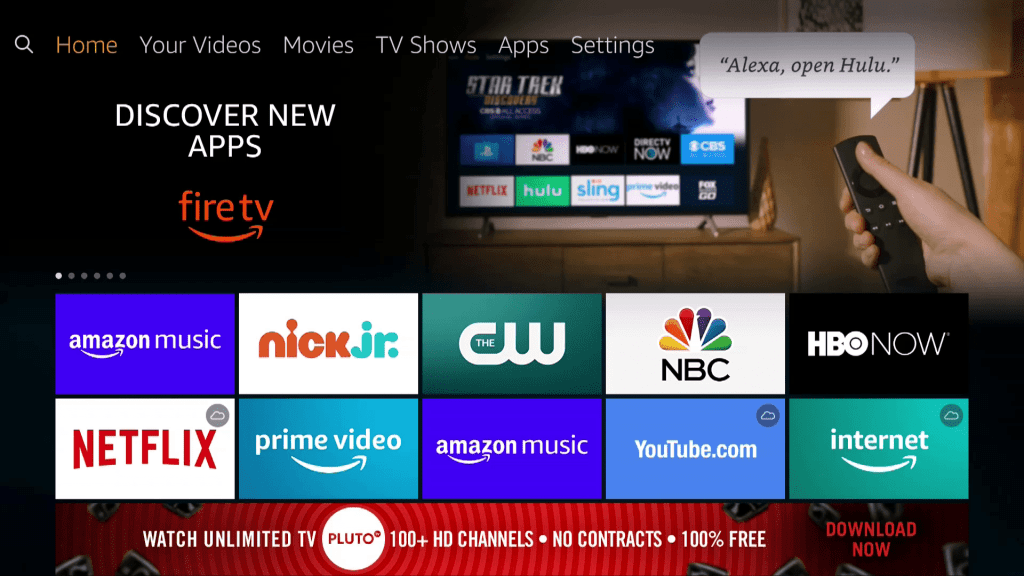
    Before the problem, my Amazon Fire TV was working just fine…

    This is normal

    I was watching a Netflix show and then suddenly the screen went completely yellow and looked like this…

    Amazon Fire TV Yellow Screen
    This is NOT good

    Is it a TV, HDMI, or an Amazon Problem?

    When the Amazon Fire TV Yellow Screen problem first happened, I thought maybe the issue was with my Samsung TV or the HDMI cable.

    • First I checked the other ‘source/inputs’ on the tv and since they were working fine I figured it wasn’t a tv problem.
    • Then I checked the HDMI cable and inputs on both ends and that too seemed fine.
    • It was during the process of checking both the tv source/inputs and the hdmi cable that I discovered that the problem was related to the Amazon Fire TV itself.

    Here’s how I learned it was an Amazon Fire TV issue – when I unplugged and replugged the Fire TV Stick into the tv’s HDMI port I noticed that the Amazon Fire TV Home Page came up briefly and then a few seconds later the screen went completely yellow. I repeated the test and the same thing happened.

    Now that I knew it was an Amazon Fire TV issue I went online to search for answers. Luckily I found one!


    Amazon Fire TV Yellow Screen or Black Screen Fix

    Apparently the Amazon Fire TV Blank Yellow or Black Screen is related to screen resolution settings that manage the resolution “communication” between the Amazon Fire TV and the TV itself. For whatever reason that communication got interrupted and needed to be reset. The fix for that is easy to do but not something you’d likely figure out on your own.

    Under normal circumstances, when there is a problem with the Amazon Fire TV, the fallback fix is to simply ‘reset’ the Fire TV from the Settings Menu. Unfortunately you can NOT get to the Settings menu when your entire screen is yellow!

    So how do you fix it?

    Luckily there is a hidden solution you can do with your Amazon Fire TV Remote…

    Press and hold the ‘up’ & ‘rewind’ buttons in your Amazon Fire TV Stick remote for 5 seconds

    Here’s where the buttons are…

    Amazon Fire TV Stick Up and Rewind Buttons
    Press Up and Rewind buttons at the same time for 5 seconds

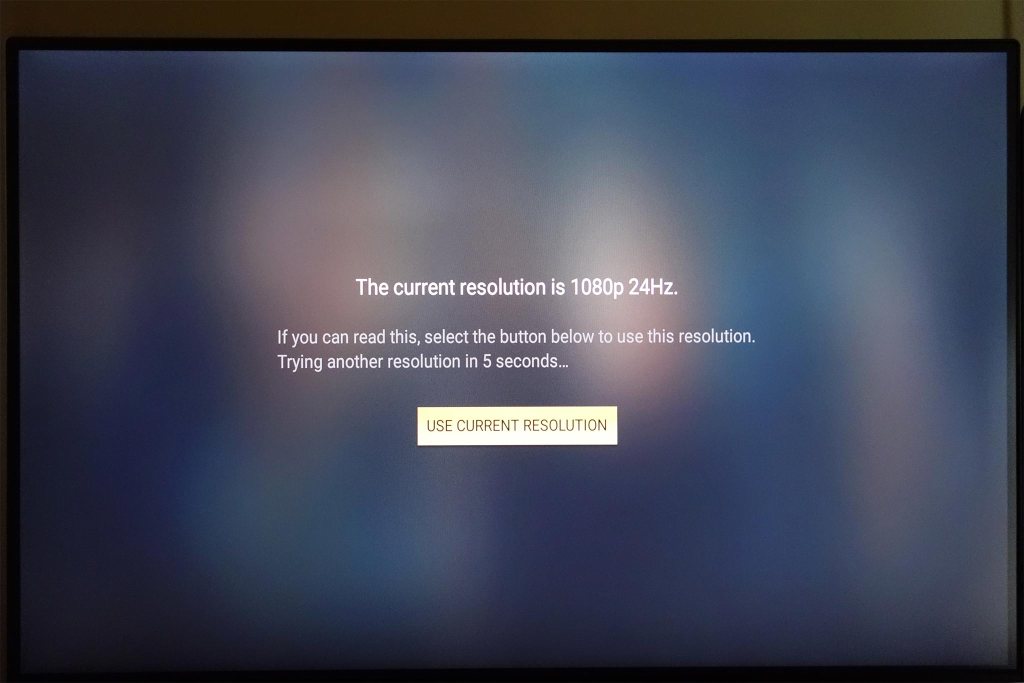
    When you press the Up and Rewind buttons on the Amazon Fire TV Stick for 5 seconds you will trigger a reset of resolution ‘communication’ between the Fire TV and your TV. You’ll know it happens when you get a screen like this…

    Amazon Fire TV Yellow Screen Fix

    And that my friends is the fix for the dreaded Amazon Fire TV Yellow Screen. It worked for me and I suggest you give it a try too if you are facing this issue.


    Amazon Fire TV Blank Screen Fix References.

    I didn’t discover this fix on my own and instead found it on the internet. Here are the helpful sites I learned it from…


    What to Read Next

    Buffalo Chicken Wing Recipe – How to Make Crispy, Juicy Hot Wings Full of Flavor!

    This weekend I made my dad’s world-famous Buffalo Chicken Wing Recipe again – and man was it good! If you like Buffalo Wings that are crispy, juicy, and full of flavor, you’ll want to try this Buffalo Wing recipe for yourself – it’s got a secret ingredient that adds so much flavor you’ll wonder why you didn’t think of using it before.

    I’m cooked my Buffalo wings in an Ooni Pizza Oven for a wood-fired effect but u can make this buffalo chicken wing recipe on any grill or oven. Best of all this Buffalo Chicken Wing Recipe is EASY to make, easy to customize to your tastes, and so much fun to eat!

    Give it a try & let me know what tips YOU have to share.

    Buffalo Chicken Wing Recipe – The Video

    SKIP AHEAD in the video with these timestamps:

    • 00:38 Kamado & Ooni Pizza Oven views
    • 01:10 Fuel Source (lump charcoal + cooking wood)
    • 01:20 Wings in Marinade
    • 01:50 Getting the Ooni Oven up to temp (watch the temp gauge climb!) 02:20 FIRE – it’s a beautiful thing!
    • 02:35 Wings are ready to cook WITHOUT sauce
    • 03:30 Buffalo Sauce Recipe Ingredients. Discussion on Hot Sauce to Butter Ratio
    • 06:40 Buffalo Sauce Mixed (see below for recipe itself)
    • 07:10 Wings at 10 Minutes
    • 07:30 Wings at 20 Minutes
    • 07:38 Wings IN SAUCE
    • 07:55 Sauced Wings ready to CRISP
    • 08:09: Wings back in oven to CRISP
    • 08:37 Wings DONE
    • 09:00 Let’s Eat!
    • 10:00 Bonus: The Drippins!
    • Share this vid: https://youtu.be/N1mR_M31MB8

    Buffalo Chicken Wing Recipe – Step by Step

    I have the full text version of the Buffalo Chicken Wing Recipe – including a step-by-step – on my grilling website called LordoftheGrills.com. Here’s a link you can use to go to that page…

    Buffalo Chicken Wing Recipe
    Click this pic for the text version of the recipe.

    About the Products used:

    Because of the Coronavirus pandemic, chicken wings are in short supply so I could only find I Costco Party wings – normally I’d cook the whole wing with all 3 sections (drumstick, wing, and tips).

    Here are the other products I cooked with if you are interested…


    Did You Know?

    If you enjoy reading That Helpful Dad’s articles, you may also like…


    What to Read Next…

    What’s the Best Child Monitoring App? Check out XNSPY

    Are you a parent confused about whether a mobile monitoring app can help your keep your child safe? You must have read about how mobile phone use has increased among children and teenagers. You probably feel worried about dangers like cyberbullying, access to inappropriate content, or online scams that children are exposed to. Are you considering using a mobile monitoring app? Don’t worry; you have come to the right place! In this article, we will review
    one of the best child monitoring apps for 2020 called XNSPY. We’ll answer all your questions and also identify the most important features of the app.

    Best Child Monitoring App

    About the Author

    Alex Miller

    ThatHelpfulDad.com is pleased to feature the work of Alex Miller in this guest post. Here’s a bit more about Alex…

    “I am a tech enthusiast, programmer and a sci-fi fan. I enjoy reviewing and researching new, innovative software that adds value to human life. I love writing about latest technology and trends, and have made this a full-time job.”


    What is XNSPY?

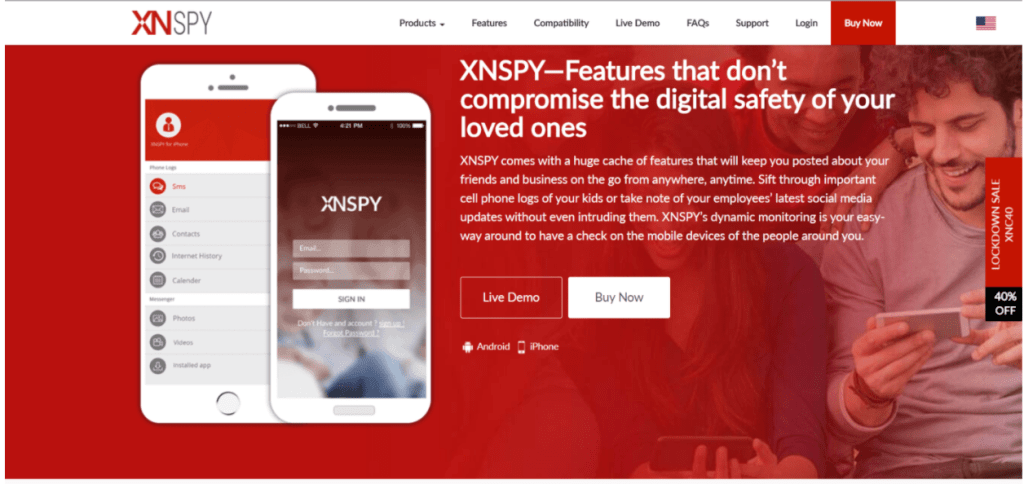
    XNSPY mobile monitoring app is used by parents all over the world to keep track of their child’s digital activities. It offers important features that can prevent incidents of cyberbullying, scams, or other similar dangers. 

    Let’s review some of the reasons why we think XNSPY is the best child monitoring app…

    Features that make XNSPY the Best Child Monitoring App

    •   Telecommunications Tracking: XNSPY can monitor all calls made to and from the device. This information is detailed in a call log that lists all incoming, outgoing, and missed calls, along with their date, time, and duration. You can also record calls and listen at your convenience. However, there is no live-call intercept feature available with the app. Similarly, XNSPY can monitor all exchanged texts too. 
    • GPS Tracking: You can use the GPS tracking feature to monitor your child’s location in real-time. The app also offers a geofencing feature. Just mark a specific location on the map to geofence it. XNSPY will alert you if the fence is violated. This is a useful feature if you want to prevent your child from accessing inappropriate locations such as bars or clubs. It can also give you peace of mind to know that your child is at a safe place such as at school.
    • IM, Text, and Social Media Monitoring: Most children and teenagers rely heavily on instant messaging, text, and social media apps for communication and socializing. Incidents of cyberbullying also occur on these platforms. You can use the IM, text, & social media monitoring feature to track apps such as Facebook Messenger, WhatsApp, Viber, Skype, Tinder, and others. 
    • Multimedia Access: You can use this function to view and download all multimedia files saved on your child’s phone. This includes all photos, videos, and audio files. It is a useful feature to identify if your child is consuming inappropriate content.
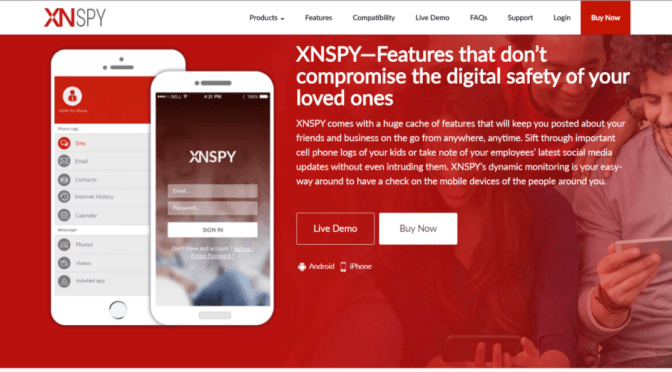
    XNSPY Child Monitoring App
    XNSPY Online Activity Monitoring
    • Online Activity Monitoring: XNSPY mobile monitoring app tracks all web-based activities such as bookmarked pages, complete web browsing history, and all exchanged emails. However, you would have to purchase a separate content filtering app as XNSPY does not offer such a system.  
    Child Monitoring Apps
    Control Your Child’s Phone Apps
    • Phone Remote Control: You can use the app to remotely control your child’s phone. Some features in this department are a bit on the intrusive side, such as microphone recording and screenshots. However, other features are quite useful. For example, you can remotely view all installed apps and block those you feel are unsuitable or inappropriately used. Similarly, you can view all saved contacts, lock the device, restart it, and delete all saved data in case of theft. The app management and screen-time management features are particularly handy if you are looking to prevent addictive behaviors. 
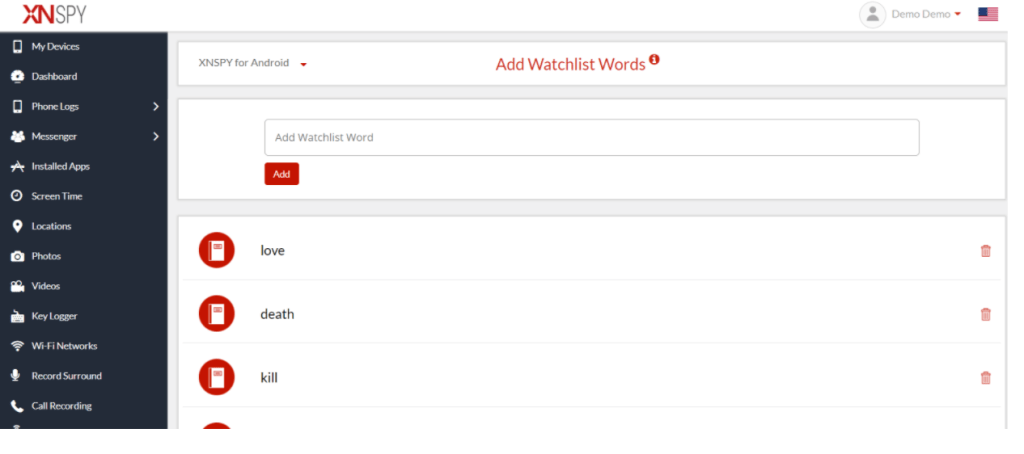
    • Watch List Word Alerts: The watch list alert feature is among the most valuable features provided by the XNSPY mobile monitoring app. You can add any word, contact number, or a location to the app’s watch list and XNSPY will immediately notify of any relevant activities. For example, you can add words related to pornography to the list. The app will watch out for those terms and if they are mentioned in any text message or typed into a search engine, XNSPY will quickly send you an alert. Unlike with other monitoring apps, you do not need to track phone data at all times. XNSPY will provide the right information at the right time. This way, you can intervene in a timely fashion.
    Child Monitor App Watchlist Words
    Use Watchlist Words for Monitoring
    • XNSPY Additional Functions: Other features available with the app include a keylogger that creates a record of all keystrokes, calendar access, and an analytics report that lists important information. This includes details such as top callers, most-visited websites, and other data.

    Sounds good! How much does XNSPY cost?

    There are two versions of the XNSPY app available for subscription. The basic version costs USD 4.99 per month but doesn’t offer all features. On the other hand, the premium version costs USD 7.49 a month but offers all available features. We suggest you opt for the premium version as the price difference between the two is marginal.

    XNSPY Costs
    XNSPY Plan Options

    Is it compatible with my phone?

    XNSPY mobile monitoring app is compatible with all Android versions above 4.0 and supports all iOS versions above 6.0. Most mobile phones currently in use are running on one of the aforementioned versions, so compatibility should not be a problem.

    Let’s explore some of the important features of XNSPY and identify its usefulness.

    How do I install and use the app?

    While the installation process is different for both Android and iOS. Let’s go through this step by step on how to install XNSPY on both operating systems.

    XNSPY For Android

    • Step 1: Head over to the XNSPY website and select a suitable subscription package. Make the payment and then check your email inbox.
    • Step 2: The email will contain a download URL, your XNSPY login credentials, and instructions on how to install the app. 
    • Step 3: You only need physical access to the phone once, so you can install the app. You’ll download Xnspy using a download URL emailed to you. It should not take more than a couple of minutes. XNSPY is completely hidden after that point.
    • Step 4: Wait for 24–48 hours so the app can begin transferring data from the phone. 
    • Step 5: Log in to your XNSPY account on the app’s website and select the relevant Android phone in the “My Devices” tab on the top left corner.
    • Step 6: You can access all the data and device control options via the menu bar on the left. All monitoring is remote. You can log in to your account from any web browser, anywhere in the world.

    XNSPY For iPhone

    • Step 1: Visit the XNSPY website and make the payment on your chosen subscription package.
    • Step 2: Wait for an email that contains instructions on how to install the app, along with your unique log in details.
    • Step 3: You do not need to physically access the iPhone to install XNSPY. However, you need to have the Apple ID details of the phone you wish to monitor.
    • Step 4: Make sure that the iCloud backup feature is set to “on” for the device. You can do so in phone settings.
    • Step 5: Log in to your XNSPY account and select the relevant iPhone from the “My Devices” tab.
    • Step 6: Enter the Apple ID details and wait for verification.
    • Step 7: You can now access all data and use device control options through the tab on the left.


    XNSPY Additional Considerations

    Okay, I get it; but are there any pros & cons I need to consider?

    Yes. Like all other services, XNSPY mobile monitoring app also has some advantages and disadvantages. Let’s take a quick look at some pros and cons.

    Pros

    • XNSPY is among the most affordable monitoring apps currently available on the market.
    • The watch list alert feature is particularly unique and available with other services.
    • The app enjoys a solid reputation owing to its quality customer support.

    Cons

    • Features such as microphone recording or screenshots are quite intrusive.
    • There is no content filtering service.
    • You may have to root or jailbreak the device if you want to use some specific features.

    What’s the Verdict

    XNSPY is a sophisticated monitoring app that offers a good combination of functions. The app has its drawbacks, such as a lack of content filtering systems. Considering that many such apps are free of cost, this limitation should not be a problem. At any rate, the app more than makes up for it with unique features such as watch list alerts, along with a very affordable price tag.

    These characteristics make XNSPY the best child monitoring app for 2020.

    XNSPY Specs

    XNSPYAvailability
    PriceUSD 4.99 per month or USD 7.49 per month.
    CompatibilityAll Android versions +4.0 and iOS versions +6.0.
    Live customer supportAvailable
    Call logsYes
    Call recordingYes
    SMS & MMSYes
    GPS trackingYes
    Live call recordingNo
    GeofencingYes
    Web browsing historyYes
    EmailsYes
    IM appsYes. Please visit the website for more details.
    Social media appsYes. Please visit the website for more details.
    Content filteringNo
    PhotosYes
    VideosYes
    AudioYes
    Microphone recordingYes
    ScreenshotsYes
    App managementYes
    Screen-time managementYes
    Remote camera No
    KeyloggerYes
    Watch list alertsAvailable for specified words, phrases, contacts, and locations.
    RootingOnly required for some features. Please visit the website for more details.
    JailbreakOnly required for some features. Please visit the website for more details.

    What to Read Next

    How to Cook Wood Fired Wings

    Wanna cook some wood-fired wings? Trying to find the recipe for making Anthony’s Coal Fired Wings? I’ve got you covered. Today we’ll be cooking wood fired chicken wings using a combo of lump charcoal and wood chunks – I’ll show it to you all in video form on this site and give you a link to get the full recipe with detailed cooking instructions from our grilling site if you want to do this cook yourself.

    As you’ll see in the vid, I’ll be making my wood fired wings in an Ooni Pro Pizza Oven, but you can use this recipe for any brick oven, kamado, or even your regular oven. Grab a beer and let’s cook wood fired chicken wings!

    Wood Fired Chicken Wings

    Wood Fired Wings Cooking Notes

    For the full recipe that I used in the video along with detailed cooking instructions please visit my grilling site: LordoftheGrills.com

    About this recipe: This recipe is a 3-step process

    1. The marinade (6-24 hours)
    2. Cooking the Wings (20-30 minutes)
    3. Making the caramelized onions. (20-30 minutes cooked at same time as wings)

    Actually there is a 4th step – EATING the wings!!

    Again for the full recipe with detailed cooking instructions visit my grilling site: LordoftheGrills.com


    About the Products used:

    I used Costco Party wings and the other spices & fresh ingredients noted in the recipe on this page: https://lordofthegrills.com/wood-fire…

    Meanwhile, here are all the cooking products mentioned or shown in this vid


    Wood Fired Wings – The Result

    wood fired wings

    The result: I felt pretty good about this cook – the process was easy, my family loved the flavor, and I believe I can repeat this cook again and again with ease.

    If you try this cook, let me know how it turns out. As always, please remember, I’m just an Average Joe so if you have any tips to share, I’d love to hear them so I can learn too.

    Cheers!


    Did You Know?

    If you enjoy reading That Helpful Dad’s articles, you may also like…

    What I learned about myself after 1,000 days of using the DAYLIO Micro Diary Mood Tracker app

    Daylio App – have you heard of the DAYLIO Micro Diary and Mood Tracker app? I’m in love with this little app – and you should be too. In this article I tell you what Daylio is and how I use it to improve my life. My goal in doing so is to introduce you what I believe is a great product (and best of all it’s FREE) – my hope is that Daylio can make a real difference in your life too.

    Daylio App

    What is Daylio?

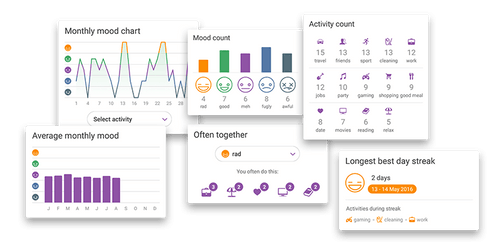
    Daylio is an easy to use mobile app that allows you to track your moods and daily activities. With regular use (as little as 5 days) you’ll start getting feedback reports that reveal trends.

    Daylio App
    Daylio Screenshots

    Daylio’s trends help you identify the connection between what activities you do when you feel great and what’s happening in your life when you have bad days.


    What I love about Daylio is…

    Daylio is one of my favorite apps because it’s easy to use, it’s free, and you can modify the activities to fit your needs.

    What I love about this app is that is shows me trends – for the day, month, and even the year. This allows me to VISUALLY SEE if I am living a life that’s in balance or if I’m too heavy in one area vs another. I’ve used this app every single day for over 1000 days and the feedback it’s providing is invaluable!

    Daylio makes it so easy to keep a mobile life journal because it takes just a few seconds to toggle on/off what you did that day and/or add/modify activities to suit your own system. Because Daylio is so easy/quick to use, it provides an efficient way for me to keep an on-the-go de facto daily journal about life. Add to that the fact that you can also include free text notes for each day (if you want to) and now you’re talking.


    Here’s how I use Daylio

    I’ve been using Daylio for over 1000 days continuously as you can see here…

    I use the Daylio app to track my daily moods and activities. My goal in using the app is to have a quick and easy way to journal my life AND to be able to see trends in terms of what’s working well for me and what isn’t.

    The knowledge I get from Daylio allows me to KNOW what I should be doing more of and what I should be nixing from my life.

    Daylio allows me to rate how I felt each day (awesome, good, average, not good, awful) AND it lets me get granular with specific activities – would you believe I’m currently tracking 80+ different daily activities? Ha, if you know me at all, this probably does’t surprise you.

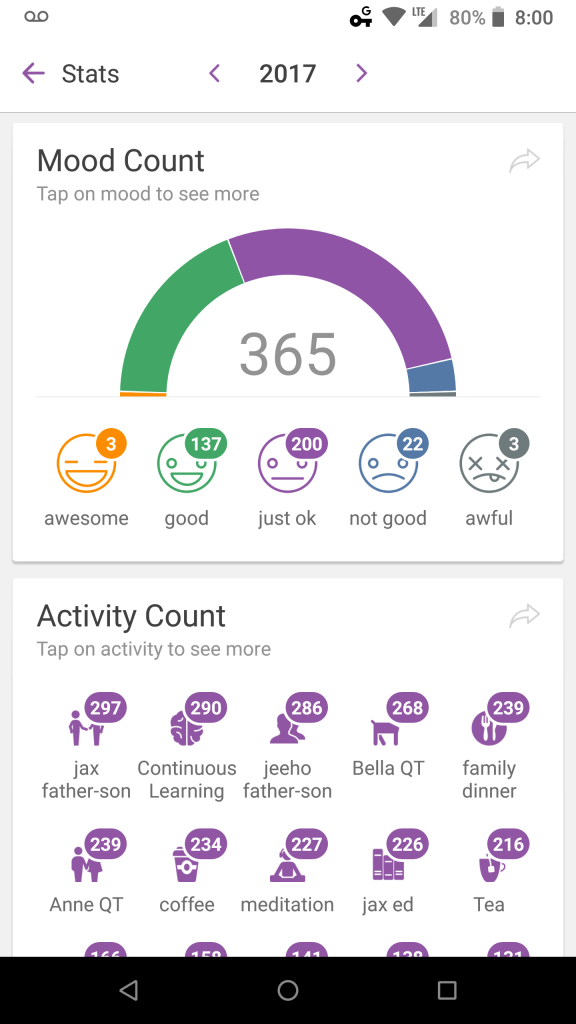
    Here is are my mood charts and activity counts for the last 1000+ days. My goal is to have more Awesome + Good days than Just OK + Not Good/Awful Days.

    Daylio
    Daylio 2017
    Daylio
    Daylio 2018
    Daylio
    Daylio 2019

    As you can see I’ve been able to improve this over time and the reason WHY I’ve been able to do this is by using Daylio to help me identify the activities that help me achieve a Good Day or better.


    What Others are saying about Daylio

    Don’t just take my word for it, check out what the Nat’l Institute of Health said about Daylio — here’s an article about Daylio from the NIH.


    How to Get the Free Daylio App

    You can find the Daylio App on the Apple App Store, Google Play, or Daylio’s website.


    What to Read Next

    Tony Robbins Three to Thrive
    Super Productivity Secrets
    Guide to Intermittent Fasting

    How to Search Google by Date (using Google Date Filters) – 3 Key Tips!

    Search Google By Date – Article Summary

    Are you trying to search Google for specific topics organized by DATE – such as search results for the last day, month, or year? If so, this article and video can help you. I’ll show you…

    1. How to use the TOOLS menu to FILTER Google search so that you only see search results from the past year, past month, past day, even past hour.
    2. How to filter Google search results for a CUSTOM Date Range.
    3. How to SORT the Google search results BY DATE (instead of relevance). What this means is that you can sort results by oldest to newest or newest to oldest instead of just seeing the results organized by Google’s algorithm.  
    4. And more. 

    [lwptoc]
    Search Google By Date

    Editor’s Notes:

    1. This article is part of a series of tips about how to use various Google Products to make life easier.
    2. This particular tip applies to Google Search via the full desktop version of Chrome. Unfortunately Google Mobile doesn’t offer the “Tools” drop-down feature any longer – thanks for Brian Burke for pointing this out to the group. 

    Search Google by Date – Tips & Screenshots

    In this section, we’ll show you screenshots for how to set up a FILTER so that you can search Google by date.

    This is the step-by-step process on how to get Google’s search results to show by the most recent Year, Month, Week, Day and past hour. It also works if you want to filter Google’s search results by custom dates too.

    How to FILTER Google Search Results by Date

    1. Enter you search terms in Google as you normally do.
    2. Click on the TOOLS menu (to the right of Settings on the Search Menu under the Google Search Bar) to begin the Search Google by Date filtering process.
    3. Click on the ANY TIME drop down menu and instead choose to FILTER Google Search by latest year, month, week, 24 hours, or hour (OR) choose “Custom Range” and enter your own date range.
    4. Enjoy your filtered results.

    Filter Google by Date

    How to SORT Google’s Search Result by Date

    Another useful technique that allows you to search Google by date is to use the SORT feature. This allows you to bypass Google’s search results algorithm so that you can see the MOST CURRENT NEWS about your topic. 

    Here’s how:

    1. First you have to set up a search by date range – i.e. you have to use the Tools Menu and pick a TIME range as we did above (search by hour, day, week, month, year, or custom).
    2. After you do this a new drop down filter will appear. The default setting is ‘sort by relevance’ as you can see in the first picture below.
    3. You want to click on the ‘sort by relevance’ and choose the ‘sorted by date’ option from the drop box – as you can see in second picture below…

    Notice the “Sort by Relevance” selection

    Notice the ‘sorted by date’ option is selected

    How to Search Google by Date – The Video

    Wanna see all this in video tutorial form? We got you covered there too. 

    https://youtu.be/Dn-4f3IAP6w

    Search Google by Date – Conclusion

    Did this article teach you what you wanted to know about how to search Google by Date? 

    Do you have another method that works better? If so, please let me know. 

    Additionally if you tried this method and it did NOT help you search Google by date please let me know so we can keep this article updated and all learn together. 

    Thanks and Happy Searching!

    Other Articles You Might Enjoy

    If you enjoyed this article about how to search Google by date, you may also enjoy these other tips too…


    Mike, That Helpful Dad

    Thanks for visiting with us today – be sure to visit our homepage and subscribe to our blog – you’ll get all my tips by email AND a boatload of free gifts to download. Enjoy!