All posts by ThatHelpfulDad

How to Secure your Wi-Fi Network – 12 tips

In today’s interconnected world, securing your Wi-Fi network is crucial to protect your personal information, sensitive data, and connected devices from potential threats. With cyberattacks on the rise and hackers constantly seeking vulnerabilities, implementing robust security measures for your Wi-Fi network is essential. In this How To Guide, we’ll walk you through step-by-step instructions and best practices to ensure the security of your Wi-Fi network, safeguarding your digital assets and maintaining your privacy.

Understanding Wi-Fi Security:

Before delving into the specifics of securing your Wi-Fi network, it’s important to understand the fundamentals of Wi-Fi security protocols and potential vulnerabilities.

Wi-Fi Security Protocols:

  • WEP (Wired Equivalent Privacy): An outdated and insecure protocol susceptible to brute-force attacks.
  • WPA (Wi-Fi Protected Access): Introduced as a replacement for WEP, WPA offers stronger encryption methods, but earlier versions (WPA and WPA2) have known vulnerabilities.
  • WPA3: The latest Wi-Fi security protocol, offering enhanced encryption and protection against various attacks. It’s recommended to use WPA3 whenever possible for improved security.

Common Wi-Fi Vulnerabilities:

  • Weak Passwords: Default or easily guessable passwords make your Wi-Fi network vulnerable to unauthorized access.
  • Lack of Encryption: Unencrypted Wi-Fi networks allow attackers to intercept and eavesdrop on data transmissions.
  • Outdated Firmware: Failure to update router firmware leaves your network exposed to known security vulnerabilities.
  • Unauthorized Access: Failure to restrict access to authorized users increases the risk of unauthorized devices connecting to your network.

Now that we have a foundational understanding of Wi-Fi security, let’s explore how to secure your Wi-Fi network effectively.

Step-by-Step Guide to Securing Your Wi-Fi Network:

Change Default Settings:

  • Access your router’s settings by typing its IP address into a web browser.
  • Change the default admin username and password to a strong, unique combination to prevent unauthorized access to your router’s settings.
  • Disable remote management to prevent attackers from accessing your router’s settings remotely.

Update Firmware:

  • Regularly check for firmware updates from your router manufacturer and install them promptly to patch known vulnerabilities and improve security.
  • Enable automatic firmware updates if your router supports this feature to ensure you’re always running the latest version.

Enable Encryption:

  • Use WPA3 encryption if your router and devices support it for the highest level of security. Otherwise, opt for WPA2 encryption.
  • Choose a strong passphrase (at least 20 characters long) for your Wi-Fi network password, comprising a mix of letters, numbers, and special characters.

Hide SSID (Service Set Identifier):

  • Disable SSID broadcasting to prevent your network name from being broadcasted publicly.
  • While hiding the SSID won’t make your network invisible to determined attackers, it adds an extra layer of obscurity and may deter casual attempts to connect to your network.

Implement Network Segmentation:

  • Create separate network segments for different types of devices, such as IoT devices, guest devices, and personal devices.
  • Use VLANs (Virtual Local Area Networks) to isolate network traffic and restrict access between segments, preventing unauthorized devices from accessing sensitive data.

Enable Network Firewall:

  • Activate the firewall feature on your router to filter incoming and outgoing traffic and block suspicious or malicious connections.
  • Configure firewall rules to restrict access to specific ports and protocols, further enhancing network security.

Enable MAC Address Filtering:

  • MAC address filtering allows you to specify which devices are allowed to connect to your Wi-Fi network based on their unique MAC addresses.
  • While MAC address filtering alone isn’t foolproof (MAC addresses can be spoofed), it adds an additional layer of access control.

Disable WPS (Wi-Fi Protected Setup):

  • WPS is a feature that allows users to connect devices to a Wi-Fi network quickly by pressing a button or entering a PIN.
  • However, WPS is vulnerable to brute-force attacks and should be disabled to prevent unauthorized access to your network.

Enable Network Monitoring and Logging:

  • Configure your router to log network activity and monitor for unusual or suspicious behavior.
  • Regularly review the logs for any signs of unauthorized access or suspicious activity and take appropriate action if necessary.

Physical Security Measures:

  • Place your router in a secure location to prevent physical access by unauthorized individuals.
  • Consider using a lockable cabinet or enclosure to protect your router from tampering or theft.

Regularly Review Connected Devices:

  • Periodically review the list of connected devices on your router’s admin interface to ensure that only authorized devices are connected.
  • Remove any unfamiliar or unauthorized devices from the network immediately.

Educate Users:

  • Educate family members or employees about the importance of Wi-Fi security and best practices for protecting their devices and credentials.
  • Encourage the use of strong, unique passwords for Wi-Fi and other online accounts.

Can you do it?

Securing your Wi-Fi network is an ongoing process that requires vigilance and proactive measures to mitigate potential risks and vulnerabilities, but you CAN do it. By following the step-by-step instructions and best practices outlined in this guide, you can significantly enhance the security of your Wi-Fi network and protect your digital assets from unauthorized access and cyber threats. Remember to regularly update your security measures, stay informed about emerging threats, and adapt your defenses accordingly to maintain a secure and resilient Wi-Fi environment.

What to Read Next?

How to Set Up Dual Monitors: A Comprehensive Guide for Mac and Windows PC Users

In today’s digital age, having multiple monitors can significantly enhance productivity and workflow efficiency for both Mac and Windows PC users. Whether you’re a creative professional needing more screen space for design work or a multitasker like me who’s always looking to streamline workflow, setting up dual monitors is a relatively simple process that can yield substantial benefits. In this guide, we’ll walk you through step-by-step instructions on how to set up dual monitors for both Mac and Windows PC systems, highlighting the similarities and differences along the way.

Understanding Dual Monitors:

Before diving into the setup process, it’s essential to understand the basics of dual monitors. Dual monitors, also known as dual display or multi-monitor setup, involve connecting two monitors to a single computer, allowing you to extend your desktop across both screens. This setup offers several advantages, including increased workspace, improved multitasking capabilities, and enhanced productivity.

Setting Up Dual Monitors on a Mac:

Mac users can easily configure dual monitors using the built-in features of macOS. Here’s a step-by-step guide to setting up dual monitors on your Mac:

Step 1: Check Compatibility and Ports:
Ensure that your Mac supports dual monitors and identify the available ports for connecting your monitors. Most modern Mac computers come equipped with Thunderbolt or USB-C ports, which can be used to connect external displays.

Step 2: Connect the Monitors:
Using the appropriate cables or adapters, connect your additional monitor(s) to the available ports on your Mac. For example, if your Mac has Thunderbolt 3 ports, you may need Thunderbolt to HDMI or Thunderbolt to DisplayPort adapters to connect the monitors.

Step 3: Adjust Display Settings:
Once the monitors are connected, navigate to “System Preferences” on your Mac and select “Displays.” In the Displays preference pane, you’ll see options to arrange and configure the connected monitors. You can choose to mirror your displays or extend your desktop across both screens. Adjust the resolution, refresh rate, and orientation as needed.

Step 4: Arrange Display Layout:
Drag and arrange the display icons to match the physical layout of your monitors. You can specify the primary display and set the arrangement to your preference. macOS allows for flexible positioning of displays, making it easy to customize your workspace.

Step 5: Fine-Tune Settings:
Explore additional display settings in System Preferences to customize the behavior of your dual monitors further. You can adjust color profiles, display mirroring options, and screen savers according to your preferences.

Keyboard Shortcut for Mirroring (Mac): Press Command + F1 to toggle between extended desktop mode and mirrored display mode. If you’re using an external keyboard with a Mac laptop, you may need to use the “fn” key along with the Command + F1 shortcut.

Setting Up Dual Monitors on a Windows PC:

Windows PC users can also configure dual monitors using the native features of the operating system. Here’s a detailed guide to setting up dual monitors on your Windows PC:

Step 1: Check Compatibility and Ports:
Verify that your Windows PC supports dual monitors and identify the available ports for connecting your monitors. Most modern PCs feature HDMI, DisplayPort, or VGA ports for connecting external displays.

Step 2: Connect the Monitors:
Using the appropriate cables or adapters, connect your additional monitor(s) to the available ports on your PC. Ensure that the monitors are securely connected and powered on.

Step 3: Adjust Display Settings:
Right-click on the desktop and select “Display settings” from the context menu. In the Display settings window, you’ll see options to configure the multiple displays. Windows allows you to extend, duplicate, or project your desktop onto the connected monitors. Select the “Extend desktop to this display” option to use dual monitors.

Step 4: Arrange Display Layout:
Drag and drop the display icons to arrange the monitors according to their physical placement. You can specify which monitor is the primary display and adjust the orientation as needed. Windows offers flexibility in arranging displays, allowing you to create a seamless workspace.

Step 5: Fine-Tune Settings:
Explore additional display settings in the Display settings window to customize the behavior of your dual monitors. You can adjust the resolution, orientation, scaling, and…

Keyboard Shortcut for Mirroring (Windows PC): Press Windows key + P to open the “Project” menu and cycle through different projection modes. Select the “Duplicate” option to mirror your screen onto the connected monitors.

What to Read Next…

The 5 Best Cold Brew Coffee Makers

In the realm of coffee aficionados, cold brew has carved a niche for itself as the epitome of smoothness, boldness, and depth. And they are great before a workout too! The journey from coffee beans to a refreshing, chilled brew involves more than just steeping; it requires the right tools. As the cold brew trend gains momentum, coffee lovers like me seek the ideal cold brew coffee maker to elevate their at-home brewing experience. Let’s traverse the landscape of cold brew coffee makers, exploring 5 ‘best’ cold brew coffee models and then crowning my personal favorite.

1. OXO Brew Cold Brew Coffee Maker

This sleek, innovative model from OXO Brew has garnered acclaim for its user-friendly design and exceptional brew quality. Equipped with a perforated rainmaker for even water distribution and a switch to control filtration, the OXO Brew Cold Brew Coffee Maker ensures consistency and convenience. Its compact footprint fits snugly on countertops, making it an ideal choice for those with limited space. With a capacity of up to 32 ounces of concentrate, it caters to both solo sippers and avid coffee connoisseurs.

2. Toddy Cold Brew System

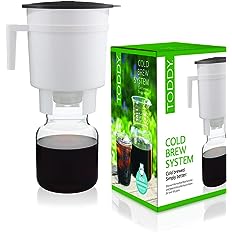
For those who prefer a classic approach to cold brew, the Toddy Cold Brew System remains a timeless favorite. This simple yet effective brewing system consists of a brewing container, reusable filters, and a glass decanter. Its patented cold brew process extracts the rich flavor of coffee beans while minimizing acidity, resulting in a smooth, full-bodied brew. With the ability to produce large batches of concentrate that can be stored for up to two weeks, the Toddy Cold Brew System offers convenience without compromising on quality.

3. Hario Mizudashi Cold Brew Coffee Pot

Hario, renowned for its expertise in coffee brewing equipment, delivers excellence with the Mizudashi Cold Brew Coffee Pot. Crafted from durable materials such as heatproof glass and a removable fine mesh filter, this Japanese-designed brewer embodies simplicity and elegance. The Mizudashi’s cone-shaped filter ensures optimal extraction, yielding a clean and vibrant cold brew. Its slim profile and various size options make it suitable for households of all sizes, while its affordability appeals to budget-conscious consumers.

4. County Line Kitchen Cold Brew Coffee Maker

The County Line Kitchen Cold Brew Coffee Maker stands out for its emphasis on craftsmanship and precision. Constructed with a mason jar motif its tough and won’t leach chemicals that other materials may. It also features a top-notch filtration system and a high quality mesh filter that prevents coffee grounds in y our drink. AND its the highest rated cold brew coffee maker on Amazon with over 85% ‘5-star’ ratings from over 24,000 user reviews!

5. Takeya Patented Deluxe Cold Brew Iced Coffee Maker

Takeya’s Patented Deluxe Cold Brew Iced Coffee Maker combines style and functionality to deliver a superior cold brew experience. Featuring a durable BPA-free pitcher with an airtight lid, this brewer ensures freshness and flavor preservation. The fine-mesh coffee filter facilitates thorough extraction, while the non-slip handle provides added convenience during pouring. With its compact size and affordability, the Takeya Cold Brew Maker is an excellent choice for those seeking a reliable and budget-friendly option. And it’s the most purchased cold brew coffee maker on amazon with over 65,000 reviews – over 75% are 5-stars!

The Champion

All 5 of these are good and I nearly went with the County Line Cold Brew coffee maker because that is the most popular and highest rated on Amazon, however my personal preference is the OXO Brew Cold Brew Coffee Maker. That brand has never let me down and they last a long time. So for me the Oxo emerges as the champion among cold brew coffee makers. Its winning combination of innovation, performance, and convenience sets it apart from the competition. The OXO Brew’s thoughtful design features such as the rainmaker for even saturation and the switch for easy filtration demonstrate a commitment to enhancing the brewing experience. Moreover, its compact size and generous capacity make it suitable for a wide range of users, from casual drinkers to coffee enthusiasts. Whether you’re a seasoned barista or a novice brewer, the OXO Brew Cold Brew Coffee Maker empowers you to craft exceptional cold brew with ease.

What’s YOUR choice in Cold Brew Coffee Makers?

The world of cold brew coffee makers offers a diverse array of options to suit every preference and budget. Whether you prioritize simplicity, durability, or innovation, there’s a cold brew coffee maker out there waiting to elevate your brewing game. Let me know which one you like best.

What to read next?

10 Best BBQ Cookbooks – Master the Art of Grilling and Smoking

Who doesn’t love a good barbecue? With with its sizzling meats, smoky flavors, and rich sauces, BBQ is more than just a cooking method; it’s a culinary tradition deeply ingrained in cultures worldwide. Whether you’re a novice griller or a seasoned pitmaster, the journey to mastering the art of BBQ is an ongoing adventure and it doesn’t hurt to have a little helpful advice from the masters. That’s where a good cookbook comes in handy. We’ve curated a list of the top 10 BBQ cookbooks on our list. From classic techniques to innovative recipes, these books offer a wealth of knowledge to elevate your BBQ game.

“Franklin Barbecue: A Meat-Smoking Manifesto”

By Aaron Franklin and Jordan Mackay:

Arguably one of the most revered figures in the BBQ world, Aaron Franklin shares his expertise in this definitive guide: Franklin BBQ: A Meat Smoking Manifesto.

If there is one book on the list that’s a MUST OWN, it’s this one.

From choosing the right wood to achieving the perfect smoke ring, Franklin leaves no stone unturned in his pursuit of barbecue perfection. With mouthwatering recipes and invaluable tips, this book is a must-have for any serious BBQ enthusiast.

BONUS – The Franklin BBQ Collection features TWO great books for one low price – the Franklin BBQ and the Franklin Steak in one boxed set. Check it out here.


“Meathead: The Science of Great Barbecue and Grilling”

by Meathead Goldwyn and Greg Blonder Ph.D.

Delving into the science behind BBQ, Meathead Goldwyn explores the nuances of heat, smoke, and flavor in this comprehensive tome. Backed by scientific research and practical experimentation, “Meathead” offers insights that will transform your approach to grilling and smoking. Whether you’re a backyard amateur or a seasoned pro, “Meathead” is sure to enhance your BBQ repertoire.

I learned a great deal of the “WHY” by reading this book.


“Project Smoke”

by Steven Raichlen:

Project Smoke” is another great read – and a must for those who want to up their game on smoking techniques. Renowned BBQ expert Steven Raichlen takes readers on a journey through the world of smoke in this captivating cookbook. From classic barbecue techniques to global smoking traditions, Raichlen presents a diverse array of recipes guaranteed to tantalize your taste buds. With detailed instructions and stunning photography, “Project Smoke” is a feast for the senses.


“Pitmaster: Recipes, Techniques, and Barbecue Wisdom”

by Andy Husbands, Chris Hart, and Mike Mills:

Drawing on decades of combined experience, Andy Husbands, Chris Hart, and Mike Mills share their collective wisdom in this indispensable guide to BBQ mastery.

Pitmaster: Recipes, Techniques, and Barbecue Wisdom” covers everything from fire management to flavor profiling, this book equips readers with the knowledge and skills needed to become true pitmasters. With mouthwatering recipes and expert advice, “Pitmaster” is a must-read for BBQ enthusiasts of all levels.


“Smoke It Like a Pro on the Big Green Egg & Other Ceramic Cookers”

by Eric Mitchell:

This is the book that helped me master my Kamado Joe!

For owners of ceramic cookers like the Big Green Egg, Kamado Joe, and similar, Eric Mitchell’s book is a treasure trove of tips and techniques. From low-and-slow smoking to high-heat grilling, Mitchell provides comprehensive guidance on getting the most out of your ceramic cooker. With recipes from a championship barbecue team and insider secrets from the competition circuit, this book is essential for anyone looking to up their BBQ game. Do yourself a favor and pick up a copy of “Smoke it Like a Pro” today.


“BBQ USA: 425 Fiery Recipes from All Across America”

by Steven Raichlen:

Raichlen scores another title on our list! In “BBQ USA,” Steven Raichlen embarks on a cross-country journey to explore the diverse landscape of American barbecue. From Carolina pulled pork to Texas brisket, Raichlen celebrates the rich tapestry of BBQ traditions that span the nation. With over 400 recipes inspired by regional specialties, this book is a celebration of America’s love affair with barbecue and you’re sure to find numerous great recipes you can use here!


“Smokin’ with Myron Mixon: Recipes Made Simple, from the Winningest Man in Barbecue”

by Myron Mixon:

As a four-time World Barbecue Champion, Myron Mixon knows a thing or two about winning BBQ recipes and his is a name you would do well to remember.

In “Smokin’ with Myron“, Mixon shares his secrets for success, offering straightforward recipes that anyone can master. Whether you’re cooking for a backyard cookout or a barbecue competition, Mixon’s tried-and-true techniques are sure to impress.


“BBQ 25: The World’s Most Flavorful Recipes – Now Made Foolproof”

If you’re totally new and want some fool proof tips then this is your book.

In “BBQ 25,” acclaimed chef Adam Perry Lang distills the essence of barbecue into 25 essential recipes. From juicy burgers to tender ribs, Lang’s approachable recipes are designed to deliver maximum flavor with minimal fuss. With step-by-step instructions and helpful tips, this book is perfect for beginners looking to dive into the world of BBQ.


by Adam Perry Lang:

“Bib Bob Gibson’s BBQ Book: Recipes and Secrets from the Legend”

by Big Bob Gibson

I can’t tell you how many times I have returned back to this book – it’s one of my BBQ Bibles!

Big Bob Gibson’s BBQ Book” is a culinary treasure trove that captures the essence of Southern barbecue culture. Authored by Chris Lilly, the executive chef of Big Bob Gibson Bar-B-Q in Decatur, Alabama, this book delves into the rich history and time-honored techniques of one of America’s most beloved barbecue joints. Featuring a diverse array of recipes, from smoky ribs to tangy sauces, “Big Bob Gibson’s BBQ Book” offers readers an insider’s look at the secrets behind the restaurant’s legendary flavors. With step-by-step instructions and expert tips, this book is a must-have for BBQ enthusiasts looking to recreate the authentic taste of Southern barbecue in their own backyard. Don’t miss out on the “Alabama White Sauce” recipe!


“Fire Food: The Ultimate BBQ Cookbook”

by DJ BBQ:

Rounding out our list is “Fire Food” by DJ BBQ, a cookbook that celebrates the primal joy of cooking over an open flame. With bold flavors and inventive recipes, DJ BBQ inspires readers to embrace the spirit of adventure in their outdoor cooking endeavors.

From wood-fired pizzas to flame-grilled desserts, this book is a testament to the limitless possibilities of BBQ.


Which book will be YOUR next read?

Do yourself a favor – for less than the cost of a good brisket you can pick up one or two of these books and SIGNIFICANTLY up your BBQ game.

These top 10 BBQ cookbooks offer a wealth of knowledge and inspiration. So fire up your grill, gather your ingredients, and get ready to embark on a delicious journey into the world of BBQ mastery.

Traeger XL Series Review – The ultimate pellet grills?

Regular readers of my blog know of my love for Traeger – I’m a long time fan of these pellet grills and love my Ironwood-series model as the perfect balance of features vs value. As the outdoor cooking world continues to evolve Traeger has long been a name synonymous with innovation, reliability, and flavor. With the introduction of their XL series, Traeger aims to redefine the boundaries of what’s possible with pellet grills. In this comprehensive review, we delve deep into the features, performance, and overall cooking experience offered by each model within the Traeger XL series. My hope is that this article will help you decide if the XL series is right for you – whether it be your first Traeger grill or a new model to add to your grilling stable.

Design and Build Quality:

The Traeger XL series boasts a robust construction designed to withstand the rigors of outdoor cooking. Crafted from high-grade stainless steel, these grills exude durability and sturdiness. The XL’s spacious cooking chamber provides ample room for large cuts of meat, whole poultry, and multiple racks of ribs, making it an ideal choice for hosting gatherings and events. Its sleek and modern design adds aesthetic appeal to any outdoor setting, while the powder-coated finish ensures resistance against rust and corrosion, enhancing longevity.

Cooking Performance:

At the heart of the Traeger XL series lies its state-of-the-art pellet grilling technology, which promises precision temperature control and consistent heat distribution. Equipped with advanced PID controllers, these grills offer unparalleled accuracy, allowing users to maintain their desired cooking temperatures with minimal fluctuations.


Traeger XL Models:

Traeger Ironwood XL:

The Traeger Ironwood XL model offers a cooking capacity of 885 square inches, providing ample space for large-scale cooking projects. With a temperature range of 165°F to 500°F, this grill is versatile enough to handle a wide range of cooking techniques, from low-and-slow smoking to high-temperature searing. The inclusion of Traeger’s signature WiFIRE technology allows for remote control and monitoring via a smartphone app, offering unmatched convenience and flexibility.

My personal preference is the Ironwood XL – it’s got more than enough cooking surface for my family’s needs and strikes a good balance between cost and value in my opinion.

Traeger Timberline XL 1300:

For those who demand even greater cooking capacity and have a larger budget, the Traeger XL 1300 model delivers with a whopping 1300 square inches of cooking space. Whether you’re catering for a crowd or preparing multiple dishes simultaneously, this grill has you covered. With the same advanced temperature control and WiFIRE technology found in the XL 885, users can expect consistent results with minimal effort.

This model is harder to find online because they don’t make as many and it’s often sold out, so you’re best bet is probably Home Depot, Ace Hardware, and the like if you can’t find it on Amazon.


Innovative Features:

One of the standout features of the Traeger XL series is its WiFIRE technology, which enables remote control and monitoring of the grill via a smartphone app. This game-changing innovation empowers users to adjust temperature settings, set timers, and receive real-time alerts from anywhere, providing unmatched convenience and peace of mind. Additionally, the TurboTemp feature accelerates the grill’s preheating process, reducing wait times and getting you cooking faster. Furthermore, the XL models come equipped with dual meat probes, allowing for precise monitoring of internal temperatures without the need for constant supervision.
Ease of Use and Maintenance:

Traeger has always prioritized user-friendliness, and the XL series is no exception. With simple controls and intuitive interfaces, these grills are suitable for both novice and experienced outdoor cooks alike. The inclusion of a pellet hopper clean-out feature streamlines maintenance, making it effortless to switch between different types of wood pellets or perform routine cleaning tasks. Moreover, the porcelain-coated grill grates are non-stick and easy to clean, ensuring hassle-free maintenance and prolonged durability.

Cooking Versatility:

From low-and-slow smoking to high-temperature grilling, the Traeger XL series excels in versatility, offering endless possibilities for culinary experimentation. With precise temperature control and customizable settings, users can unleash their creativity and explore a myriad of cooking techniques and recipes. Whether you’re craving juicy smoked ribs, perfectly seared steaks, wood-fired pizzas, or even baked desserts, the XL grills can handle it all with finesse, elevating your outdoor cooking game to new heights.

New Pop-and-Lock Accessory Rail:

Customize your cookspace with an array of attachments, from tool hooks to storage bins, on grills equipped with P.A.L. Pop-And-Lock accessory rails.

It’s a super convenient way to get quick access to all your gear.

Available ModFire Cooking Grate Options:

ModiFIRE cooking surfaces sit securely on your grill grates to immediately expand your cooking horizons.

Change out your OEM grates for cast iron, searing, and more.

Customer Satisfaction and Reviews:

I’m a personal owner of a Traeger grill and have used the brand for years. Although I have a kamado, high end gas grill, pizza oven, and griddle too, the Traeger is easily the #1 grill I use most often – it’s just so darn good.

But don’t just take my word for it feedback from customers who have experienced the Traeger XL series has been overwhelmingly positive. Users praise the grills for their exceptional build quality, reliable performance, and ability to deliver mouthwatering results consistently. The convenience of WiFIRE technology has been particularly well-received, with many users citing it as a game-changer in their outdoor cooking experience. Additionally, Traeger’s commitment to customer support and satisfaction further enhances the overall ownership experience, instilling confidence in the brand’s products.

Is the Traeger XL in your future?

The Traeger XL series stands as a testament to Traeger’s dedication to innovation, quality, and culinary excellence. With its robust construction, advanced features, and unparalleled cooking performance, these grills redefine the standard for outdoor cooking equipment. Whether you opt for the Ironwood XL or the Timberline XL 1300, you can expect a versatile and enjoyable cooking experience that will elevate your outdoor gatherings and delight your taste buds. Invest in a Traeger XL grill today and embark on a journey of culinary discovery like never before.

How to Speed Up a Slow Computer

Is your computer crawling along at a snail’s pace, leaving you frustrated and unproductive? Don’t despair; there are several steps you can take to breathe new life into your sluggish machine. Whether you’re dealing with a desktop, laptop, or even a tablet, this guide will walk you through a variety of methods to speed up your system and get it running smoothly again. Give one or more of these a try and they may just solve your problem!

12 Tips for Speeding Up Your Computer

  1. Identify the Culprit:
    • Before diving into fixes, it’s essential to identify what’s causing your computer to slow down. Common culprits include too many startup programs, malware infections, outdated hardware, and a cluttered hard drive.
  2. Perform a Virus Scan:
    • Malware and viruses can wreak havoc on your computer’s performance. Run a full system scan using reliable antivirus software to detect and remove any malicious programs that may be lurking on your system.
  3. Clean Up Your Hard Drive:
    • Over time, your hard drive can become cluttered with unnecessary files, such as temporary files, old downloads, and cached data. Use disk cleanup tools to remove these files and free up disk space. Additionally, consider uninstalling unused programs to further declutter your system.
  4. Defragment Your Hard Drive:
    • Fragmentation occurs when files are stored in non-contiguous clusters on your hard drive, leading to slower read and write times. Running a disk defragmentation tool can reorganize these files and improve overall system performance.
  5. Upgrade Your Hardware:
    • If your computer is still running slowly after performing the above steps, it may be time to consider hardware upgrades. Adding more RAM or upgrading to a solid-state drive (SSD) can significantly improve performance and responsiveness.
  6. Manage Startup Programs:
    • Many programs automatically launch when you start your computer, consuming valuable system resources. Disable unnecessary startup programs to speed up boot times and free up memory for other tasks.
  7. Update Your Operating System and Drivers:
    • Outdated software and drivers can cause compatibility issues and hinder performance. Make sure your operating system is up to date with the latest patches and updates, and regularly check for driver updates from your hardware manufacturer’s website.
  8. Optimize Your Web Browser:
    • If you spend a lot of time browsing the web, your browser’s performance can have a significant impact on your overall computing experience. Clear your browser cache, disable or remove unnecessary extensions, and consider using a lightweight browser for better performance.
  9. Adjust Visual Effects:
    • Fancy visual effects and animations may look nice, but they can also consume valuable system resources. Consider disabling or reducing visual effects in your operating system settings to improve performance.
  10. Upgrade Your Internet Connection:
    • A slow internet connection can make your computer feel sluggish, especially when streaming videos or downloading large files. Consider upgrading to a faster internet plan or using a wired connection for better speed and stability.
  11. Keep Your System Cool:
    • Overheating can cause your computer to slow down or even crash. Make sure your computer is adequately ventilated and free of dust and debris. Consider investing in additional cooling solutions, such as fans or cooling pads, if necessary.
  12. Consider a Fresh Install:
    • If all else fails and your computer is still running slowly, you may want to consider performing a fresh install of your operating system. This will erase all data on your hard drive, so be sure to back up any important files before proceeding.

Look, we all know a slow computer can be a frustrating problem, but it’s not insurmountable. By following the steps outlined in this guide, you can identify the underlying causes of your computer’s sluggishness and take appropriate action to fix them. Whether it’s cleaning up your hard drive, upgrading your hardware, or optimizing your software settings, there are plenty of ways to speed up your system and get it running like new again.

What to read next…

How to Encrypt your Emails for Enhanced Privacy and Security – GMAIL, Outlook, Apple Mail, and more

In an age where digital privacy is increasingly important, encrypting your emails is one of the most effective ways to safeguard sensitive information from prying eyes. Whether you’re communicating with colleagues, clients, or friends, email encryption ensures that only intended recipients can access the contents of your messages. In this How To Guide, we’ll explore the importance of email encryption, the different encryption methods available for Gmail, Outlook, Apple, and more, as well step-by-step instructions on how to encrypt your emails for enhanced privacy and security.

Understanding Email Encryption:

Email encryption is a process that converts the content of an email message into a scrambled, unreadable format (cipher text) to protect it from unauthorized access during transmission. Only the intended recipient with the corresponding decryption key can decipher and read the encrypted message.

Importance of Email Encryption:

  • Protects Confidential Information: Encrypting emails prevents unauthorized individuals, including hackers and cybercriminals, from intercepting and accessing sensitive information such as financial data, personal details, and proprietary business information.
  • Ensures Privacy: By encrypting your emails, you maintain the privacy of your communications, reducing the risk of unauthorized surveillance or data breaches.
  • Regulatory Compliance: In certain industries, such as healthcare and finance, email encryption is mandated by regulations such as HIPAA (Health Insurance Portability and Accountability Act) and GDPR (General Data Protection Regulation) to ensure the protection of sensitive data.

Types of Email Encryption:

  • Symmetric Encryption: Uses a single shared key to both encrypt and decrypt messages. While efficient, symmetric encryption requires securely sharing the encryption key with the recipient.
  • Asymmetric Encryption (Public-Key Encryption): Employs a pair of cryptographic keys – a public key and a private key. The public key is used to encrypt messages, while the private key is used to decrypt them. This method eliminates the need for sharing encryption keys, enhancing security.
  • End-to-End Encryption: Ensures that only the sender and the intended recipient can read the contents of an email by encrypting messages on the sender’s device and decrypting them on the recipient’s device. End-to-end encryption provides the highest level of security, as even the email service provider cannot access the encrypted messages.

Now that we understand the importance and different methods of email encryption, let’s explore how to encrypt your emails using popular email clients and encryption tools.

Step-by-Step Guide to Email Encryption:

Using Built-In Encryption Features:

Gmail:

  • Compose a new email message in Gmail.
  • Click on the “More options” (three dots) icon at the bottom of the compose window.
  • Select “Confidential mode” from the menu.
  • Set expiration dates and permissions (such as preventing forwarding or downloading) for added security.
  • – Optionally, set a passcode to further restrict access to the email.
  • – Click “Save” to apply the confidential mode settings and send your encrypted email.

Outlook:

  • Compose a new email message in Outlook.
  • Click on the “Options” tab in the email compose window.
  • Select “Encrypt” from the “Permissions” group.
  • Choose whether to encrypt the message and attachments or just the message.
  • Send the email as usual, and it will be encrypted during transmission.

Apple Mail (macOS):

  • Compose a new email message in Apple Mail.
  • Click on the “Security” icon (lock with a curved arrow) in the email compose window.
  • Choose “Encrypt Message” from the dropdown menu.
  • If the recipient’s public key is available, Apple Mail will automatically encrypt the message.

Using Third-Party Encryption Tools:

  • PGP (Pretty Good Privacy):
    • Install a PGP-compatible email client or plugin, such as GPG Suite for macOS or Gpg4win for Windows.
    • Generate a public-private key pair using the PGP software.
    • Share your public key with your contacts and obtain their public keys.
    • Compose a new email message and select the option to encrypt the message using PGP.
    • Enter the recipient’s public key to encrypt the message before sending it.
  • S/MIME (Secure/Multipurpose Internet Mail Extensions):
    • Obtain an S/MIME certificate from a trusted certificate authority (CA) or your organization’s IT department.
    • Import the S/MIME certificate into your email client.
    • Compose a new email message and enable S/MIME encryption.
    • Select the recipient’s certificate to encrypt the message using S/MIME.

Using Encrypted Email Services:

  • Consider using encrypted email services that prioritize privacy and security, such as ProtonMail, Tutanota, or Hushmail.
  • Sign up for an account with the encrypted email service provider of your choice.
  • Compose and send emails within the encrypted email platform, where messages are automatically encrypted end-to-end.

Best Practices for Email Encryption:

  • Use Strong Encryption Algorithms:
    • Opt for encryption methods that utilize robust cryptographic algorithms, such as AES (Advanced Encryption Standard) for symmetric encryption and RSA or ECC for asymmetric encryption.
  • Protect Your Private Keys:
    • Safeguard your private encryption keys by storing them securely and avoiding sharing them with unauthorized individuals.
  • Regularly Update Encryption Software:
    • Keep your email client, encryption plugins, and encryption tools up-to-date to ensure they incorporate the latest security patches and enhancements.
  • Verify Recipient’s Encryption Support:
    • Before sending encrypted emails, verify that your recipients support email encryption and have the necessary encryption keys or certificates.
  • Educate Users:
    • Educate users about the importance of email encryption and how to securely exchange encryption keys or certificates. Encourage them to adopt encryption practices to enhance the security of their communications.

Time for Action

Encrypting your emails is a fundamental step towards protecting your privacy and ensuring the confidentiality of your sensitive information. By leveraging encryption technologies and following best practices, you can mitigate the risks associated with unauthorized access, interception, and surveillance of your email communications. Whether you’re using built-in encryption features in popular email clients, third-party encryption tools like PGP and S/MIME, or encrypted email services, prioritizing email encryption empowers you to communicate securely in an increasingly interconnected digital world.

Remember, email encryption is just one aspect of maintaining robust cybersecurity hygiene. Stay informed about emerging threats, regularly update your security measures, and remain vigilant against potential vulnerabilities to safeguard your digital assets effectively.

By implementing email encryption as part of your cybersecurity strategy, you contribute to a safer and more secure online environment for yourself and others.


What to read next

How to use ChatGPT – Tips, Best Practices, Examples, and Use Case Scenarios

ChatGPT, developed by OpenAI, is a cutting-edge language model that can generate human-like text based on the input it receives. It has numerous applications, ranging from casual conversation to professional content creation. This article will provide a comprehensive guide on how to use ChatGPT effectively, covering best practices and various use case scenarios.

Understanding ChatGPT

ChatGPT is built on the GPT-4 architecture, which stands for “Generative Pre-trained Transformer 4”. It has been trained on a diverse range of internet text, enabling it to generate coherent and contextually relevant responses. However, it doesn’t have consciousness or understanding but predicts and generates text based on patterns it has learned.

Getting Started with ChatGPT

To use ChatGPT, you typically interact with it through an interface provided by OpenAI or integrated into third-party applications. Here’s a step-by-step guide to get started:

  1. Access the Platform: Sign up on the OpenAI website or a platform that integrates ChatGPT.
  2. Input Your Query: Type your question or prompt into the text box.
  3. Receive the Response: ChatGPT processes your input and generates a response.
  4. Refine Your Query: If the response is not satisfactory, refine your query or provide more context.

Best Practices for Using ChatGPT

1. Be Clear and Specific

The clearer and more specific your input, the better the response you will get. Avoid ambiguous language and provide as much detail as necessary.

Example:

  • Less Clear: “Tell me about history.”
  • More Clear: “Give me a brief overview of the causes of World War I.”

2. Use Contextual Information

Providing context helps ChatGPT understand the background and generate more relevant responses.

Example:

  • Without Context: “What’s the weather like?”
  • With Context: “What’s the weather like in New York City today?”

3. Break Down Complex Queries

If you have a complex question, break it down into smaller, more manageable parts.

Example:

  • Complex Query: “Explain quantum mechanics.”
  • Broken Down: “What is a quantum particle? How do quantum particles interact?”

4. Experiment with Rephrasings

If ChatGPT doesn’t provide a satisfactory answer, try rephrasing your question or providing additional information.

Example:

  • Initial Query: “Why is the sky blue?”
  • Rephrased: “Can you explain why the sky appears blue during the day?”

5. Use System Messages for Tone and Style

You can guide ChatGPT on the tone and style of the response by framing your request accordingly.

Example:

  • Formal: “Please provide a detailed analysis of economic factors contributing to inflation.”
  • Informal: “Can you break down what’s causing prices to go up lately?”

Use Case Scenarios

ChatGPT can be used in a variety of scenarios, from casual to professional settings. Here are some common use cases:

1. Personal Assistant

Tasks: Scheduling, reminders, general information searches, and more.

Example:

  • “Set a reminder for my meeting at 3 PM tomorrow.”
  • “What’s the best route to get from my house to the office?”

2. Content Creation

Tasks: Writing articles, generating ideas, drafting emails, and creating social media posts.

Example:

  • “Generate an outline for an article about renewable energy sources.”
  • “Write a friendly email to thank a colleague for their help on a project.”

3. Education and Tutoring

Tasks: Answering questions, explaining concepts, and providing study tips.

Example:

  • “Explain the Pythagorean theorem.”
  • “What are the key points of Shakespeare’s Hamlet?”

4. Customer Support

Tasks: Responding to customer inquiries, providing product information, and troubleshooting issues.

Example:

  • “How do I reset my password?”
  • “What are the features of the latest software update?”

5. Brainstorming and Ideation

Tasks: Generating ideas for projects, problem-solving, and creative thinking.

Example:

  • “What are some unique marketing strategies for a new product launch?”
  • “Give me some ideas for a science fiction short story.”

6. Professional Development

Tasks: Resume writing, interview preparation, and career advice.

Example:

  • “How should I format my resume for a tech job?”
  • “What are some common interview questions for a project manager role?”

Advanced Tips for Using ChatGPT

1. Leveraging System Prompts

System prompts are special instructions that guide the model on how to behave or what style to adopt. Use them to tailor responses to specific needs.

Example:

  • “You are a helpful assistant. Provide a step-by-step guide to planting a garden.”

2. Iterative Refinement

Sometimes, the first response may not be perfect. Use an iterative process to refine the output.

Example:

  • Initial Response: “Plant seeds in soil.”
  • Refined Query: “Can you provide a detailed step-by-step guide on planting seeds in soil?”

3. Utilizing External Data

While ChatGPT doesn’t have real-time data access, you can provide it with specific data to generate more accurate responses.

Example:

  • “Based on the following data, analyze the market trends: [Insert data].”

4. Multi-turn Conversations

Engage in multi-turn conversations to build on previous responses, making interactions more natural and contextually rich.

Example:

  • User: “Tell me about the Great Wall of China.”
  • ChatGPT: “The Great Wall of China is a series of fortifications made of stone, brick, tamped earth, and other materials.”
  • User: “How long is it?”
  • ChatGPT: “The Great Wall is approximately 13,171 miles (21,196 kilometers) long.”

Ethical Considerations

When using ChatGPT, it’s important to be aware of ethical considerations:

  1. Privacy: Avoid sharing personal, sensitive, or confidential information.
  2. Bias: Be mindful that AI can reflect and propagate biases present in the training data.
  3. Misinformation: Verify critical information from trusted sources, as AI can sometimes generate plausible-sounding but incorrect information. In other words just because they say “Trust the Science” doesn’t necessarily mean it’s true!

Give ChatGPT a try

I’ve found ChatGPT to be a versatile tool that can significantly enhance productivity and creativity across various domains. By following best practices and exploring different use case scenarios, users can maximize the benefits of this advanced AI model. Whether for personal use, educational purposes, or professional tasks, understanding how to effectively interact with ChatGPT will unlock its full potential, providing valuable assistance and insights.


What to read next?

The Best Saltwater Inshore Fishing Reels

If you’re a saltwater inshore fishing fan like me, you know one of the most important pieces of equipment is your fishing REEL. I fish the flats and barrier islands of the Gulf Coast of Florida and my reel can mean the difference between netting that redfish or losing him. To help you navigate the many options for saltwater inshore fishing reels, we’ve compiled a list of our favorite top five saltwater inshore fishing reels. This article is a combo with my article on the best saltwater inshore fishing RODS. Together, if you cast with any of these, and you’re sure to hook a big one!

What is “Inshore” Fishing?

Before we get started I’ll clarify that I’m talking about “inshore fishing” as the type of fishing you might do from a boat, kayak, or shore in which the water is 1 to 6 feet deep and you’re generally fishing about some type of structure (mangroves, grass flats, oyster beds, docks, sea wall, etc). So it’s not ‘surf’ fishing from the beach or offshore fishing – both of which would use different gear. For inshore fishing, I prefer a 3000-4000 reel, a 7 to 7’6″ rod, light to medium action and pretty light tackle – that may or may not include a bobber/float, small weight, and small-medium hooks. We’re generally targeting things like Redfish, Sea Trout, Snapper, Snook, Mackeral, and the like. These fish are in the 6 to 40 inch range so we’re not talking monsters here, but they are sure a lot of fun to catch!

Now that we’re on the same page, let’s talk about some great REELS for this type of fishing…


Shimano Stradic FL

The Shimano Stradic FL is a favorite among anglers for its exceptional performance and durability. It’s a top of the line choice. I’m choosing the 3000 model for Florida inshore fishing.

Featuring a Hagane body, this Shimano reel is built to withstand the corrosive effects of saltwater. The X-Protect water-resistant technology ensures that internal components remain protected, enhancing the reel’s longevity.

    Equipped with Shimano’s renowned Hagane gearing, the Stradic FL delivers smooth and powerful retrieves, making it ideal for battling saltwater species like redfish, snook, and speckled trout. Its X-Ship technology provides increased gear efficiency and power transmission, ensuring maximum performance with every cast.

    Additionally, the Stradic FL boasts a lightweight design, making it comfortable to use for extended periods. With its combination of durability, smoothness, and performance, the Shimano Stradic FL earns its place as one of the best saltwater inshore fishing reels on the market.


    Penn Battle III Spinning Reel

    Penn is a trusted name in the fishing industry, known for producing high-quality reels that can handle tough saltwater conditions. The Penn Battle III Spinning Reel is no exception, offering anglers a rugged and reliable option for inshore fishing.

    I’m choosing the Penn Battle III 3000 model.

    Constructed with a full metal body, side plate, and rotor, the Battle III is built to withstand the corrosive effects of saltwater and the rough handling that comes with fishing inshore environments. Its HT-100 carbon fiber drag system provides smooth and consistent drag pressure, allowing anglers to tackle hard-fighting fish with confidence.

      The reel’s 5 sealed stainless steel ball bearings ensure smooth operation, even after repeated exposure to saltwater. With its durable construction and reliable performance, the Penn Battle III Spinning Reel is a top choice for anglers targeting saltwater species inshore.


      Daiwa BG Spinning Reel

      The Daiwa BG Spinning Reel is renowned for its rugged construction and powerful performance, making it an excellent choice for saltwater inshore fishing. Built with a machined aluminum body and side cover, this reel is designed to withstand the harsh conditions of coastal environments.

      There are a number of reels in this lineup. I’d go with the 3000 for most inshore setups.

      One of the standout features of the Daiwa BG is its Digigear system, which provides increased gear durability and smoothness. The reel’s waterproof drag system delivers consistent drag pressure, allowing anglers to battle large saltwater species with ease.

        Additionally, the Daiwa BG features an oversized Digigear system that provides increased gear efficiency and power transmission, ensuring smooth retrieves even when targeting hard-fighting fish. With its durable construction and impressive performance, the Daiwa BG Spinning Reel is a top contender for saltwater inshore fishing.


        Abu Garcia Revo SX Inshore Spinning Reel

        The Abu Garcia Revo SX Inshore Spinning Reel is specifically designed to meet the demands of saltwater inshore fishing. Featuring a corrosion-resistant X2-Cräftic alloy frame and C6 carbon side plates, this reel is built to withstand the corrosive effects of saltwater while maintaining its lightweight and ergonomic design.

        Equipped with Abu Garcia’s renowned Carbon Matrix drag system, the Revo SX Inshore delivers smooth and consistent drag pressure, allowing anglers to control hard-fighting fish with ease. The reel’s AMGearing system provides increased gear efficiency and durability, ensuring reliable performance in any saltwater environment.

          I’m picking the Abu 30 here. With its durable construction, smooth drag, and powerful gearing, the Abu Garcia Revo Sx Inshore Spinning Reel is an excellent choice for anglers targeting saltwater species inshore.


          Okuma Azores Blue Saltwater Spinning Reel

            The Okuma Azores Blue Saltwater Spinning Reel is designed to handle the toughest saltwater conditions while delivering exceptional performance. Constructed with a die-cast aluminum body, side plate, and rotor, this reel is built to withstand the corrosive effects of saltwater and the rough conditions of inshore fishing.

            For the Okuma I’d go with the 4000, 10lb, 5:8;1 Model…

            Featuring Okuma’s Dual Force Drag system, the Azores Blue delivers smooth and consistent drag pressure, allowing anglers to tackle hard-fighting saltwater species with confidence. The reel’s 6HPB + 1RB corrosion-resistant stainless steel ball bearings ensure smooth operation, even after repeated exposure to saltwater.

            Additionally, the Okuma Azores Blue features a precision machine-cut brass pinion gear and CRC (Corrosion Resistant Coating) process, further enhancing its durability and performance in saltwater environments. With its rugged construction and reliable performance, the Okuma Azores Blue Saltwater Spinning Reel is a top contender for inshore fishing.


            KastKing Kapstan Elite Saltwater Spinning Reel

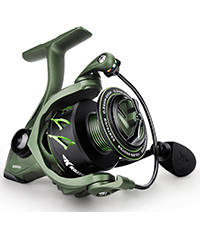
            As with the saltwater reels, one of my favorite brands is KastKing – they make great products for saltwater fishing for an affordable price. I find myself using KastKing reels all the time and they always perform.

            The KastKing Kapstan Elite Saltwater Spinning Reel is designed to withstand the toughest saltwater conditions while delivering unmatched performance. Featuring a fully waterproof IPX6 rating, this reel is protected from water intrusion, ensuring reliable operation in any environment.

            Constructed with a rugged aluminum frame and rotor, the Kapstan Elite is built to withstand the corrosive effects of saltwater and the rough conditions of inshore fishing. Its precision machined brass gears and stainless steel components provide smooth and powerful retrieves, allowing anglers to tackle hard-fighting saltwater species with ease.

            The reel’s carbon fiber drag system delivers smooth and consistent drag pressure, giving anglers the control they need to land their target fish. With its waterproof construction and high-performance features, the KastKing Kapstan Elite Saltwater Spinning Reel is a top choice for serious anglers.

            BONUS: the KastKing Spartacus series is another great option – it’s at a lower price point. My son uses a 3000 Spartacus reel and catches tons of inshore fish with it.


            Conclusion:

            When it comes to saltwater inshore fishing, having the right reel can make all the difference in casting AND reeling in your catch. Each of the reels mentioned above offers unique features and capabilities tailored to meet the demands of coastal environments. Whether you prefer the smoothness of the Shimano Stradic FL or the ruggedness of the Penn Battle III, there’s a reel on this list to suit every angler’s needs. And don’t overlook the KastKing models for value. With any of these top saltwater inshore fishing reels, you’ll be well-equipped to tackle the challenges of coastal fishing and reel in your next trophy catch.

            Remember to also see my article on the best saltwater fishing RODS too…

            How to Upgrade Your Computer’s RAM + Best RAM Upgrade Recommendations for PC and Mac

            Are you looking to upgrade your computer’s RAM? We can help. This article will give you a review of WHY you might want to upgrade your RAM along with 5 specific recommendations on RAM upgrade products for both a PC as well as a MAC.

            I’ve updated my RAM on my computers multiple times – its not as hard as you might think, it doesn’t cost very much, and it DOES make a noticeable difference in computer performance.

            Did you know? One of the most effective ways to give your computer a boost is by upgrading its RAM (Random Access Memory). Why? Because RAM plays a crucial role in multitasking, allowing your computer to run multiple programs simultaneously without slowing down.

            Understanding RAM:

            RAM is a type of computer memory that temporarily stores data and instructions that the CPU (Central Processing Unit) needs to access quickly. Unlike permanent storage devices like hard drives or SSDs (Solid State Drives), RAM is volatile, meaning it loses its data when the computer is turned off.

            The amount of RAM your computer has directly impacts its performance, especially when running multiple applications simultaneously or performing memory-intensive tasks like gaming or video editing. Upgrading your RAM can lead to improved multitasking capabilities, faster program loading times, and smoother overall performance.

            What you need to know BEFORE you try to upgrade RAM

            Is your computer CAPABLE of a RAM upgrade?

            Before purchasing new RAM modules, it’s crucial to ensure compatibility with your computer. Here’s what you need to consider:

            a. Type of RAM:

            There are different types of RAM, including DDR (Double Data Rate), DDR2, DDR3, DDR4, and DDR5. Check your computer’s specifications to determine which type of RAM is compatible.

            b. Capacity:

            Determine the maximum amount of RAM your computer can support. This information can usually be found in your computer’s manual or on the manufacturer’s website.

            c. Speed:

            RAM speed is measured in MHz (megahertz) and indicates how quickly data can be transferred to and from the memory modules. Make sure the speed of the new RAM matches or is compatible with your computer’s existing RAM.

            d. Form Factor:

            RAM modules come in different form factors, such as DIMM (Dual In-line Memory Module) for desktops and SODIMM (Small Outline Dual In-line Memory Module) for laptops. Ensure you select the correct form factor for your computer.

            Purchase the Right RAM:

            Once you’ve determined the compatibility requirements, it’s time to purchase the new RAM modules. Consider factors such as brand reputation, warranty, and customer reviews when selecting the RAM. It’s also essential to purchase the appropriate amount of RAM based on your computing needs.


            How to Install your new RAM

            What follows is only a general guide but NOT a substitute for YOUR computer’s specific manual and recommendations…

            Prepare Your Computer:

            Before installing the new RAM, it’s essential to prepare your computer:

            a. Turn off your computer and unplug all cables.

            b. Remove the case cover to access the internal components. Refer to your computer’s manual for specific instructions on how to do this.

            c. Ground yourself to discharge any static electricity by touching a metal surface or using an anti-static wrist strap. Static electricity can damage sensitive electronic components, including RAM modules.

            Remove Existing RAM (if applicable):

            If your computer’s RAM slots are already occupied, you’ll need to remove the existing RAM modules before installing the new ones:

            a. Press down on the tabs located at either end of the RAM slot to release the existing RAM module. b. Carefully remove the RAM module from the slot by pulling it straight out.

            c. Place the removed RAM modules in an anti-static bag or container to prevent damage.

            Install the New RAM:

            With the old RAM removed (if applicable), it’s time to install the new RAM modules:

            a. Align the notch on the RAM module with the notch in the RAM slot to ensure proper orientation.

            b. Gently insert the RAM module into the slot at a 45-degree angle.

            c. Once the RAM module is fully seated in the slot, press down firmly until the retention clips on both sides click into place.

            d. Repeat the process for additional RAM modules if you’re installing more than one.

            Replace the Case Cover and Power On:

            After installing the new RAM modules, follow these final steps to complete the upgrade:

            a. Replace the case cover and secure it with the screws.

            b. Reconnect all cables and peripherals to your computer.

            c. Power on your computer and wait for it to boot up.

            d. Once your computer has booted up, verify that the new RAM is detected by checking the system properties or using diagnostic tools.

            Test Performance:

            After upgrading your computer’s RAM, it’s a good idea to test its performance to ensure everything is functioning correctly. Open multiple applications or run memory-intensive tasks to gauge the improvement in speed and responsiveness.


            Top 5 RAM Upgrades for Personal Computers/Windows

            Now that we’ve know HOW to upgrade our RAM, let’s take a look at some of the best picks for RAM upgrades for a PC…

            Corsair Vengeance LPX 16GB (2 x 8GB) DDR4 3200MHz

            • Pros: High performance, reliable brand, excellent heat dissipation with aluminum heat spreader.
            • Cons: Slightly more expensive than other brands.
            • Review: Corsair’s Vengeance LPX is known for its stability and performance. The 3200MHz speed is great for gaming and heavy multitasking. It’s also XMP 2.0 ready, making it easy to overclock.
            • Price Check: Corsair’s Vengeance LPX 16GB

            Crucial Ballistix 3200 MHz DDR4 16GB (2 x 8GB)

            • Pros: Competitive pricing, reliable performance, attractive design.
            • Cons: May not fit in smaller cases due to height.
            • Review: Crucial’s Ballistix series offers solid performance at a reasonable price. It’s designed for gamers and performance enthusiasts, providing reliable speed and performance.
            • Price Check: Crucial Ballistic 3200

            G.Skill Ripjaws V Series 16GB (2 x 8GB) DDR4 3200MHz

            • Pros: Good value for money, solid performance, sleek design.
            • Cons: Basic heat spreader.
            • Review: G.Skill Ripjaws V is known for its excellent price-to-performance ratio. It offers reliable speeds and compatibility with most motherboards, making it a great choice for budget-conscious users.
            • Price Check: G Skill Ripjaws V Series 16GB

            Kingston HyperX Fury 16GB (2 x 8GB) 3200MHz DDR4

            • Pros: Auto-overclocking, reputable brand, reliable.
            • Cons: May be slightly more expensive than other similar options.
            • Review: Kingston’s HyperX Fury series is praised for its plug-and-play overclocking and stability. It’s a reliable choice for both gamers and professionals.
            • Price Check: Kingston HyperX Fury 16GB (2 x 8GB) 3200MHz DDR4

            TeamGroup T-Force Vulcan Z 16GB (2 x 8GB) DDR4 3200MHz

            • Pros: Affordable, decent performance, good heat spreader design.
            • Cons: Less known brand.
            • Review: TeamGroup’s T-Force Vulcan Z offers good performance at a lower price point. It’s an excellent choice for those looking to upgrade without breaking the bank.
            • Price Check: TeamGroup T-Force Vulcan Z 16GB (2 x 8GB) DDR4 3200MHz

            Top 5 RAM Upgrades for Macs

            You have a MAC and want to upgrade your RAM? I’ve done that too. Here’s some good RAM upgrades to consider…

            Crucial 16GB Kit (2 x 8GB) DDR4 2666 MHz SODIMM

            • Pros: Highly compatible with Mac, reliable, good performance.
            • Cons: Slightly higher price.
            • Review: Crucial is known for making reliable RAM, and this kit is specifically tailored for Mac systems, ensuring compatibility and performance.
            • Price Check: Crucial 16GB Kit

            OWC 16.0GB (2x 8.0GB) DDR4 2400MHz SODIMM

            • Pros: Excellent Mac compatibility, lifetime warranty, good customer support.
            • Cons: Slightly slower speed compared to 2666 MHz.
            • Review: OWC (Other World Computing) is a well-regarded brand among Mac users, known for high-quality, Mac-specific memory upgrades.
            • Price Check: OWC 16GB Mac

            Timetec Hynix IC 16GB KIT(2x8GB) DDR3 1600MHz

            • Pros: Affordable, good performance for older Macs, reliable.
            • Cons: Not compatible with newer models requiring DDR4.
            • Review: Timetec offers a cost-effective upgrade for older Mac models using DDR3. It’s a great choice for extending the life of an older machine.
            • Price Check: Timetec Hynix IC 16GB Kit

            Samsung 16GB (2 x 8GB) DDR4 2666MHz SODIMM

            • Pros: High performance, reliable brand, compatible with newer Macs.
            • Cons: Premium price.
            • Review: Samsung is a leading name in memory, and this kit offers excellent performance and reliability, making it ideal for demanding applications on newer Mac models.
            • Price Check: Samsung 16GB SODIMM Kit

            A-Tech 16GB Kit (2 x 8GB) DDR4 2666MHz SODIMM

            • Pros: Affordable, good performance, lifetime warranty.
            • Cons: Lesser-known brand.
            • Review: A-Tech provides a budget-friendly option with good performance and a lifetime warranty, making it a solid choice for those looking to upgrade their Mac without spending too much.
            • Price: A-TECH 16 GB Kit

            These RAM upgrades represent a range of performance and price points, catering to different user needs whether for general use, gaming, or professional applications. Each of these options is well-reviewed and reliable, ensuring a significant performance boost for both personal computers and Macs. I hope you find one that works for you.


            Links to Learn more

            1. How to Upgrade Your Computer’s RAM – PCWorld
            2. RAM Upgrade: How To Upgrade Your Computer’s Memory – Crucial
            3. How to Upgrade Laptop RAM and How to Install Laptop Memory – PCWorld
            4. A Beginner’s Guide to Upgrading Your PC – TechRadar

            Putting it all together on RAM Upgrades…


            Upgrading your computer’s RAM is a relatively simple and cost-effective way to enhance its performance and productivity. By following the steps outlined in this guide, you can successfully upgrade your computer’s RAM and enjoy smoother multitasking, faster program loading times, and overall improved performance. Remember to prioritize compatibility and handle the RAM modules with care to avoid any damage during the installation process. With the right approach, you can breathe new life into your computer and optimize its capabilities for years to come.


            What to read next?