

Ah, Santa Maria! Just the name conjures images of sun-drenched vineyards and the smoky aroma of perfectly grilled tri-tip. This regional barbecue tradition from California’s Central Coast is all about simple, high-quality ingredients and letting the flavor of the beef shine through.
Today, we’re diving headfirst into the deliciousness of Santa Maria Style Tri-Tip. I’ll not only give you the classic recipe for the rub and the accompanying salsa but also provide two methods for cooking this fantastic cut: the traditional Santa Maria vibe using a Weber kettle with a Santa Maria attachment, and the ever-convenient Traeger pellet grill. So, whether you’re looking for that direct-heat char or the ease of pellet smoking, we’ve got you covered!
The Star of the Show: Santa Maria Tri-Tip

Tri-tip is a triangular cut of beef from the bottom sirloin. It’s known for its rich, beefy flavor and tender texture when cooked correctly. The Santa Maria style emphasizes this natural flavor with a simple yet impactful seasoning.
The Essential Santa Maria Rub
This rub is the heart and soul of Santa Maria barbecue. It’s minimal but delivers maximum flavor.
Ingredients:
- 2 tablespoons coarse ground black pepper
- 2 tablespoons kosher salt (or 1 tablespoon fine sea salt)
- 1 tablespoon garlic powder
Instructions:
- Combine all ingredients in a small bowl.
- Generously rub the mixture all over the tri-tip, ensuring all surfaces are coated.
- Let the seasoned tri-tip rest at room temperature for at least 30 minutes, or up to a few hours in the refrigerator. Bringing it closer to room temperature before grilling helps it cook more evenly.
The Classic Accompaniment: Pico de Gallo (Santa Maria Style Salsa)
While not strictly part of the grilling process, a fresh and vibrant salsa is a must-have with Santa Maria tri-tip. This simple pico de gallo complements the richness of the beef perfectly.
Ingredients:
- 2 ripe tomatoes, diced
- 1/2 white onion, finely diced
- 1-2 jalapeños, seeded and minced (optional)
- 1/4 cup chopped fresh cilantro
- Juice of 1 lime
- Salt to taste
Instructions:
- Combine all ingredients in a bowl.
- Gently toss to combine.
- Season with salt to taste.
- Let it sit for at least 15 minutes to allow the flavors to meld.
Method 1: The Traditional Santa Maria Vibe on a Weber Kettle
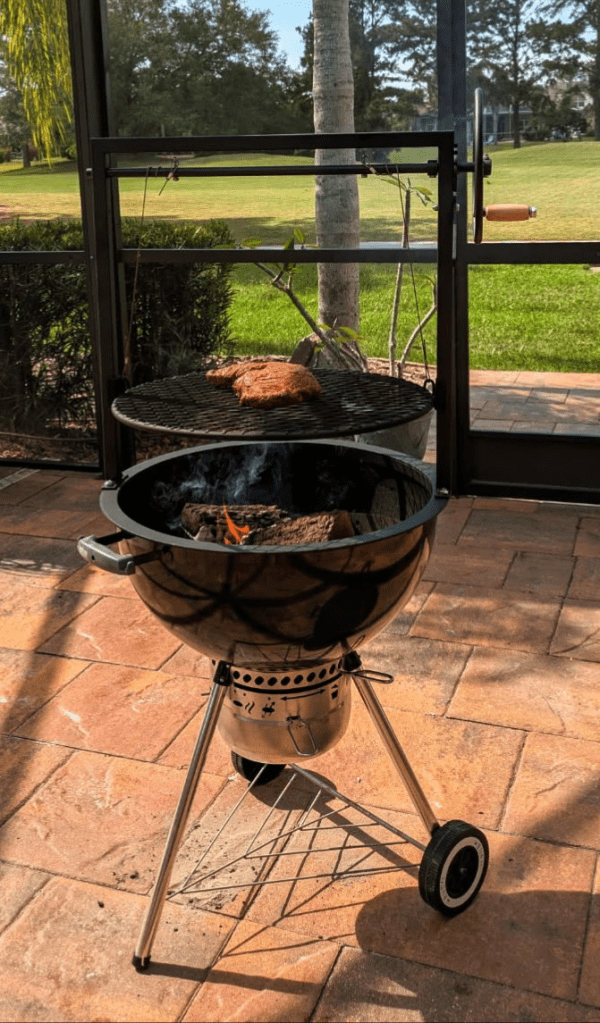
While a dedicated Santa Maria grill would be awesome – that’s also a pretty penny, but fear not, you can still capture that classic flavor with an inexpensive Weber Kettle and a Santa Maria attachment like this one – now you can easily transform your Weber kettle into a Santa Maria-style cooker.
Best of all this method utilizes direct heat, allowing for beautiful searing and that signature smoky essence from the coals.
What you’ll need:
- Weber kettle grill.
- Santa Maria grill attachment
- Charcoal.
- Tongs.
- Meat thermometer.
Instructions:
- Set Up the Attachment and Coals: Install the Santa Maria grill attachment onto your Weber kettle. Light your charcoal in a chimney starter and pour the hot coals onto the charcoal grate, directly beneath where the tri-tip will sit on the elevated grate of the attachment. You’ll want a medium-hot bed of coals.
- Position the Tri-Tip: Place the seasoned tri-tip on the elevated grate of the Santa Maria attachment. This positions the meat closer to the heat source than the standard Weber grate, which is key for Santa Maria-style cooking.
- Sear: Since the meat is closer to the heat, it will sear relatively quickly. Keep a close eye on it and flip after about 3-4 minutes per side to develop a nice crust.
- Cook to Temperature: Continue to cook, flipping occasionally (about every 10 minutes) until the internal temperature reaches 130-135°F for medium-rare (or your desired level of doneness). The Santa Maria elevated grate allows you to control the heat by raising or lowering the cooking surface, or by adjusting the amount of charcoal. This will likely take another 20-40 minutes depending on the thickness of your tri-tip and the heat of your coals.
- Rest: Once cooked, remove the tri-tip from the grill and let it rest on a cutting board for 10-15 minutes.
- Slice and Serve: Slice the tri-tip against the grain and serve with the fresh pico de gallo, grilled garlic bread, and pinquito beans.
Method 2: Traeger Pellet Grill
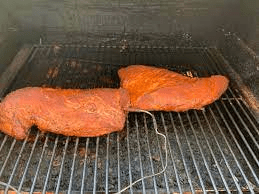
Using a Traeger offers consistent temperature and a wonderful smoky flavor, making it a fantastic alternative.
What you’ll need:
- Traeger pellet grill.
- Oak or a blend of your favorite hardwood pellets.
- Tongs.
- Meat thermometer.
Instructions:
- Preheat the Traeger: Preheat your Traeger to 225°F (107°C).
- Smoke the Tri-Tip: Place the seasoned tri-tip directly on the grill grates. Smoke for about 45-60 minutes, or until the internal temperature reaches around 115-120°F. This allows it to absorb that delicious smoky flavor.
- Increase the Heat: Crank up the Traeger to 450-500°F (232-260°C).
- Sear: Sear both sides of the tri-tip for about 3-4 minutes per side to create a nice crust.
- Cook to Temperature: Continue cooking until the internal temperature reaches 130-135°F for medium-rare (or your desired level of doneness).
- Rest: Remove the tri-tip from the Traeger and let it rest on a cutting board for 10-15 minutes.
- Slice and Serve: Slice against the grain and serve with your homemade pico de gallo and other favorite sides.
Which Method is Right for You?
Both methods yield fantastic results, just with slightly different nuances. The Weber with the Santa Maria attachment provides that direct heat sear and smoky charcoal flavor reminiscent of the traditional Santa Maria experience. The Traeger offers ease of use and consistent smoky flavor. Ultimately, the best method is the one that fits your equipment and preferences!
So, fire up your grill (whichever kind you choose!), grab a tri-tip, and experience the deliciousness of Santa Maria barbecue.
What are your favorite ways to cook tri-tip? Let us know in the comments below!

 That Helpful Dad